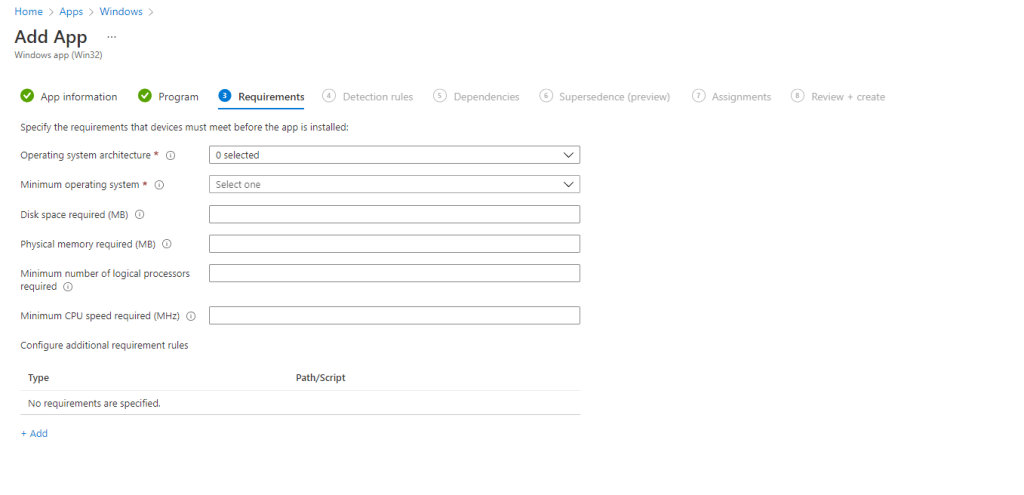
When creating Win32apps in Intune, we have a standard set of requirements we can use to determine if an app will install on a device or not. These are:
- Operating system architecture – mandatory rule
- Minimum operating system – mandatory rule
- Disk space required
- Physical memory required
- Minimum number of logical processors required
- Minimum CPU speed required
We can extend these requirements by creating our own custom requirements using file, registry or script.
I recently had to push out an application required an Outlook profile to exist on the device before execution. I can detect whether the profile exists on the device with a registry value, so I could have used the registry choice when creating this requirement. I decided, however, that I wanted to use a PowerShell script to achieve this.
The script itself is very simple, does the registry path exist, if so write the output, so that the custom requirement can use this:
if((Test-Path -LiteralPath "HKCU:\Software\Microsoft\Office\16.0\Outlook\Profiles\Outlook") -eq $true) {

Write-host "Outlook Profile"

}
When defining the app requirement click the +Add link in the Configure additional requirement rules section.
From the Requirement type drop down choose Script.

Click the folder icon next to the Script file field.

Locate your PowerShell script and click Open.

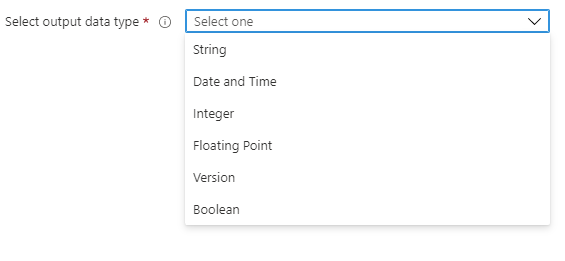
Note that this will populate the Script name field with the script name. Set another settings as required. Click the Select output data type drop down. This will be used to define what the requirement will capture from the PowerShell script.

There is a choice of data types to select from. I will select String for my data type.
Now I can define the Operator and Value fields. I want the value to equal the output from my PS script which is the write-host value of Outlook Profile. Click OK to save this info.

When the app is assigned, if the profile does not exist the application status will be listed as Not applicable, if the profile exists then the app will install (depending on any other requirements you state e.g. minimum OS).
Hope you find this useful.
 SCCMentor - Paul Winstanley
Was this tested and confirmed that it functions? I’m using a modified version of it that returns the proper string when run locally, but when I apply this to an app in Intune, it comes back saying the app is not required? I’m not sure what the issue may be?
Yes Jeff this was working in a customer environment successfully.
I have been trying very unsuccessfully to get any type of requirement script to work. I’m trying to remove an app if one of the files is detected in the users folder. If I run the script locally, it returns the proper value, but when I use it as custom requirement script, Intune says it is not applicable to the machine?
Here is one of the scripts I am using. I’m then telling Intune to check for the string “Non Compliant”. Any ideas what I could be doing wrong here? I am not seeing anything in the logs to point to the issue. I’m running as System since it has to look at the entire user’s folder. I’ve also tried another script that loops through the individual user’s folders. The reason I asked about your script was that your result has a space in as does mine and I wasn’t sure if it needed to be in quotations in the App setup in Intune.
# Discovery
try {
# Run Test and store as variable
$Test = Get-ChildItem -Path “C:\Users\” -Filter “WebexHost.exe” -Recurse -Force -ErrorAction SilentlyContinue
# Check where test is compliant or not – if no instances of Webex are discovered then mark as ‘Compliant’ and exit with 0
if ($null -eq $Test) {
Write-Output “Compliant”
exit 0
}
# If instances of Webex are discovered then mark as ‘Non Compliant’ and exit with 1
else {
Write-Output “Non Compliant”
}
}
catch {
# If any errors occur then return ‘Non Compliant’
Write-Output
“Non Compliant”
}
I can’t see anything amiss with that. You are then checking for a string which equals Non Compliant?
Correct. I’ve looked over the Intune logs, but I can’t find what is causing the failure. If I run the script on the device locally, it returns the “Non Compliant”.
Maybe run the script in SYSTEM context using PSExec and see if you get the results you want as Intune will run this in that context. https://specopssoft.com/blog/how-to-become-the-local-system-account-with-psexec.
I finally got around to trying this out. I ran Power Shell ISE as System and it says Non Compliant. I just don’t understand why it doesn’t work in Endpoint Manager. Very frustrating.