This blog is a series of guides which aim to run through the Conditional Access (CA) templates which Microsoft has published under the title Conditional Access templates (Preview). The templates get you up and running with CA but what is the impact of turning on the policies on devices, how can you adjust the templates to work in your environment and what does the end user experience look like on the endpoint?
The series is co-written by Paul Winstanley, a six times Enterprise Mobility MVP based in the UK and Mike Marable, an active member of the MEM community, based in the US.
Conditional Access Overview
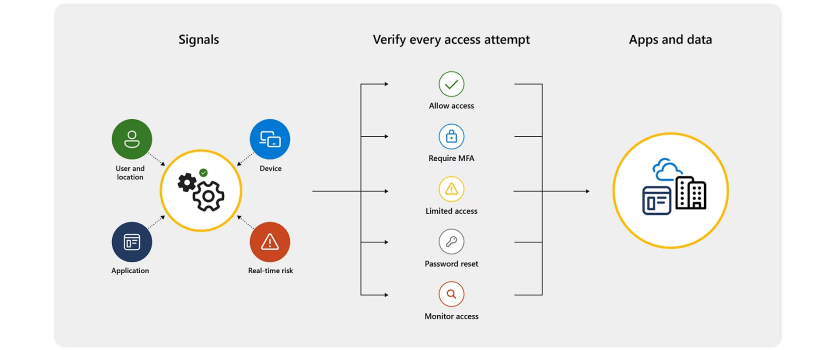
Conditional Access rules are a type of if-then statement. If a user wishes to access something then they must complete an action to be able to access. Conditional Access rules get enforced once first-factor authentication has been completed.
Conditional Access use signals to make a decision and then enforce the decision to allow or deny access as per this diagram from the Microsoft documentation.

Microsoft introduced the Conditional Access templates at the end of 2021 as convenient method to deploy policies. These 16 templates cover five different deployment scenarios:
- Secure foundation
- Zero trust
- Remote work
- Protect administrators
- Emerging Threats
This series will cover the 16 templates in detail.
- Part 1 – Block access for unknown or unsupported device platform
- Part 2 – Require multifactor authentication for all users
- Part 3 – Require multifactor authentication for admins
- Part 4 – Require multifactor authentication for guests
- Part 5 – Require multifactor authentication for Azure Management
- Part 6 – Require Password Change for High Risk Users
- Part 7 – Require multifactor authentication for risky sign-ins
- Part 8 – Use application enforced restrictions for unmanaged devices
- Part 9 – Require approved client apps and app protection
- Part 10 – Require multifactor authentication for Microsoft admin portals (Preview)
Conditional access and app enforced restrictions
In the previous posts in the series, we have utilised the Grant access control to either allow or deny based on the Conditional Access rule. The rule we are introducing in this post uses the Session access control.
Session controls offer a mechanism for restricting user experiences within cloud applications. The impressive aspect of these controls is that they are implemented by the cloud apps themselves, relying on supplementary data supplied by Azure AD about the session. Essentially, these controls can mandate Azure AD to convey device information to the cloud app, allowing it to discern if the user’s device is compliant or non-compliant, or if it’s part of a domain or not and update the session experience accordingly.
Note that the control is exclusively compatible with selected cloud applications, specifically Office 365, SharePoint Online, and Exchange Online. A restricted experience is provided when the device is unmanaged or non-compliant, whereas a full experience is given when the device is managed and compliant.
Prior to setting up the Conditional Access rule, pre-requisite changes are required in SharePoint Online and Exchange Online.
Enable limited access with SharePoint Online
SharePoint or Global Administrators in Microsoft 365, possess the authority to inhibit or curtail access to SharePoint and OneDrive content from unmanaged devices (those not hybrid AD joined or Intune-compliant). Limitations can be enforced for:
- All individuals within the organisation, or only certain users or security groups.
- All sites within the organisation, or only selected sites.
For the Use application enforced restrictions for unmanaged devices rule, we need to enable limited access in SharePoint Online, but ensure that we turn off the Conditional Access rules which get automatically created when it is enabled, as our rule will define the experience for the end users.
When access is limited, individuals using managed devices will enjoy full access. Those on unmanaged devices will be confined to browser-only access, stripped of the capabilities to download, print, or synchronise files. Moreover, they will be unable to access content through applications, including the Microsoft Office desktop applications.
To enable, navigate to the SharePoint Online admin center. Click Polices\Access Control.
Click the Unmanaged devices link and then choose Allow limited, web-only access and then Save.
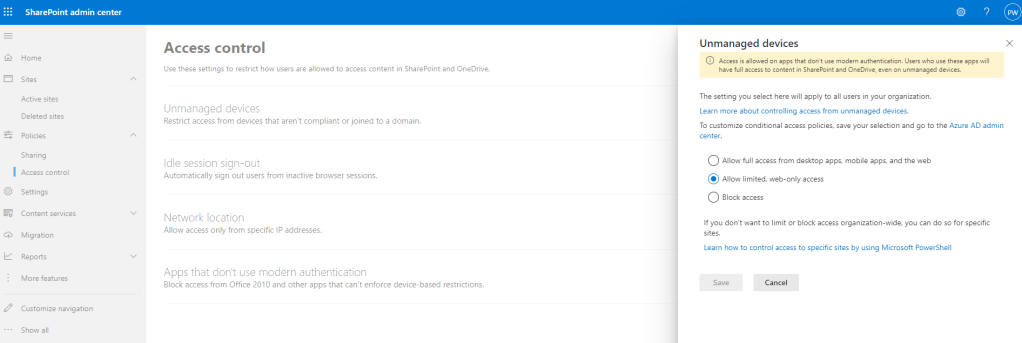
As soon as you click Save, head straight back to the Conditional Access portal in the Azure Portal and you will see two new CA rules created. These are automatically enabled and targeted at ALL USERS! It’s important that you switch these to Report-Only and this will ensure that there is no impact in your environment.

The SharePoint pre-requisite is now enabled and no users are effected in the process, we can now switch focus to configuring the Exchange Online pre-requisite before setting up our new CA rule.
Enable limited access with Exchange Online
You have the option to limit users’ capability to download attachments from Outlook on the web while using unmanaged devices. These users can still view and edit these files using Office Online, without risking any data leakage or storage of the files on their device. Furthermore, you can also prevent users from viewing attachments altogether on an unmanaged device.
To enable this, you need to connect to Exchange Online via PowerShell. To do this run the following commands in PowerShell
Set-Executionpolicy BypassInstall-Module ExchangeOnlineManagementImport-Module ExchangeOnlineManagement; Get-Module ExchangeOnlineManagement

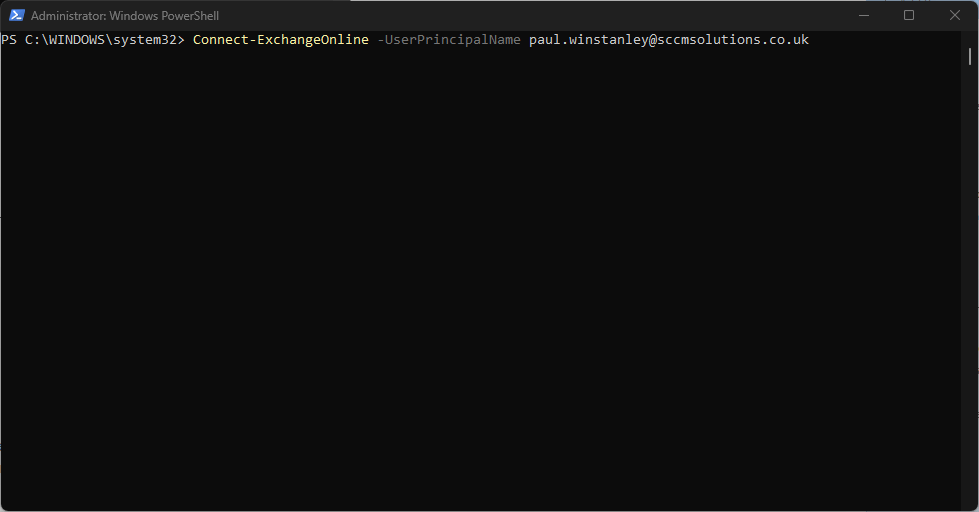
Now connect to Exchange Online with the following command and authenticate accordingly.
Connect-ExchangeOnline -UserPrincipalName <YourAdminUPN>
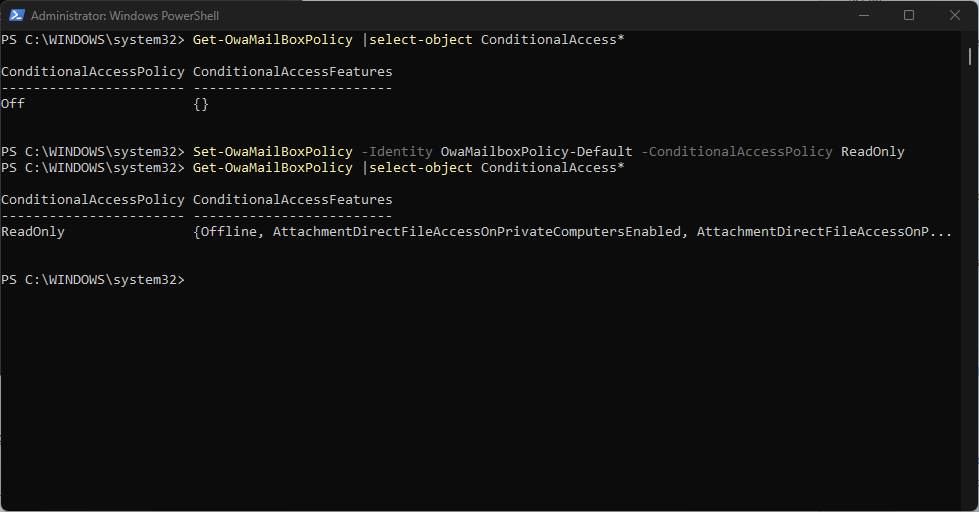
To verify the current status of the OWA mailbox policy, run the following command:
Get-OwaMailBoxPolicy | select-object ConditionalAccess*.
This command will yield the current state of the ConditionalAccessPolicy. As you can see from the screenshot the setting is currently Off.

When the ConditionalAccessPolicy is switched off, you can activate a feature that enables restrictions, when used alongside a Conditional Access App Enforced Restriction policy. You have the flexibility to set up the policy in one of two modes:
- ReadOnly, where users can’t download attachments to their local computer, and can’t enable Offline Mode on non-compliant computers
- ReadOnlyPlusAttachmentsBlocked, in the ReadOnly setting viewing attachments in the browser is possible, when using this setting viewing attachments in the browser is blocked.
To set the ReadOnly mode, use the following command:
Set-OwaMailBoxPolicy -Identity OwaMailboxPolicy-Default -ConditionalAccessPolicy ReadOnly
If you wish to also block attachments then issue the following command:
Set-OwaMailboxPolicy -Identity Default -ConditionalAccessPolicy ReadOnlyPlusAttachmentsBlocked
We have opted for ReadOnly mode. Note that when you activate this it will not affect users, they also need to be targeted by the Conditional Access rule for the restrictions to apply.

Once you have run the command, you can verify if the setting was implemented successfully. To do this execute the following command:
Get-OwaMailBoxPolicy | select-object ConditionalAccess*
The ConditionalAccessPolicy will report as either ReadOnly or ReadOnlyPlusAttachmentsBlocked depending on which command was executed.
With our pre-requisites now in place, we can start to implement the Use application enforced restrictions for unmanaged devices rule.
Use application enforced restrictions for unmanaged devices
This Conditional Access policy limits the session experience when users access the Office 365 Cloud App.
It is created in the Azure Portal under the Conditional Access\Policies blade, or in the Microsoft Endpoint Manager console under Devices\Conditional Access.
Click the New policy from template (preview) link.

The policy is available in the Zero trust scenario or you can click All to display all the templates.

You can click the View option to view the default settings for the policy.
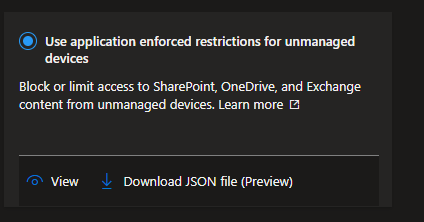
These are the settings for the Use application enforced restrictions for unmanaged devices template.
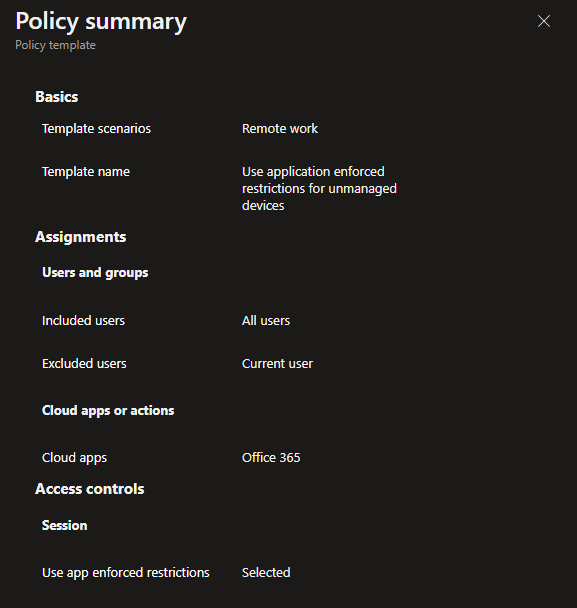
| Users: | All Users are Included – The current user creating the policy will be excluded |
| Apps: | Office 365 |
| Access Control: | Session – Use app enforced restrictions |
When the policy is created it is set as Report-Only. This is good practice, as the impact of enabling the policy can be assessed before doing so.
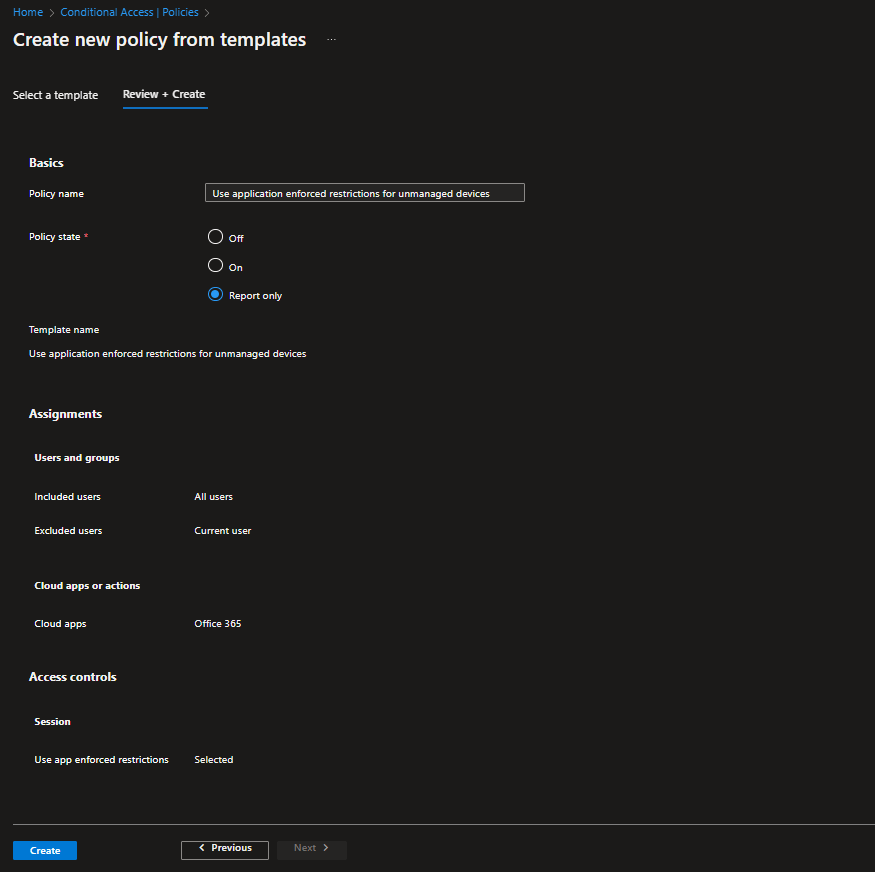
When implementing this rule in Report-Only mode, you’ll be prompted to note that users on macOS, iOS, Android and Linux may be effected with a certificate prompt even when running in this mode. You can exclude these platforms to avoid this, but be aware when you come to enable the policy that you will have adjust the Device Platforms exclusions, as you will want to ensure that the rule applies to all OS.
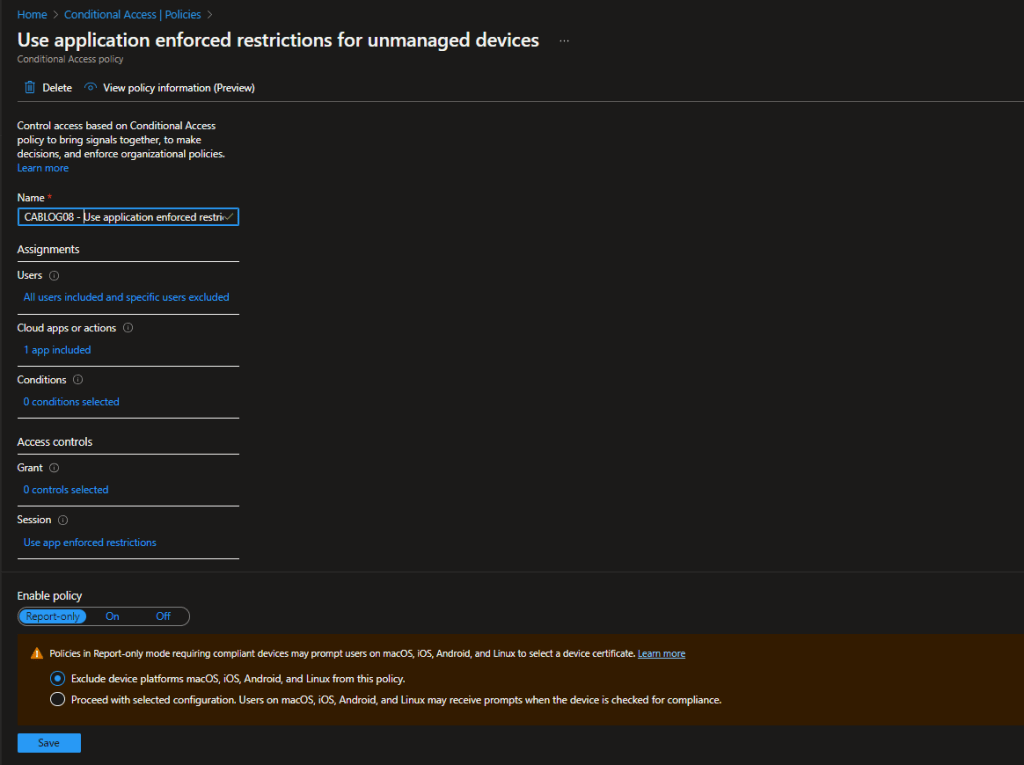
For our testing, we have created a group called CA Test User Group and added our test users to it. In the policy, under Users, we have chosen Select users and groups and picked the group to filter for. The user creating the policy via the template is excluded by default, but it is recommended to ensure you have a break glass account which can be used to access should the rule cause problems.
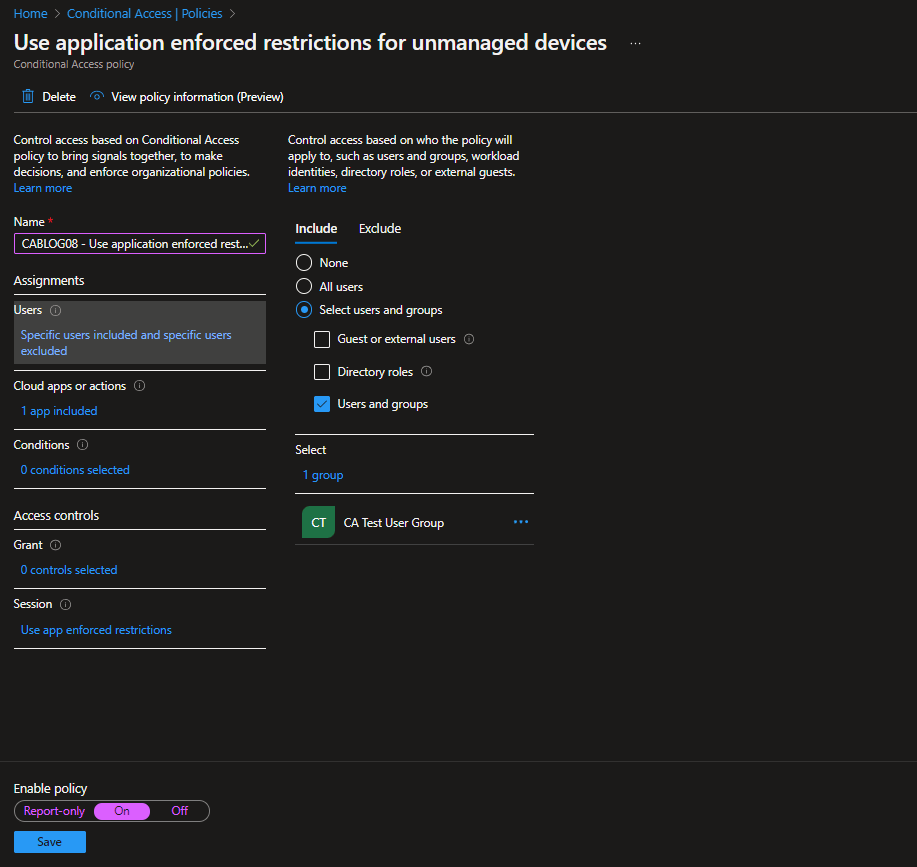
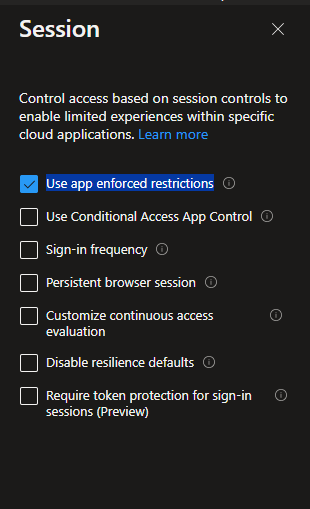
In the Access controls\Session section of the rule, you can see that Use application enforced restrictions is selected as the control.
When you are ready to move from the Report-Only mode, switch the toggle to On.
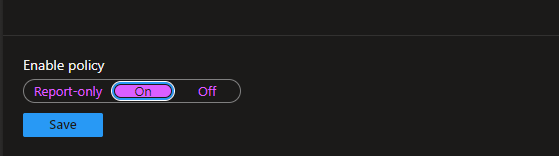
The state of the policy will be reflected in the console

Impact of enabling the policy
The following tests were undertaken on each device platform, the end result expected would be that we were restricted in being able to use the Office 365 apps via office.com and that we would be denied the ability to access desktop Office using the our test account . Our test user, Neil Redfearn, was added to the Conditional Access rule. We tested the policy by authenticating into office.com. We also tested the impact of the policy on Office desktop apps on Windows OS.
Windows
Office.com access
When the user accessed Word via office.com, they were notified via a yellow banner which reported that Your organization doesn’t allow you to download, print or sync using this device. To use these actions, use a device that’s joined to a domain.
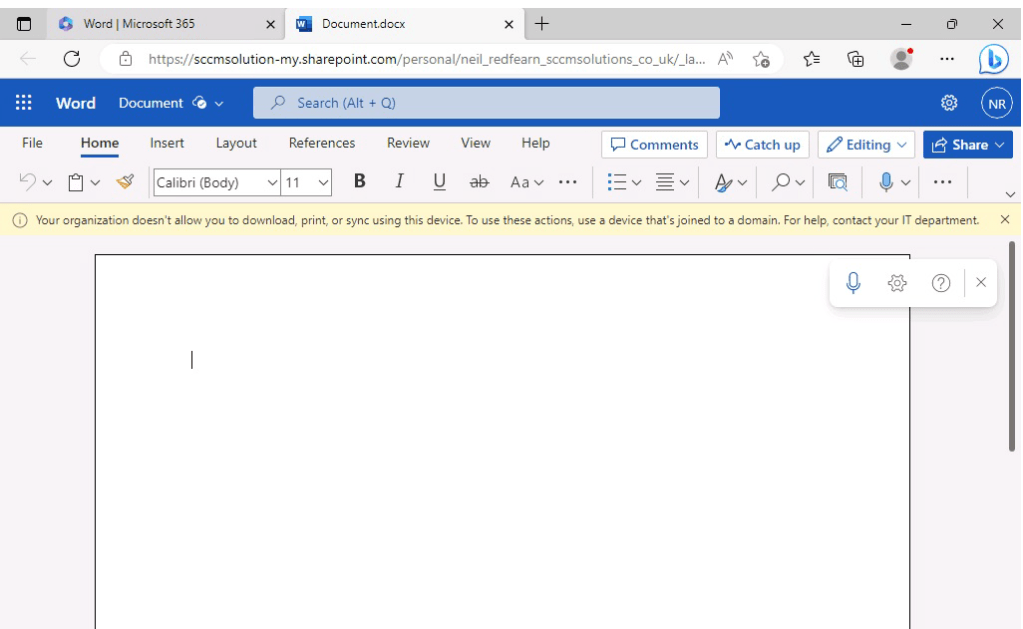
When attempting to download a document from office.com
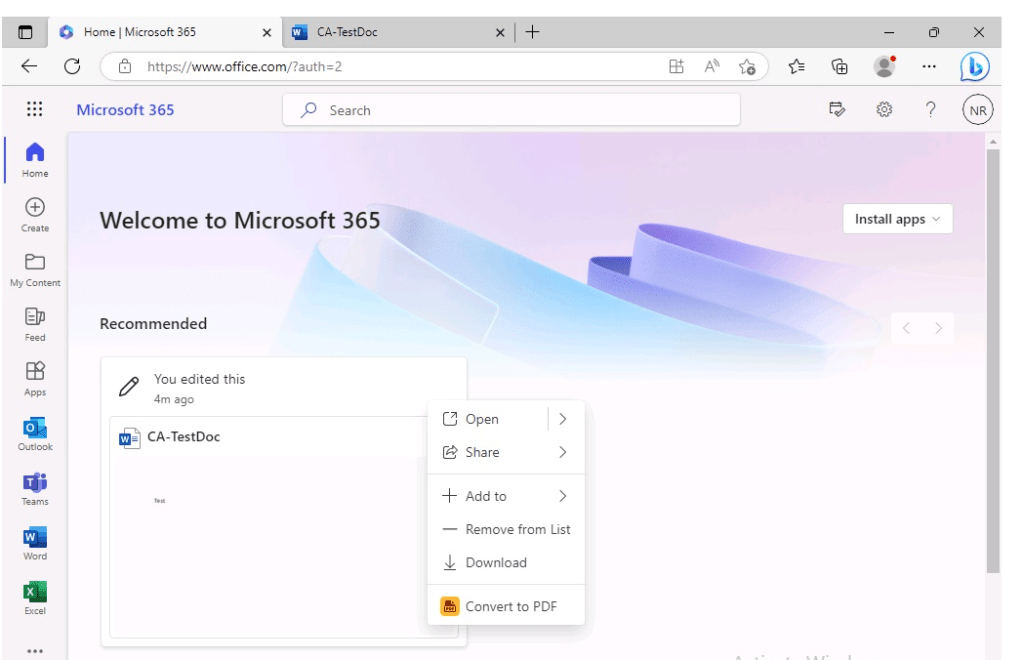
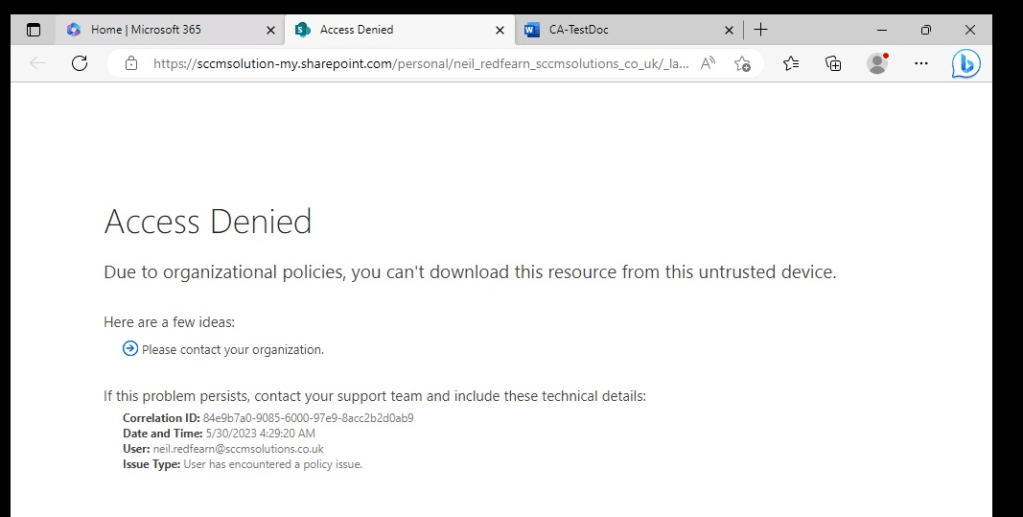
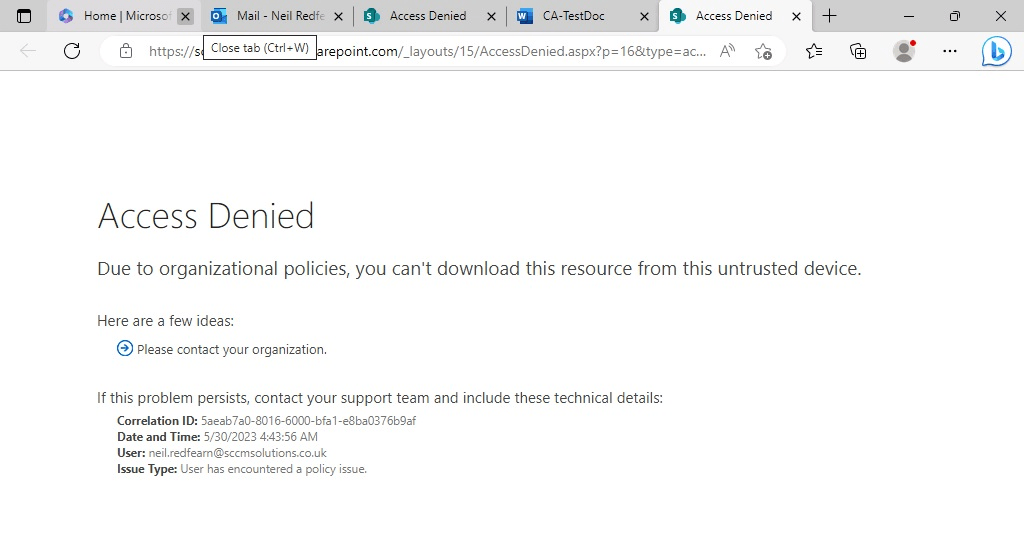
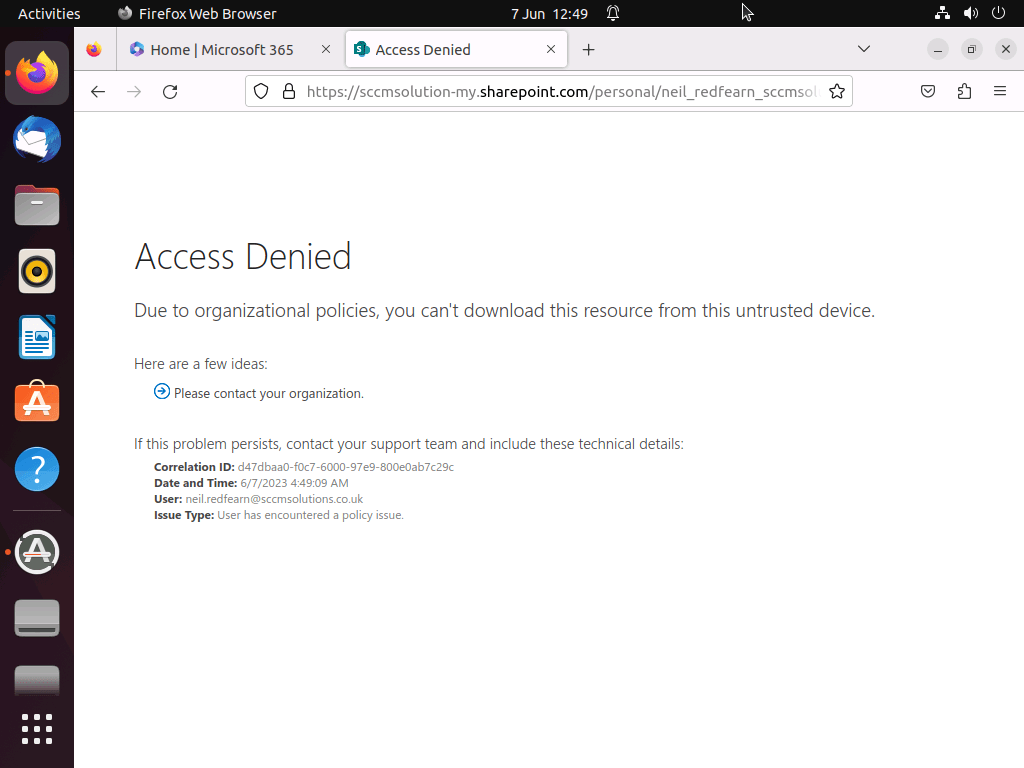
The user is greeted with an Access Denied message and informed that Due to organizational policies, you can’t download this resource from this untrusted device.
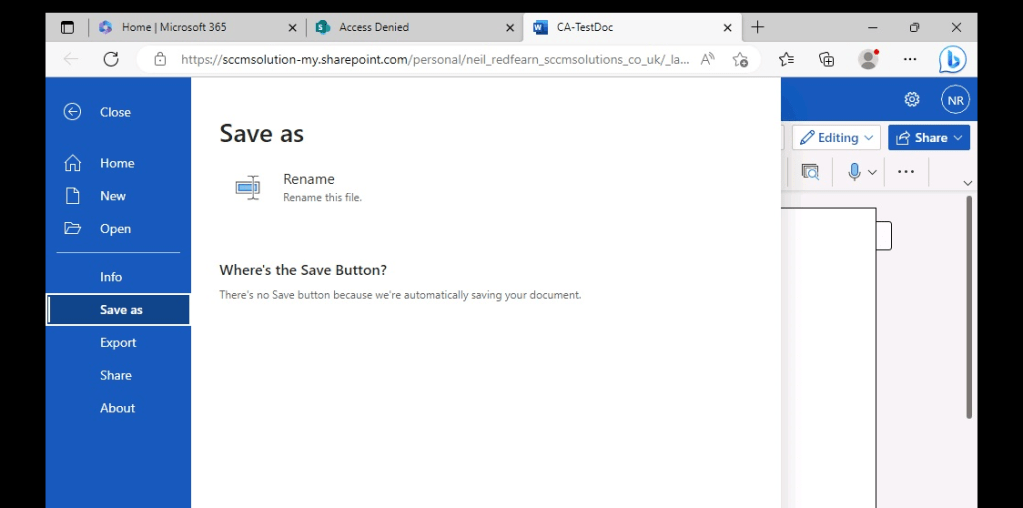
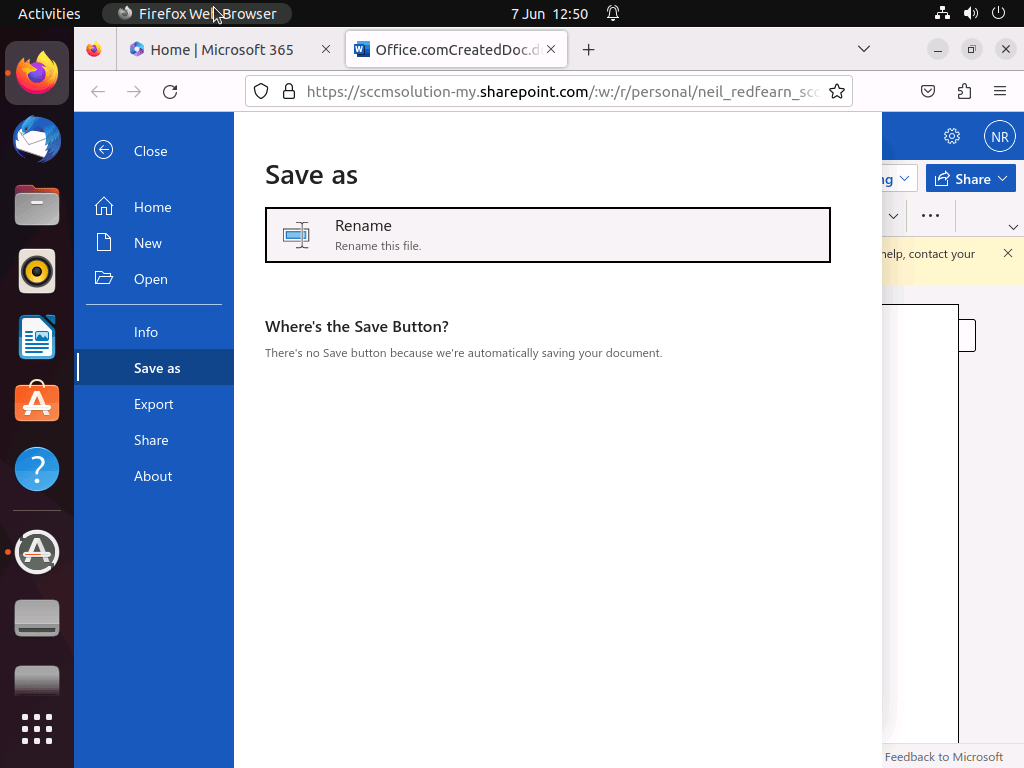
When attempting a Save as, there are no options to save the document as this is being automatically done in the users OneDrive storage.
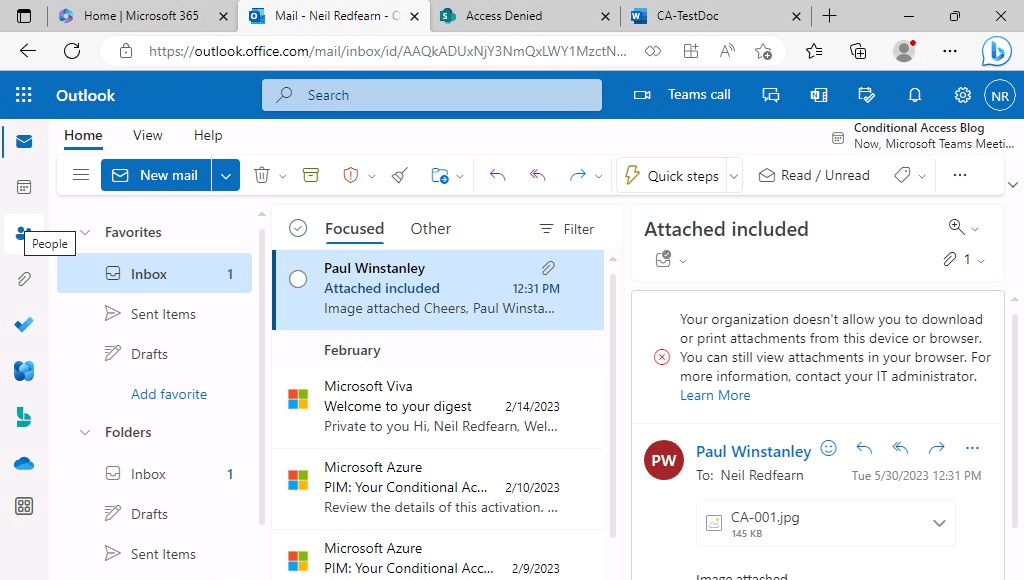
In Outlook via office.com, the user is unable to save or print an attachment. They receive the message ‘Your organization doesn’t allow you to download or print attachments from this device or browser. You can still view attachments in your browser.’ Note that this is in ReadOnly mode, the user would not be able to view if the admin had enabled the ReadOnlyPlusAttachmentsBlocked policy in Exchange Online.
Desktop client access
When opening a corporate document in the Word desktop client the user received the message Due to organizational policies, you can’t access these resources.
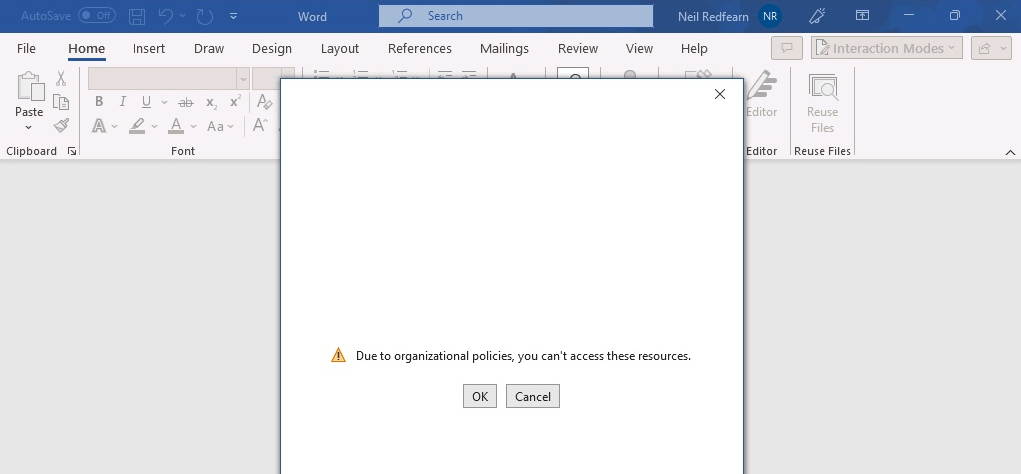
Clicking OK allowed the user to authenticate.
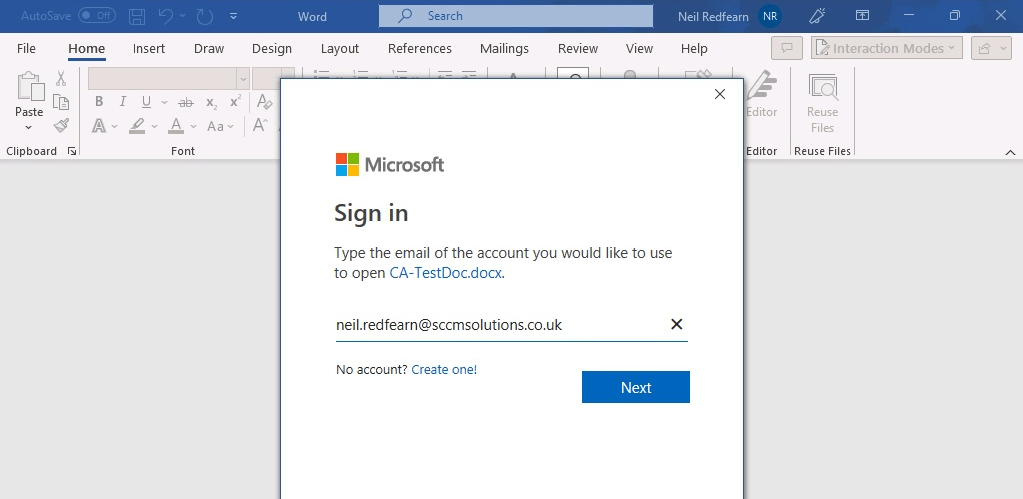
They were then presented with an Access Denied and You do not have access to view this file. Would you like to request for permission on SharePoint?
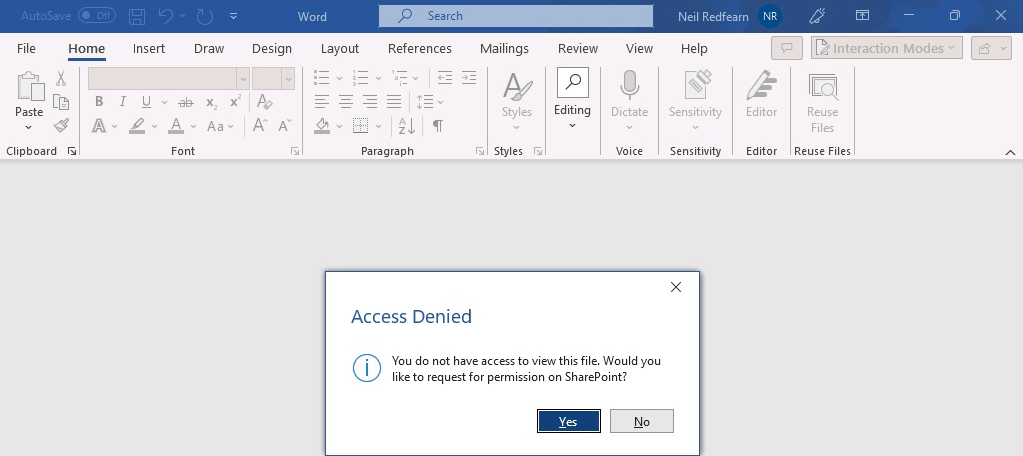
Clicking Yes redirected the user to their default browser where they are informed Access Denied.
macOS
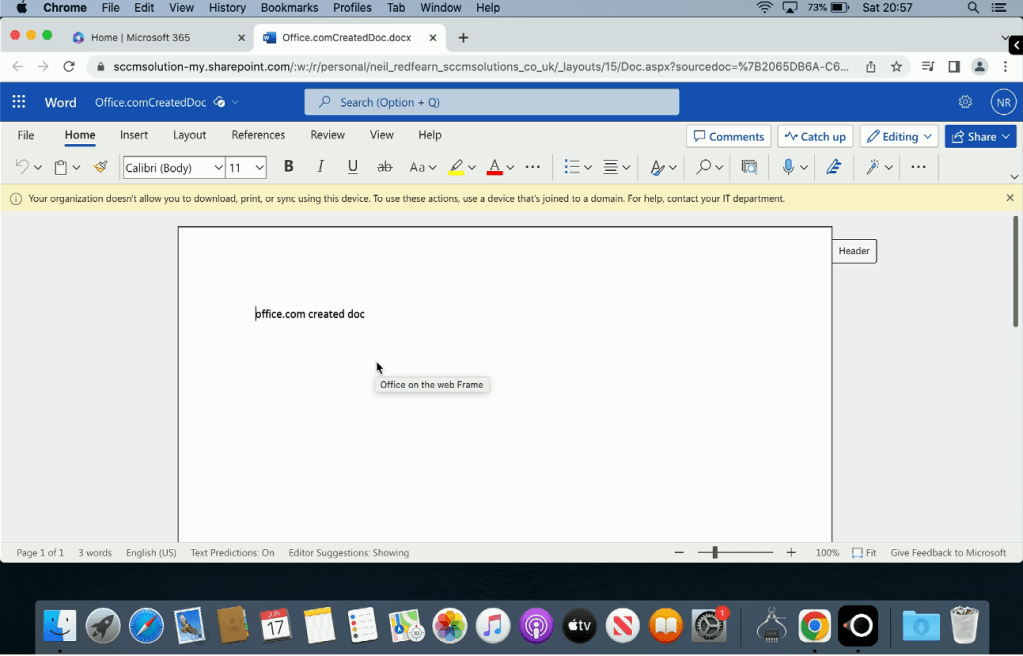
When the user accessed Word via office.com, they were notified via a yellow banner which reported that Your organization doesn’t allow you to download, print or sync using this device. To use these actions, use a device that’s joined to a domain.
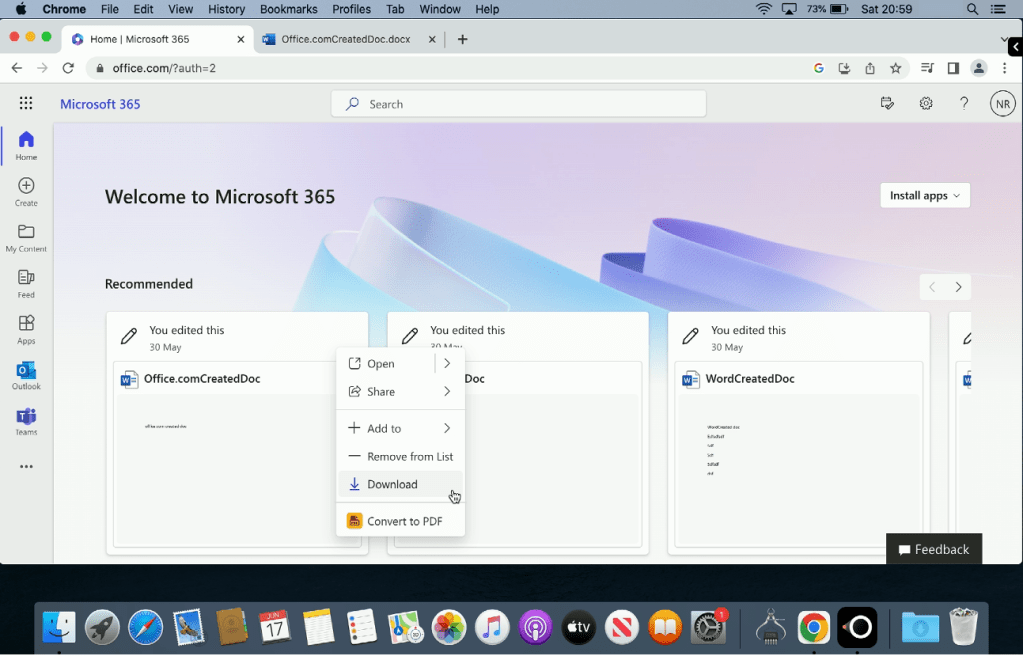
When attempting to download a document from office.com
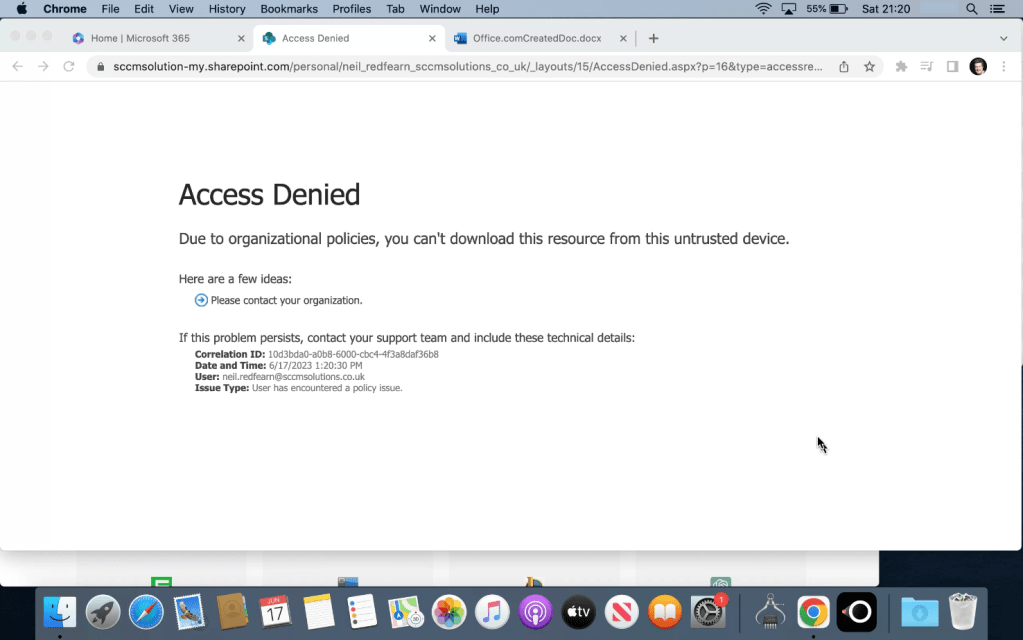
The user is greeted with an Access Denied message and informed that Due to organizational policies, you can’t download this resource from this untrusted device.
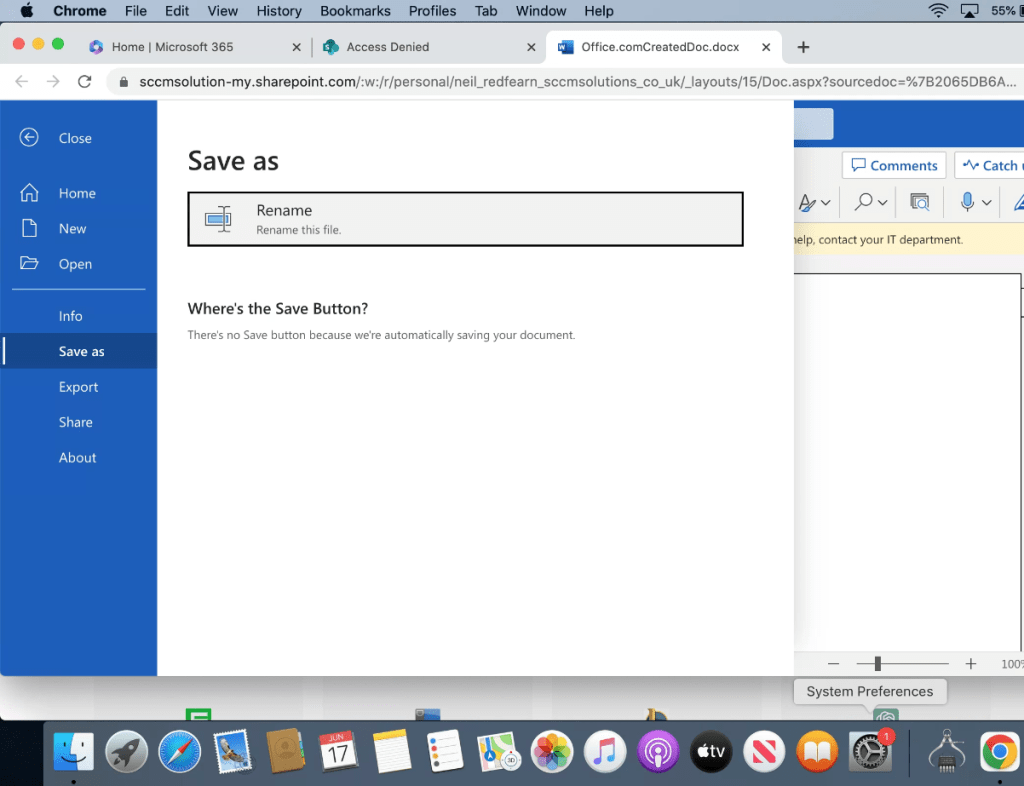
When attempting a Save as, there are no options to save the document as this is being automatically done in the users OneDrive storage.
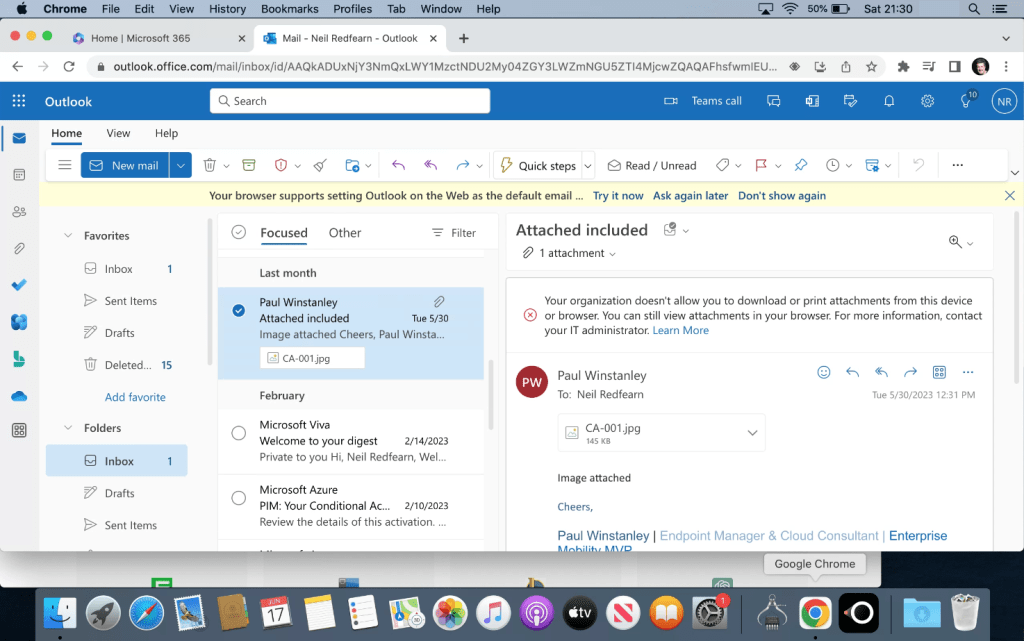
In Outlook via office.com, the user is unable to save or print an attachment. They receive the message ‘Your organization doesn’t allow you to download or print attachments from this device or browser. You can still view attachments in your browser.’ Note that this is in ReadOnly mode, the user would not be able to view if the admin had enabled the ReadOnlyPlusAttachmentsBlocked policy in Exchange Online.
Android
When accessing Office documents via the unmanaged Android device, the experience is extremely limited. Ideally the admins should be managing the full Office apps on the device using App Protection Policies and Conditional Access. Look out for that blog as part of this series.
When attempting to download a document from office.com
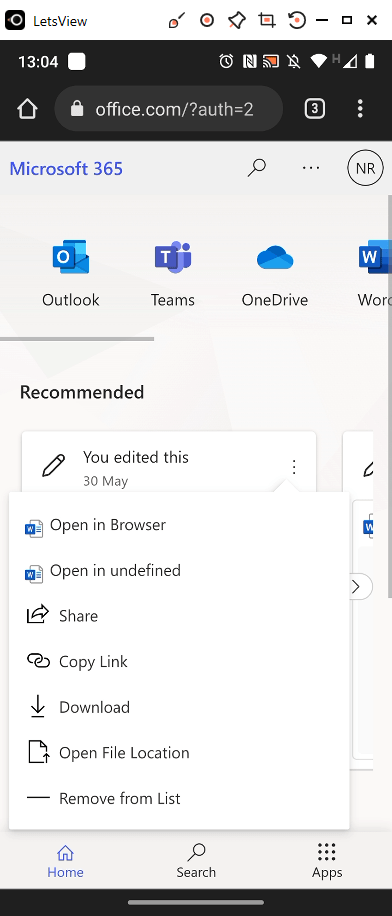
The user is greeted with an Access Denied message and informed that Due to organizational policies, you can’t download this resource from this untrusted device.
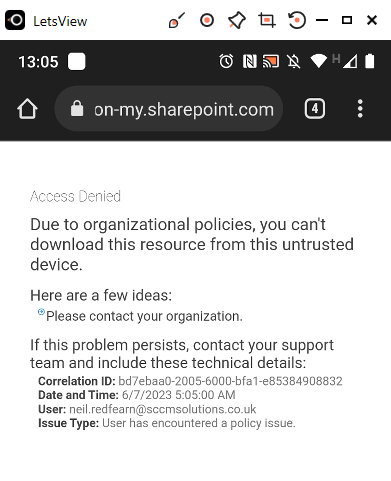
The ability to do anything via the browser in Word is limited. This is all we were able to do.
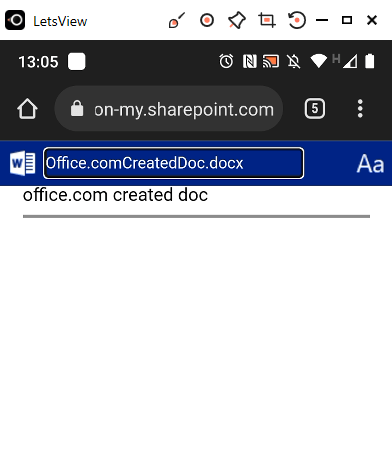
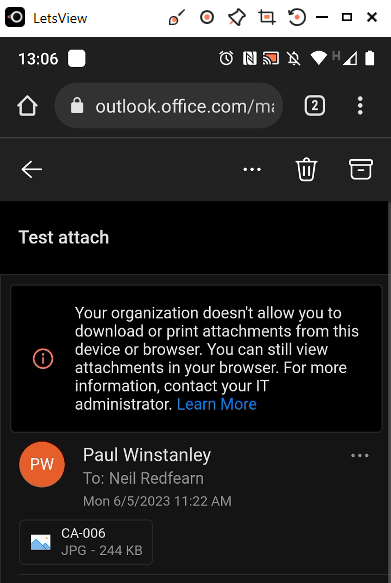
In Outlook via office.com, the user is unable to save or print an attachment. They receive the message ‘Your organization doesn’t allow you to download or print attachments from this device or browser. You can still view attachments in your browser.’ Note that this is in ReadOnly mode, the user would not be able to view if the admin had enabled the ReadOnlyPlusAttachmentsBlocked policy in Exchange Online.
iOS
When accessing Office documents via the unmanaged iOS device, the experience is extremely limited. Ideally the admins should be managing the full Office apps on the device using App Protection Policies and Conditional Access. Look out for that blog as part of this series.
No option is available to Download a document from the Office portal.

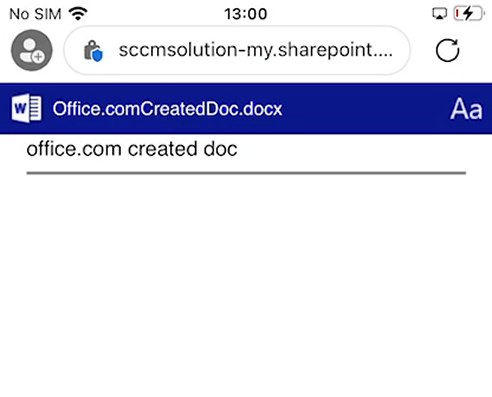
The ability to do anything via the browser in Word is limited. This is all we were able to do.
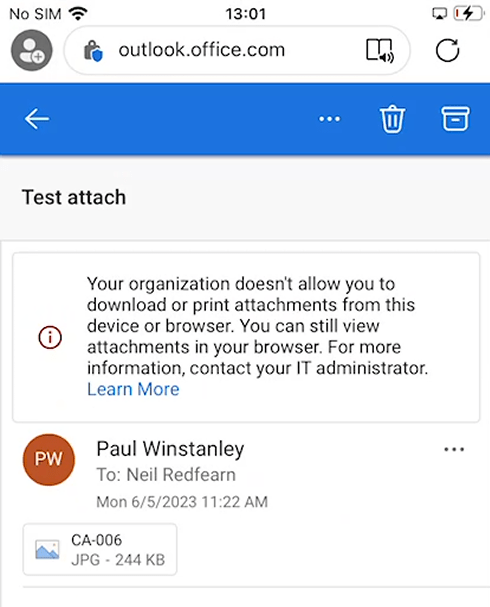
In Outlook via office.com, the user is unable to save or print an attachment. They receive the message ‘Your organization doesn’t allow you to download or print attachments from this device or browser. You can still view attachments in your browser.’ Note that this is in ReadOnly mode, the user would not be able to view if the admin had enabled the ReadOnlyPlusAttachmentsBlocked policy in Exchange Online.
Linux
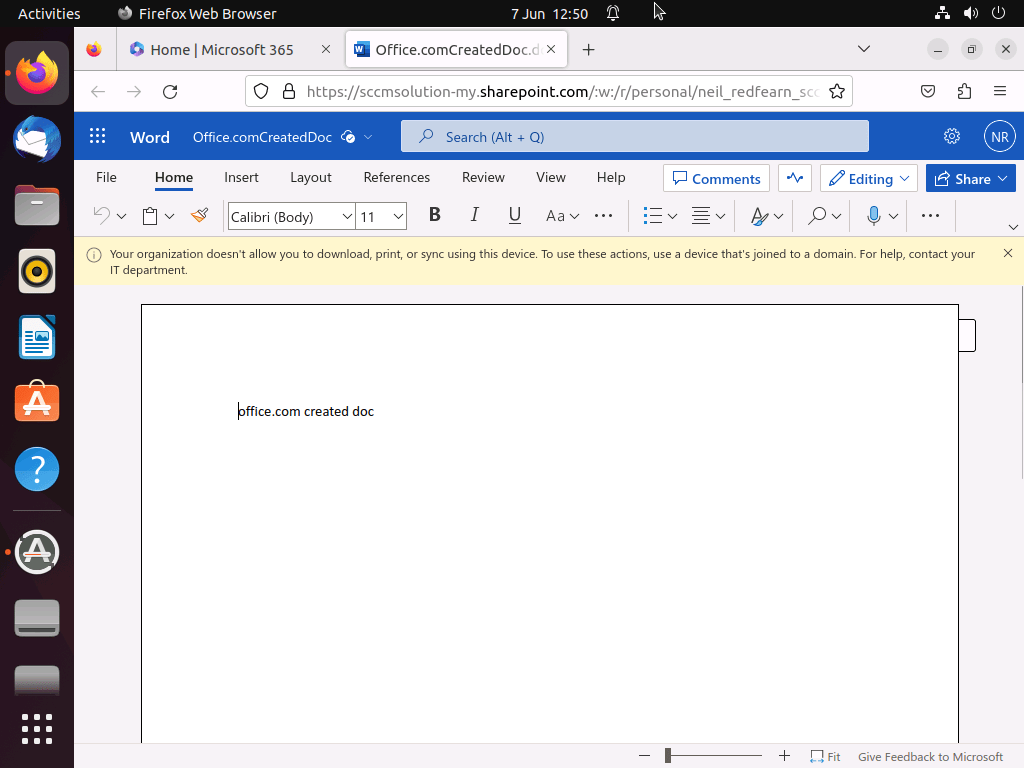
When the user accessed Word via office.com, they were notified via a yellow banner which reported that Your organization doesn’t allow you to download, print or sync using this device. To use these actions, use a device that’s joined to a domain.
When attempting to download a document from office.com
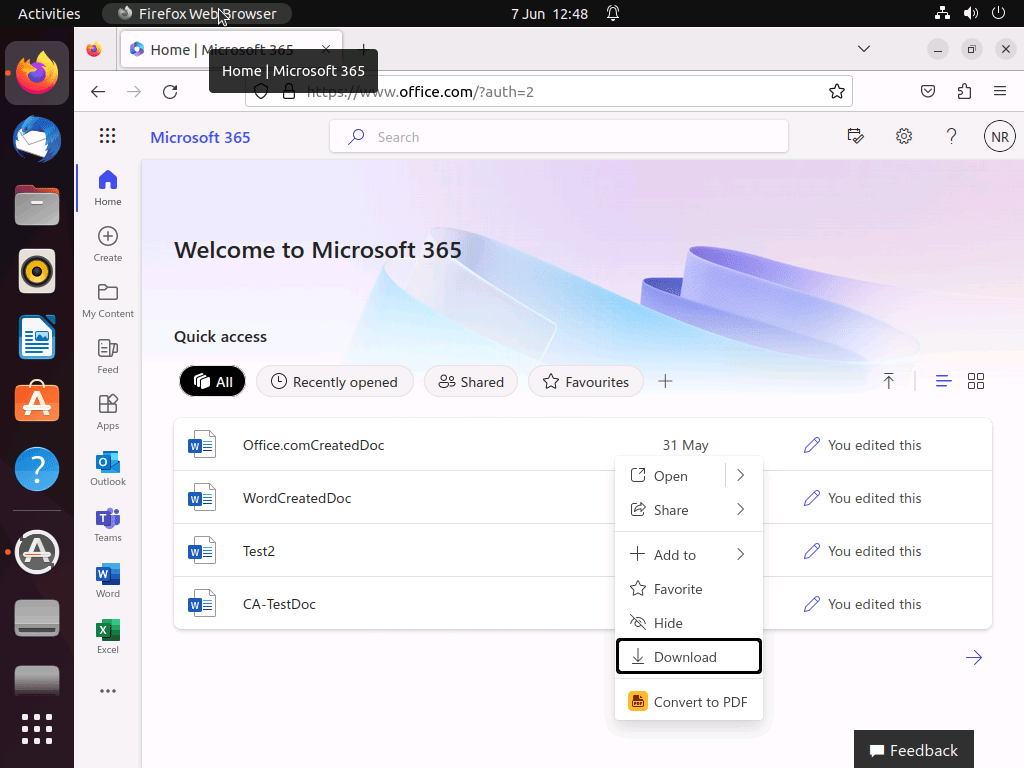
The user is greeted with an Access Denied message and informed that Due to organizational policies, you can’t download this resource from this untrusted device.
When attempting a Save as, there are no options to save the document as this is being automatically done in the users OneDrive storage.
In Outlook via office.com, the user is unable to save or print an attachment. They receive the message ‘Your organization doesn’t allow you to download or print attachments from this device or browser. You can still view attachments in your browser.’ Note that this is in ReadOnly mode, the user would not be able to view if the admin had enabled the ReadOnlyPlusAttachmentsBlocked policy in Exchange Online.

Checking the Sign-in Logs
When it comes to investigating Conditional Access policies, we refer to the Sign-in logs in Azure Active Directory. You can check the sign-ins against an individual user by going into the the Azure Active Directory blade and selecting Users. Search for the user and select, then click the Sign-in logs menu entry.
The sign-in logs reported the following:
Under Conditional Access, the Session Controls Use app-enforced restrictions was reported with a Result of Success.

Clicking the Policy Name related to the CA rule showed Matched for User and Application, our test user and OfficeHome respectively.
The Session Controls reported Enforced for Use app-enforced restrictions.

Further reading
Take a look at the following Microsoft documentation if you want to read some more on Conditional Access and app-enforced restrictions .
- Common Conditional Access policy: Use application enforced restrictions for unmanaged devices – https://learn.microsoft.com/en-us/azure/active-directory/conditional-access/howto-policy-app-enforced-restriction
- Application enforced restrictions – https://learn.microsoft.com/en-gb/azure/active-directory/conditional-access/concept-conditional-access-session#application-enforced-restrictions
- SharePoint and OneDrive unmanaged device access controls for administrators – https://learn.microsoft.com/en-us/sharepoint/control-access-from-unmanaged-devices
Look out for the next part in the CA series.
 SCCMentor - Paul Winstanley
9 comments