
This blog is a series of guides which aim to run through the Conditional Access (CA) templates which Microsoft has published under the title Conditional Access templates (Preview). The templates get you up and running with CA but what is the impact of turning on the policies on devices, how can you adjust the templates to work in your environment and what does the end user experience look like on the endpoint?
The series is co-written by Paul Winstanley, a seven times Enterprise Mobility MVP based in the UK and Mike Marable, an active member of the MEM community, based in the US.
Conditional Access Overview
Conditional Access rules are a type of if-then statement. If a user wishes to access something then they must complete an action to be able to access. Conditional Access rules get enforced once first-factor authentication has been completed.
Conditional Access use signals to make a decision and then enforce the decision to allow or deny access as per this diagram from the Microsoft documentation.

Microsoft introduced the Conditional Access templates at the end of 2021 as convenient method to deploy policies. These 16 templates cover five different deployment scenarios:
- Secure foundation
- Zero trust
- Remote work
- Protect administrators
- Emerging Threats
This series will cover the 16 templates in detail.
- Part 1 – Block access for unknown or unsupported device platform
- Part 2 – Require multifactor authentication for all users
- Part 3 – Require multifactor authentication for admins
- Part 4 – Require multifactor authentication for guests
- Part 5 – Require multifactor authentication for Azure Management
- Part 6 – Require Password Change for High Risk Users
- Part 7 – Require multifactor authentication for risky sign-ins
- Part 8 – Use application enforced restrictions for unmanaged devices
- Part 9 – Require approved client apps and app protection
- Part 10 – Require multifactor authentication for Microsoft admin portals (Preview)
Approved client apps
Organisations have the option to mandate the use of an authorised client app for accessing specific cloud apps. These approved client apps are equipped with Intune app protection policies, operating autonomously from any mobile device management system.
To enforce this control measure, the user’s device must be registered in Entra ID, the new name for Azure AD, which necessitates the use of a broker app. For iOS devices, the broker app can be Microsoft Authenticator, whereas for Android devices, it can be either Microsoft Authenticator or Microsoft Company Portal. If the user attempts to authenticate without having the broker app installed on their device, they will be automatically redirected to the appropriate app store to download and install the necessary broker app.
Examples of approved client apps are; Microsoft Word, Microsoft OneDrive, Microsoft Outlook. Microsoft has a list of a selection of the apps here.
Whilst this conditional access template rule is very much active, it is worth noting that Microsoft has announced that the deprecation of approved client apps will occur by March 2026 with the following statement:
‘On 31 March 2026, the “Require approved client app” control in Azure AD Conditional Access will be retired and no longer enforced. Before that date, you’ll need to transition to using the “Require app protection policy” control.
We encourage you to make the switch sooner to gain the richer benefits of the “Require app protection policy” control, which has all the same capabilities, plus it:
- Verifies the corresponding Microsoft Intune policy.
- Is applied before a user is granted access.
- Has improved security features, such as verifying that an application policy is applied.’
Microsoft already has come guidance on migrating away from approved client apps and this is available here.
In a managed scenario, the broker app can be easily deployed to the device to ensure that the user has the application ready to go, but in an unmanaged scenario how does this work?
If a conditional access rule for approved client apps is targeted against a user and the Microsoft Authenticator or Microsoft Company Portal is not installed on the endpoint then the following flow occurs:
The opens an approved client app, such as Microsoft Word.
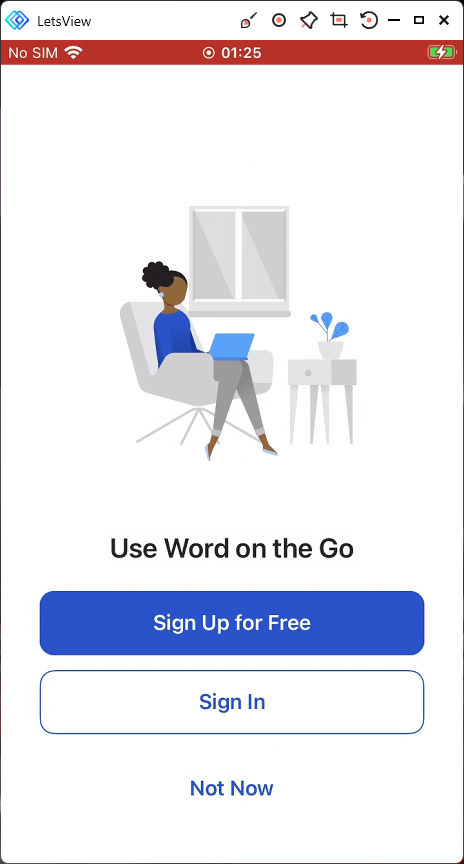
The CA targeted user enters their username.

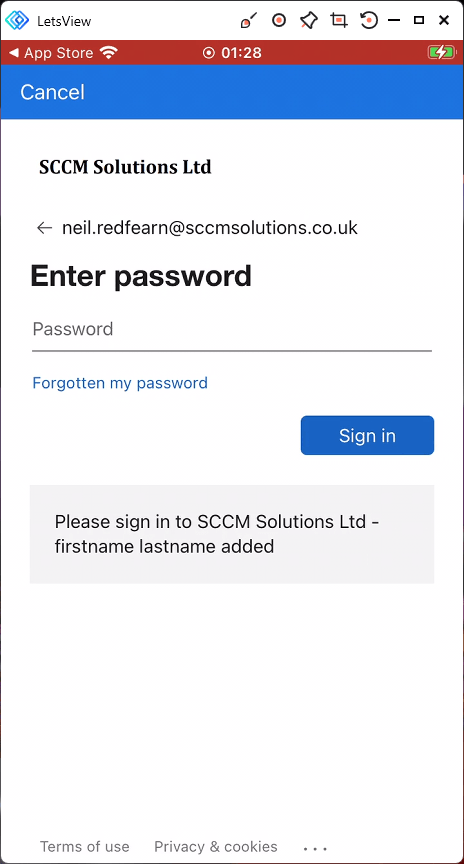
followed by their password.

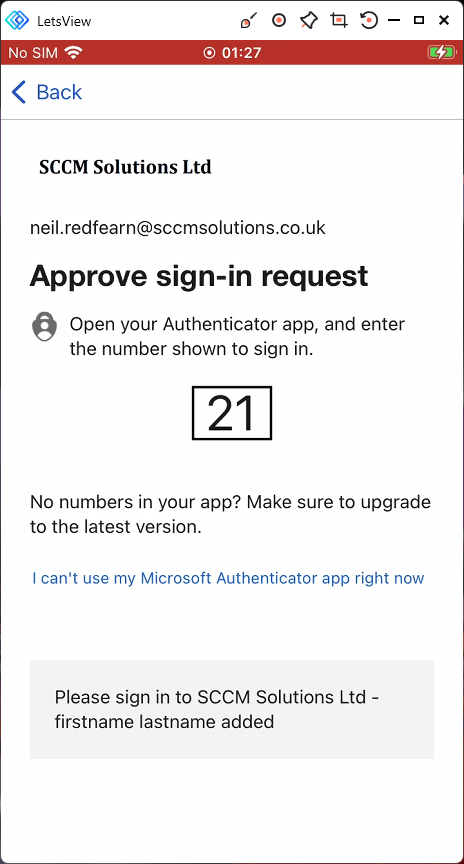
If targeted for MFA, the user approves the sign-in request when prompted.
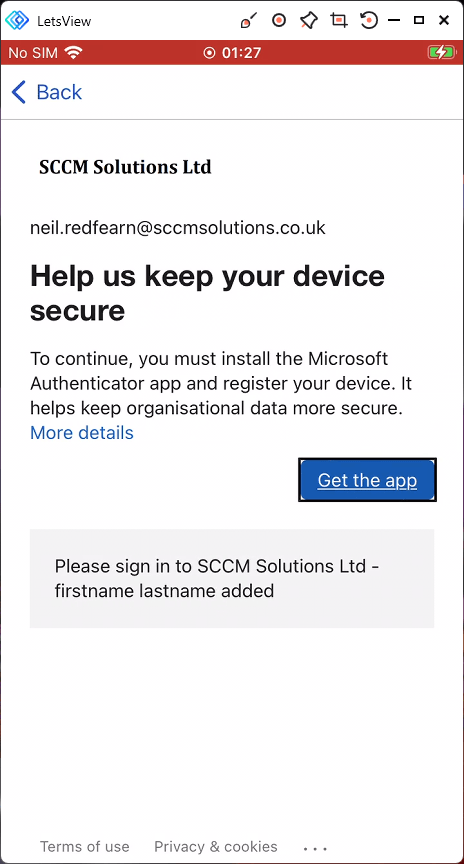
The user is then prompted to Help us keep your device secure. They are required to install the Microsoft Authenticator app, in this case as the device is iOS. The user clicks the Get the app button.
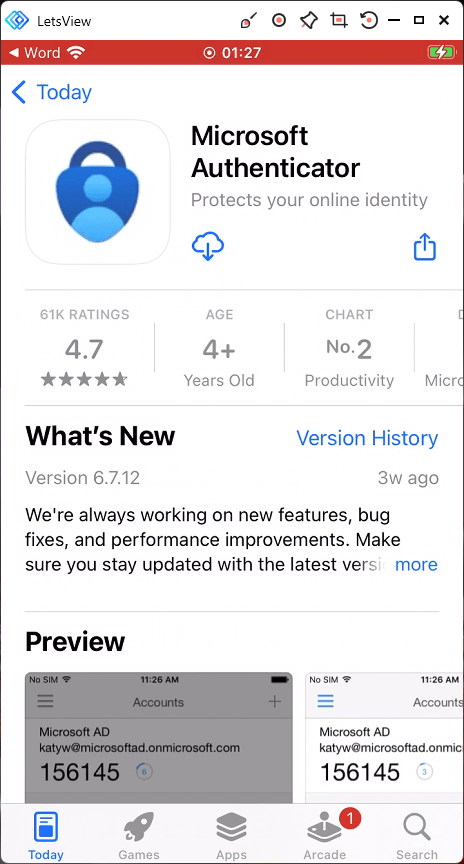
The user is redirected to an app store install for Microsoft Authenticator. The user must install the app.
After installing the broker app and clicking Open, the user is re-prompted to enter their password satisfy any MFA requests.
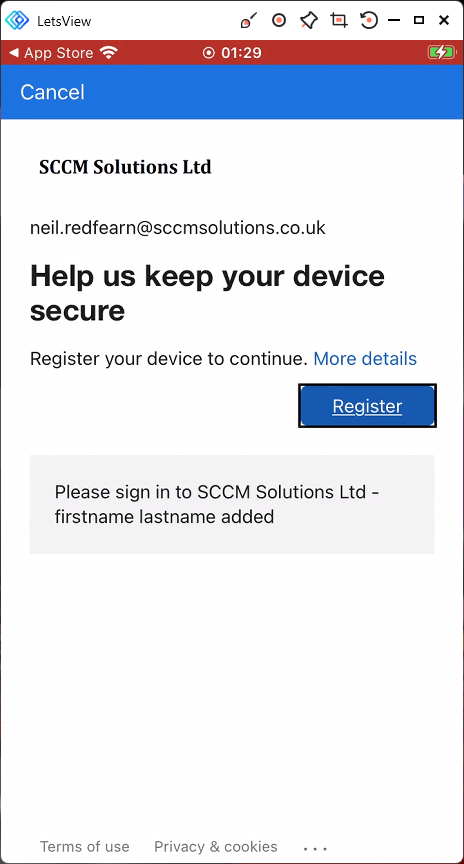
Finally the user must register the device to continue, by clicking the Register button.
After completing any further authentication prompts, the user will be allowed access to the approved client app.

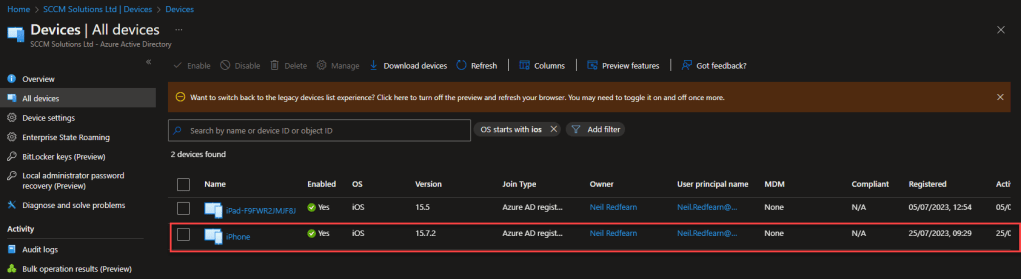
An Azure AD registered object will be created in Azure AD. Since this is an unmanaged device, no enrolment into Intune will occur.
App Protection Policies
App protection policies in Microsoft Intune are a set of rules and settings designed to secure and manage mobile applications within an organisation. These policies help protect corporate data and ensure compliance with security standards.
Intune app protection policies are available for both Android and iOS devices, with Mobile Application Management (MAM) policies for Windows via Microsoft Edge due imminently.
They allow IT administrators to define restrictions such as preventing data sharing between managed and unmanaged apps or blocking the ability to copy-paste data from a managed app to an unmanaged one.
Intune app protection policies can enforce the use of a PIN or biometric authentication for accessing corporate apps, providing an extra layer of security.
Administrators can require apps to encrypt data at rest to protect sensitive information stored locally on the device.
In case of a security breach or when an employee leaves the organisation, Intune allows selective wiping of corporate data from managed apps, leaving personal data untouched.
Microsoft provides three recommended configurations for data protection in enterprise devices:
- Level 1: Enterprise Basic Data Protection: This is the minimum data protection configuration recommended by Microsoft for an enterprise device. It serves as a fundamental level of protection to safeguard data.
- Level 2: Enterprise Enhanced Data Protection: Microsoft recommends this configuration for devices where users access sensitive or confidential information. It is suitable for most mobile users accessing work or school data. However, some of the controls implemented at this level may have a slight impact on user experience.
- Level 3: Enterprise High Data Protection: This configuration is strongly recommended for devices used by organisations with larger or more sophisticated security teams. It is also suitable for specific users or groups who face uniquely high risks, such as those handling highly sensitive data where unauthorised disclosure could lead to considerable material loss for the organisation.
For more details on the framework and suggested app protection settings visit Data protection framework using app protection policies.
Creating an Intune filter
iOS Filter
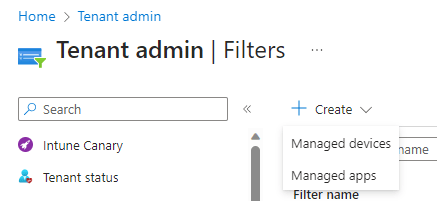
App Protection policies have recently been updated to allow the use of a filter in Intune, for filtering between managed and unmanaged devices. Before we create the policy, we will create a device filter for managed iOS devices. This is achieved by clicking Tenant Administration\Filters\Create.

Select Managed apps from the drop down.
Enter a Filter name and select iOS/iPadOS for the Platform. Click Next.
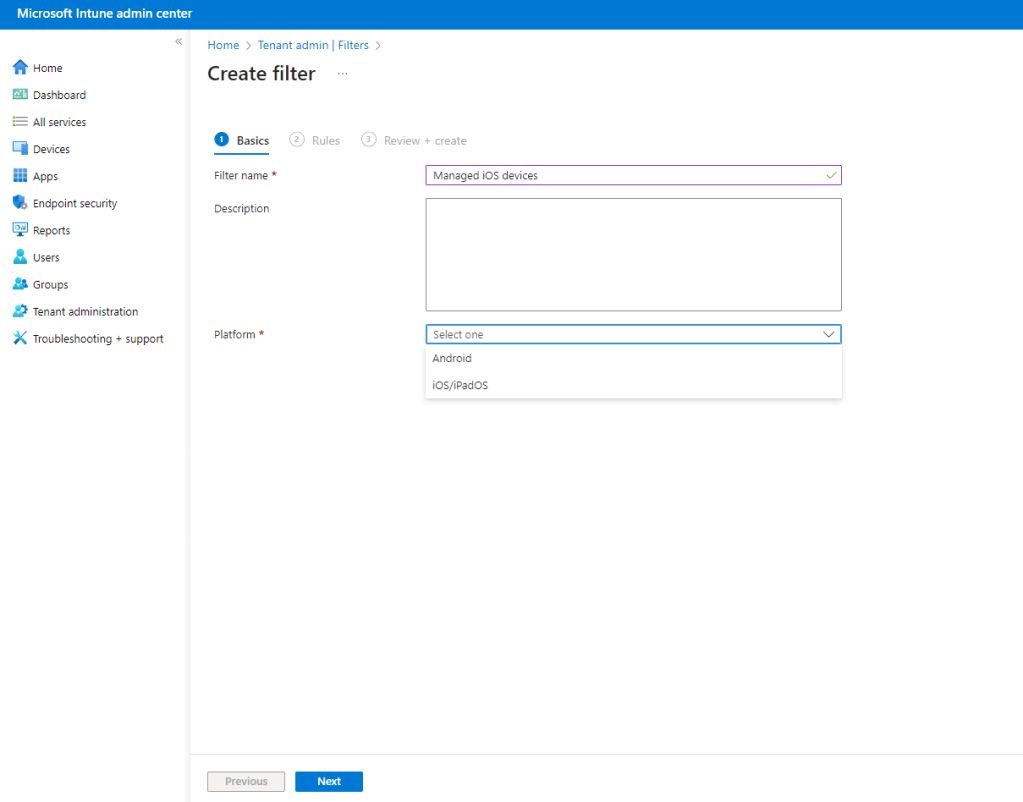
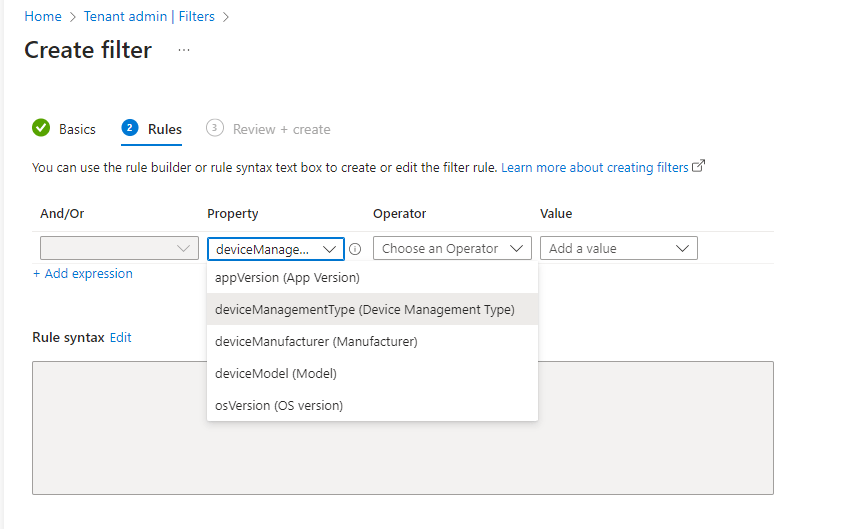
From the Property drop down, choose the deviceManagementType.
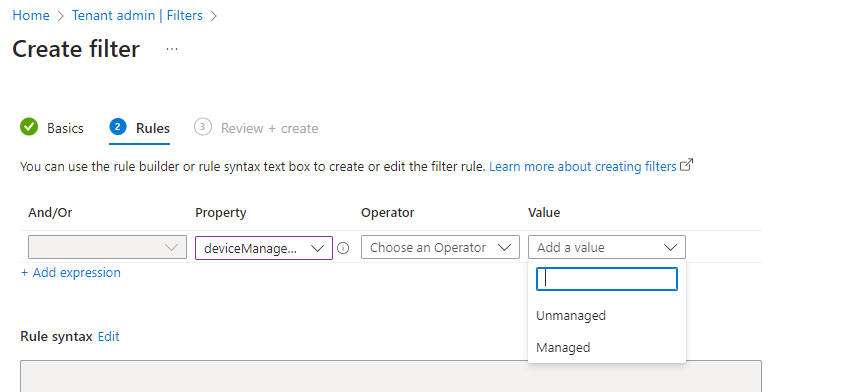
Select the relevant Value. We are creating a Managed filter so we will select this value. It should be fairly obvious how you can repeat this process and create an unmanaged filter also.
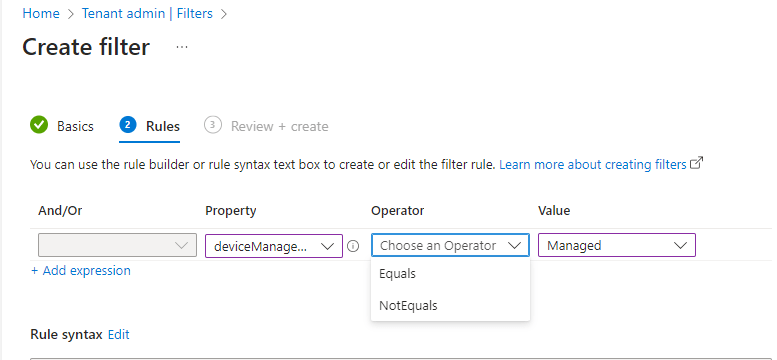
Complete the filter by selecting a relevant Operator.
You can preview the filter and when happy, click Next.
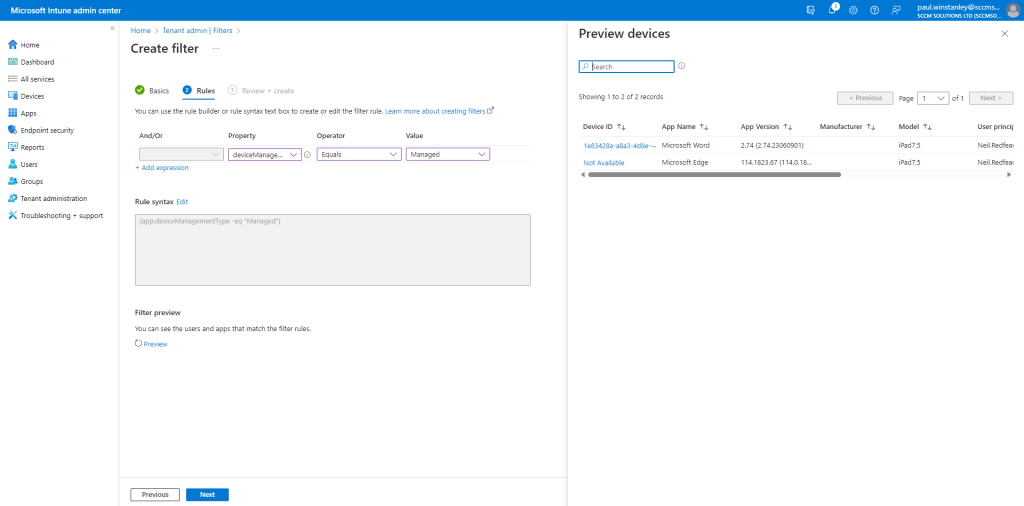
Finally, click Create to complete the process of setting up the filter.

Your filter will be listed.

Android filter
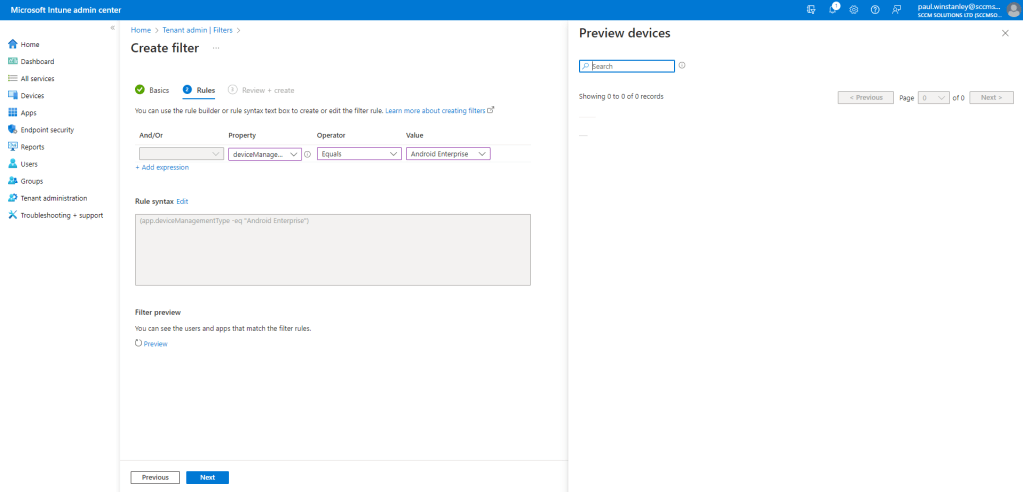
Next we will create a device filter for managed Android devices. This is achieved by clicking Tenant Administration\Filters\Create.

Select Managed apps from the drop down.

Enter a Filter name and select Android for the Platform. Click Next.

From the Property drop down, choose the deviceManagementType.
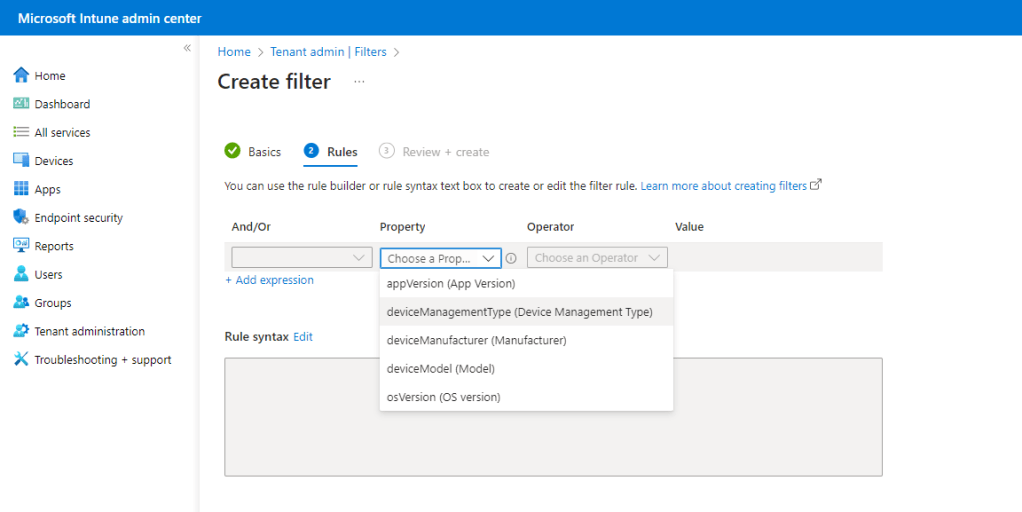
Select the relevant Value. We are creating a managed filter for Android Enterprise devices, so we will select this value. It should be fairly obvious how you can repeat this process and create an unmanaged filter also.
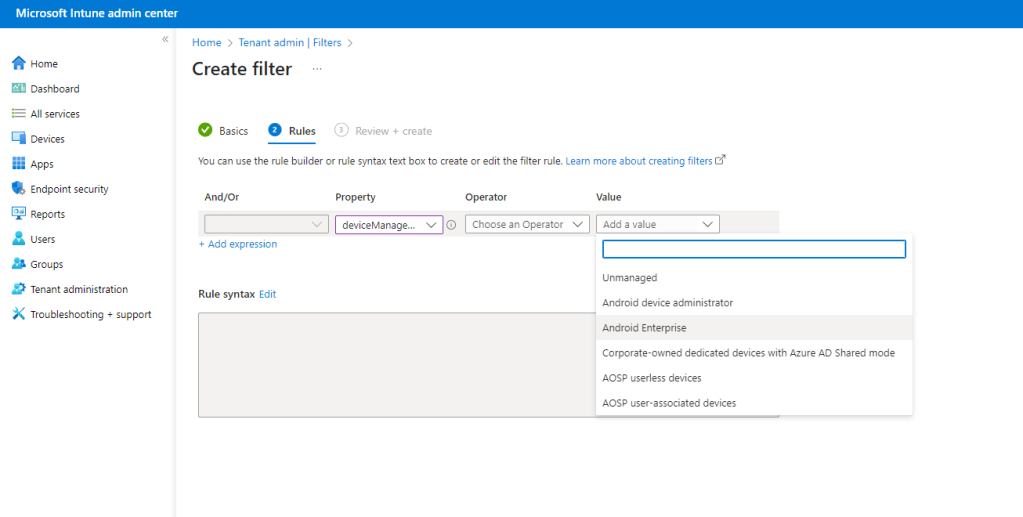
Complete the filter by selecting a relevant Operator.
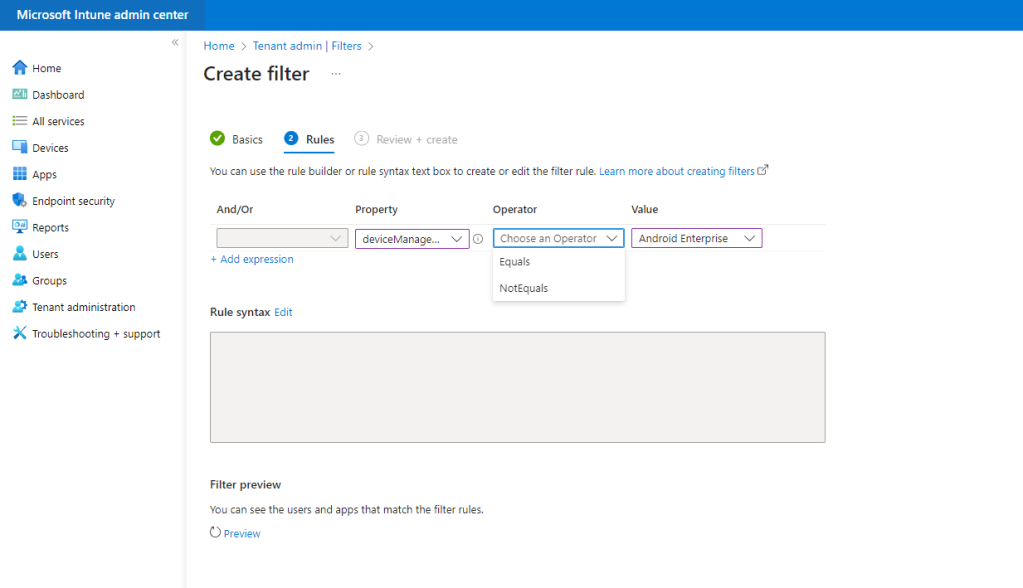
You can preview the filter and when happy, click Next.
Finally, click Create to complete the process of setting up the filter.
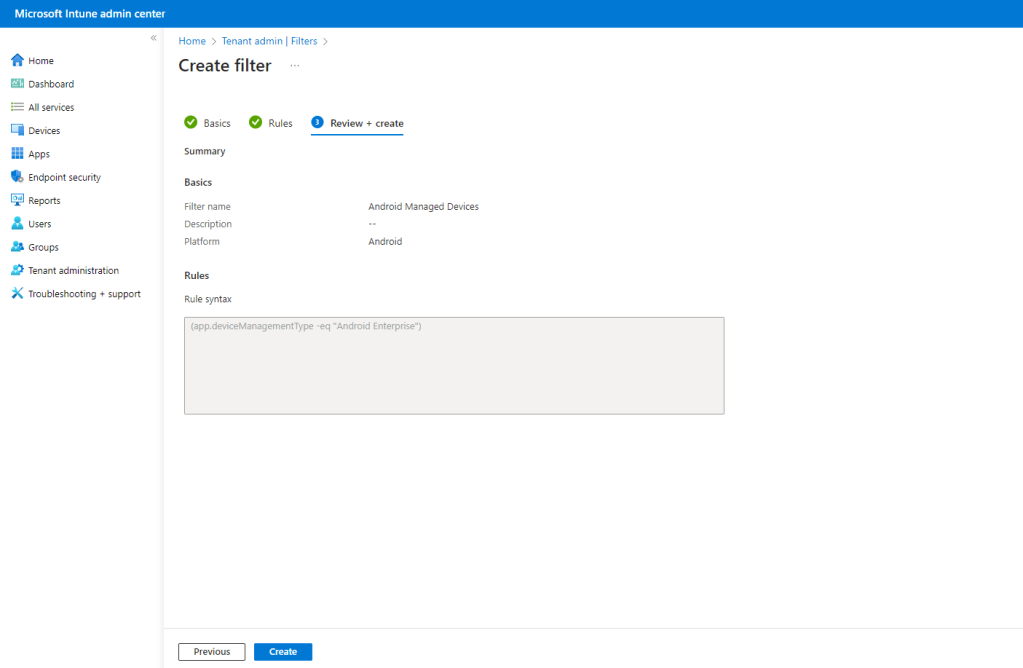
Your filter will be listed.

Now we can start to build up our App Protection policies.
Create an App Protection Policy
App Protection policies are created in the Intune admin center by navigating to Apps\App protection policies\Create policy
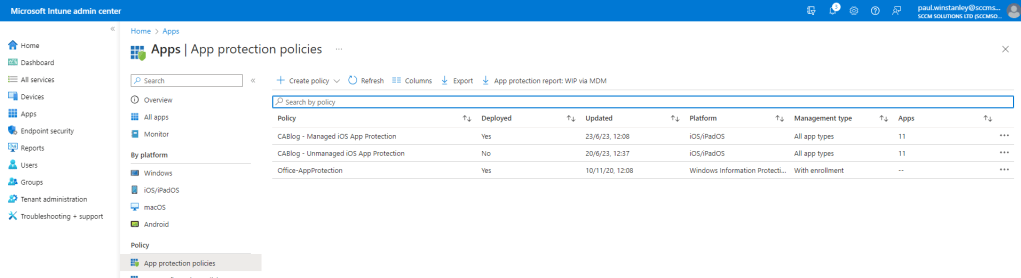
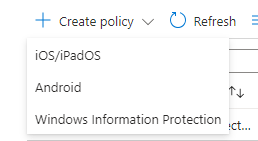
When creating, you currently have the choice of iOS/iPadOS, Android or Windows Information Protection.
Give the policy a Name, here we are creating a managed iOS App Protection policy. Click Next.
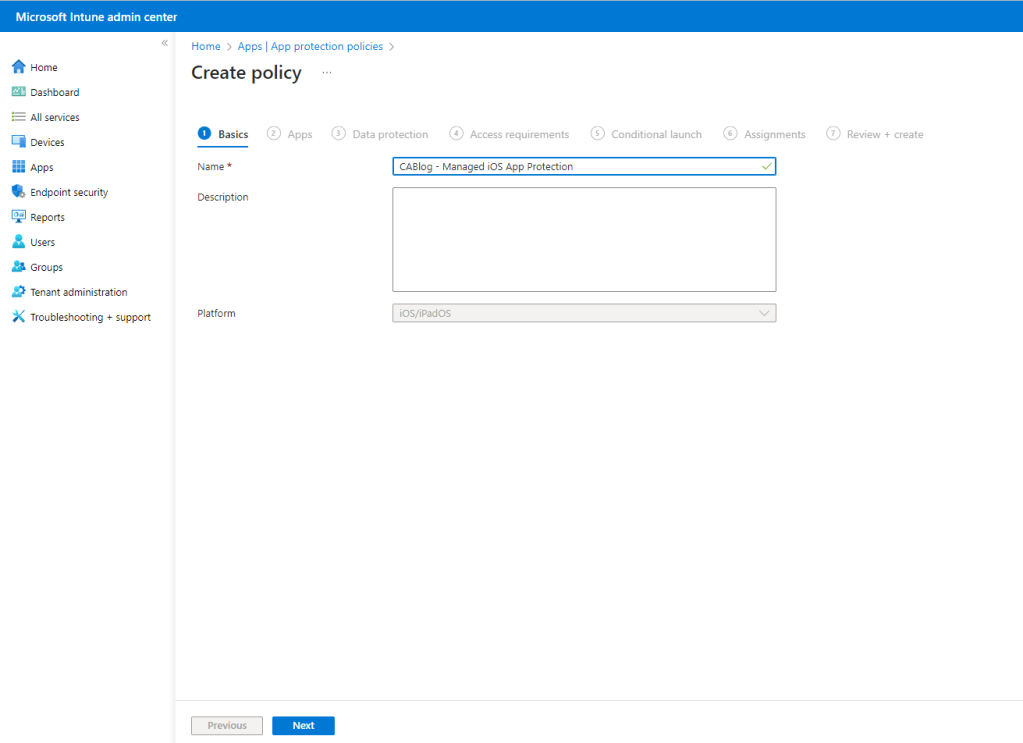
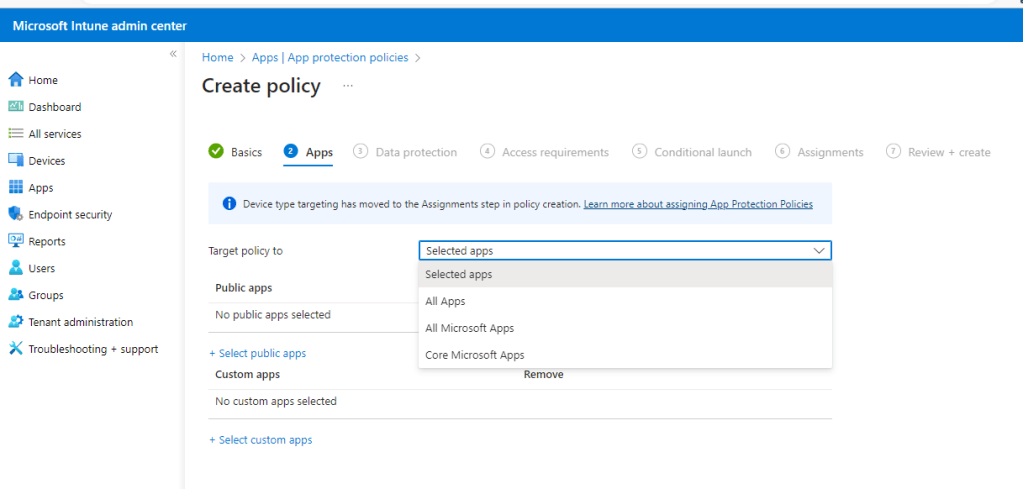
Now we must select which apps to assign to the rule via the Target policy to drop down. We are going to select Core Microsoft Apps for this demo.
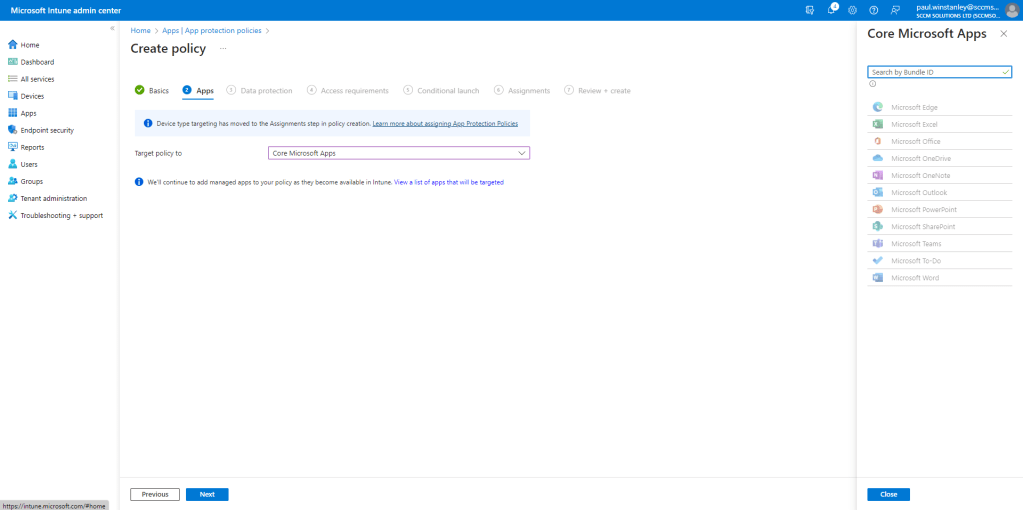
You can click the View a list of apps that will be targeted link to see which apps will be included in the targeting of this rule. Click Next.
The policy can be set according to the requirements you wish in your app protection framework. The settings here relate to Data protection and the screenshot shows the default configuration so this needs to be changed accordingly. Click Next when configured.

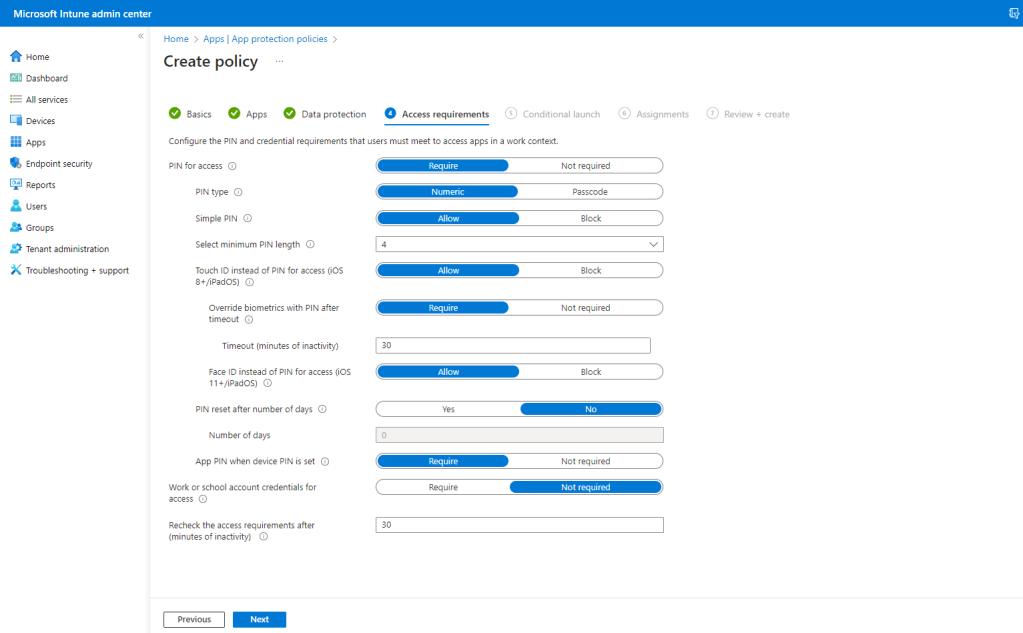
Similarly, set the Access requirements as per your framework. Click Next when done.
For Conditional launch, there are some default settings in place. Adjust as required and then click Next.
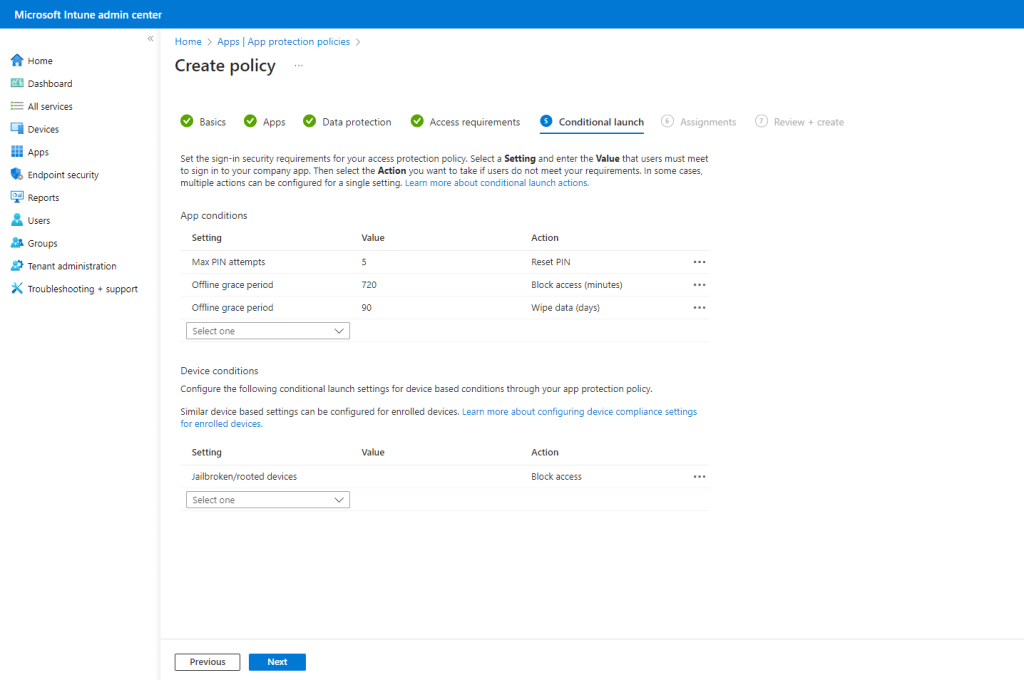
App Protection policies MUST be targeted at users. Note that we cannot target all users and that we have to specify a group. We have added in our CA Test User Group, which contains our test user, Neil Redfearn.
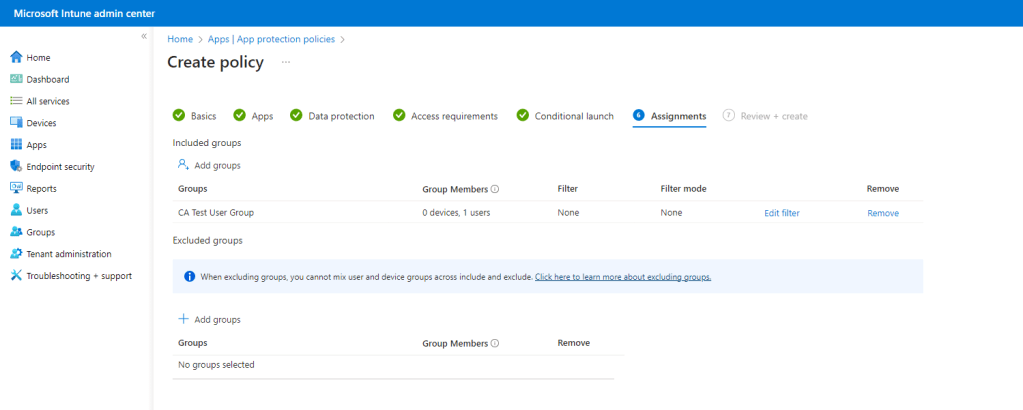
Click the Edit filter link. You’ll be presented all your available filters. Since this is will be a managed devices policy, for our demo we are going to Exclude filtered devices in assignment and select an Unmanaged iOS Devices filter. Click Select then Next.

Finally, review the policy before clicking Create. Repeat the process and create an unmanaged app protection policy and also create appropriate App Protection policies for Android.
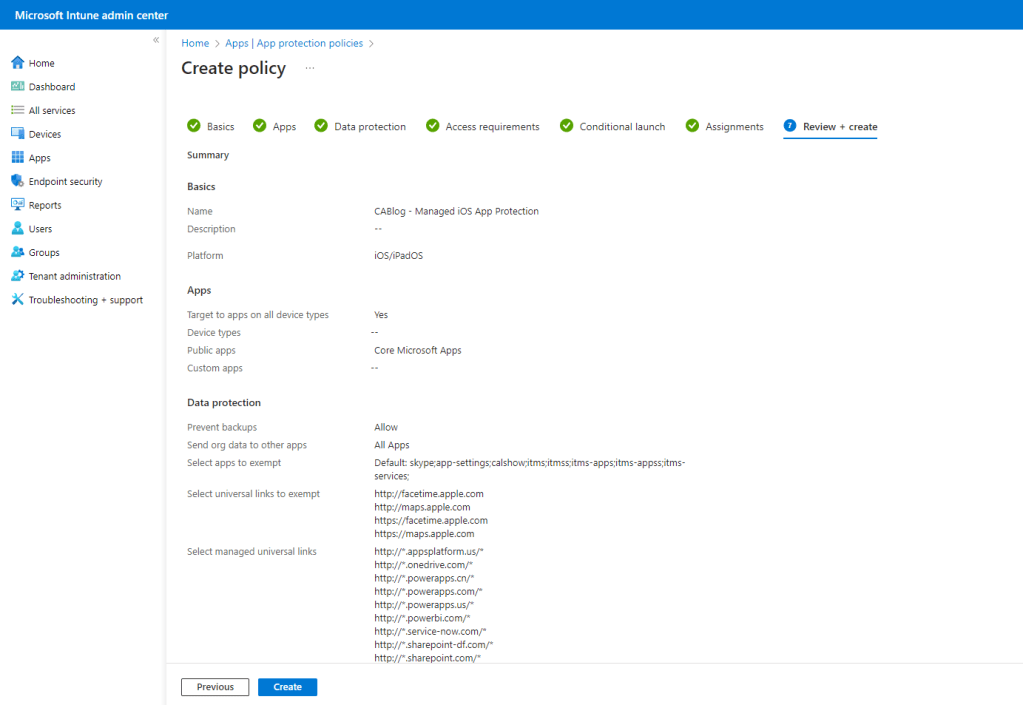
Adding in App Configuration policies for iOS apps
App Configuration policies are a feature of mobile application management provided by Intune. These policies allow administrators to configure and manage specific settings within mobile apps that support them. The aim is to streamline app deployment, ensure consistent configurations, and enhance security in the corporate environment.
For our App Protection policies in a managed state, we need to ensure that we create App Configuration policies for all our iOS app protected apps which sends data. The inclusion of the app configuration key in the receiving apps is discretionary.
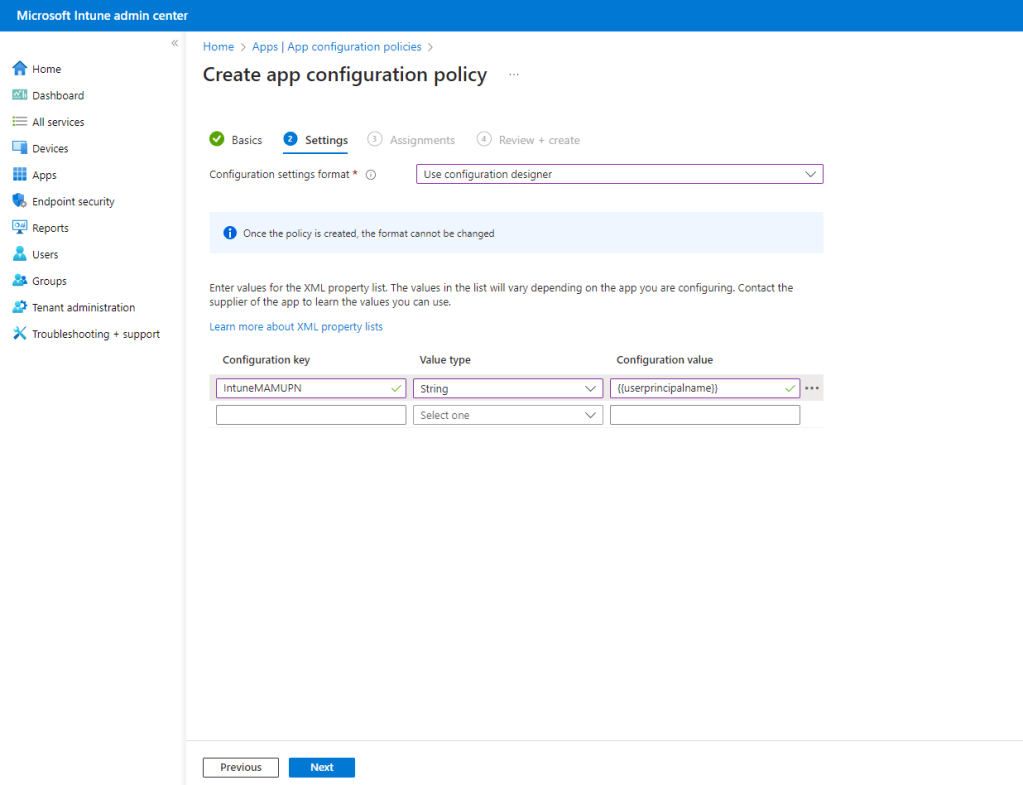
The details which need to be added are as follows:
key = IntuneMAMUPN, value = {{userprincipalname}}
This configuration is necessary to identify the enrolled user account when transferring data from a sending policy managed app to an iOS managed app.
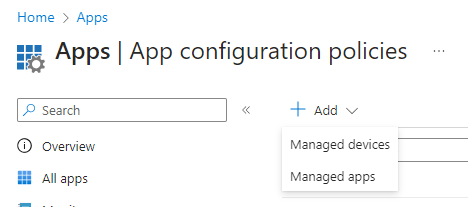
To create an App Configuration policy in Intune, navigate to Apps\App configuration policies.
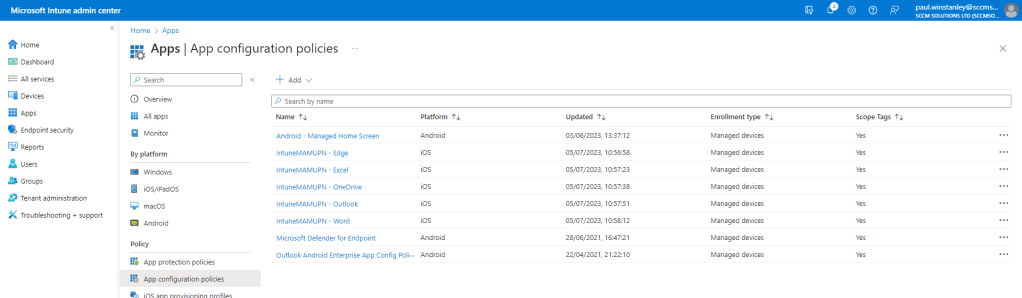
From the Add drop down , choose Managed devices.
Enter a Name for the policy, we are creating a policy for Microsoft PowerPoint, set the Platform to iOS/iPadOS and click the Select app link.
From the Associated app list select the appropriate application and then click OK.

The Targeted app will now populate with the chosen application. Click Next.

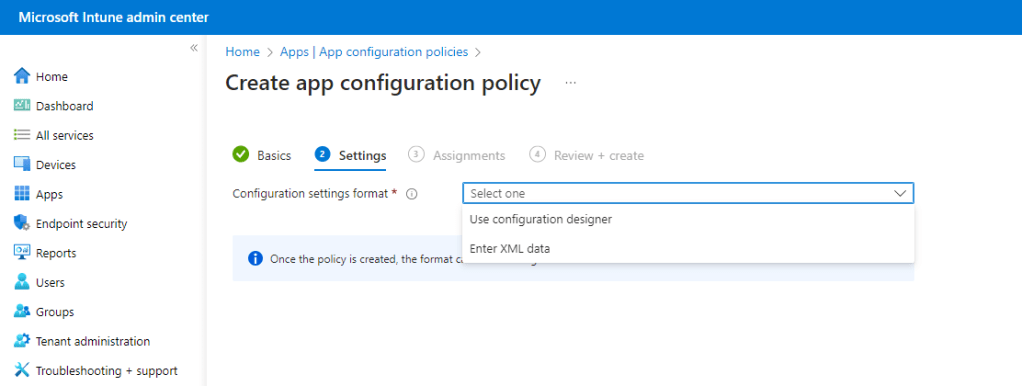
From the Configuration settings format drop down select Use configuration designer.
Enter the aforementioned IntuneMAMUPN details, ensure that the Value type is set to Integer. Click Next.
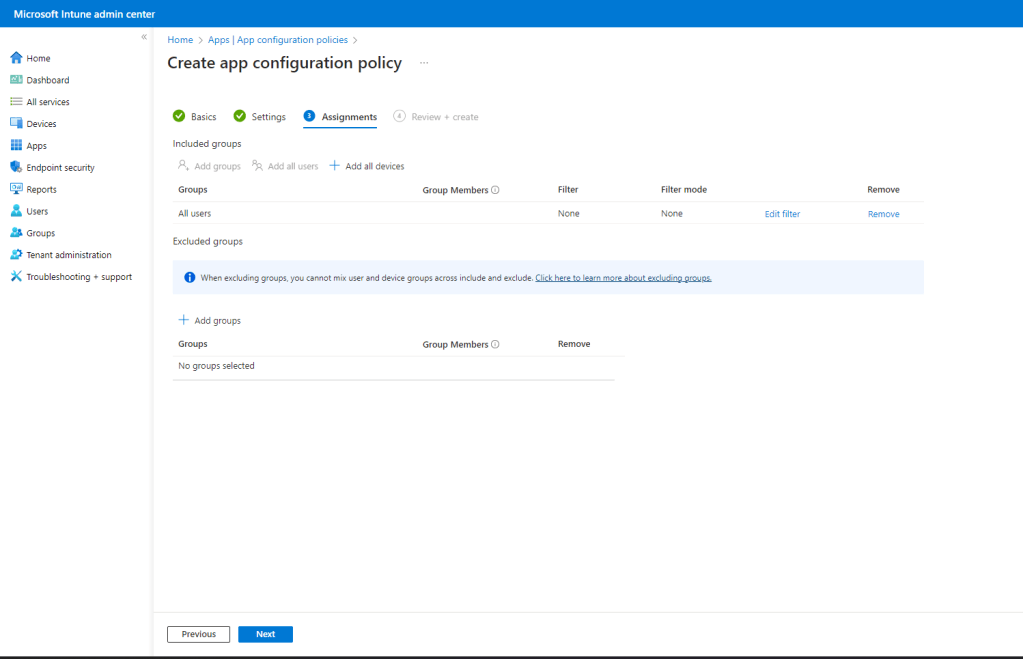
Assign the policy accordingly, we are pushing this to All users. Click Next.
Complete the policy creation by clicking Create.
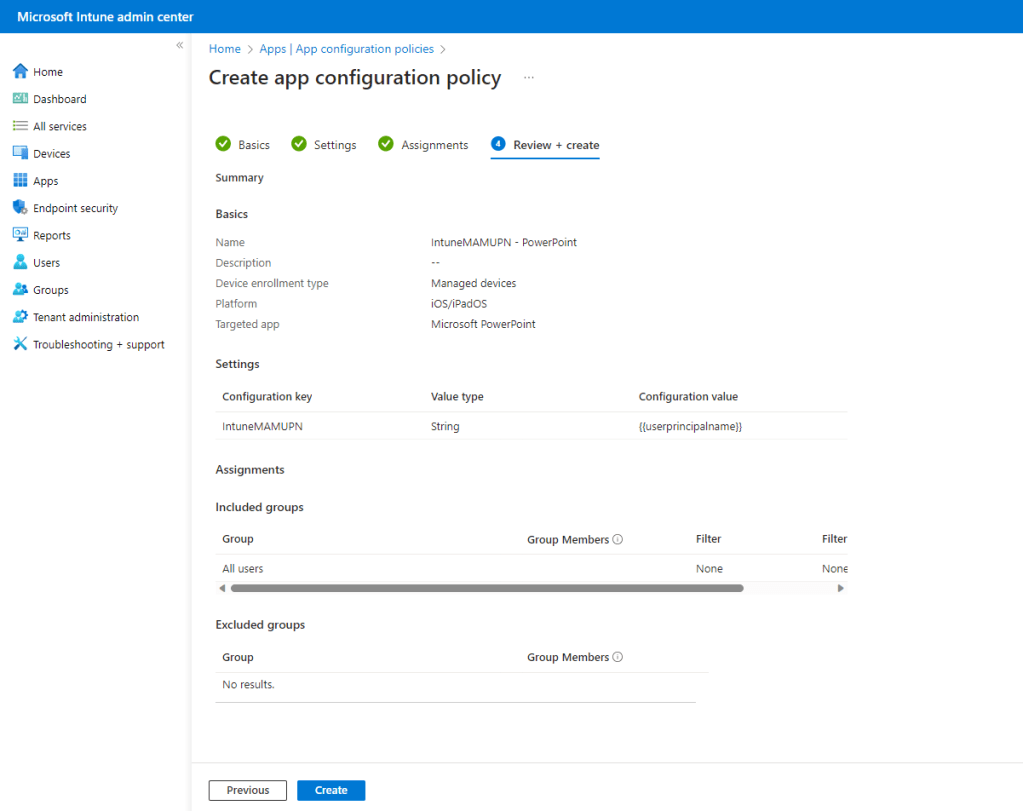
It is very important that the App Configuration policy is created and assigned for your managed devices.
Prior to Microsoft introducing filters to App Protection rules, if the App Configuration policy was not created or targeted and a user was targeted by a managed App Protection policy, the managed policy would not apply but if the user was targeted by an unmanaged App Protection policy, the unmanaged policy would be applied on the managed device – so at least some App Protection would get applied as a kind of fallback.
Now with filtering applied, if the App Configuration policy is not created or targeted the user will not receive the managed App Protection policy and nor will they get the unmanaged App Protection policy – so this could become a device which does not receive any App Protection. However with the use the conditional access rule for Require approved client apps and app protection these users will get caught out and denied access to corporate data, as you will see shortly.
Require approved client apps and app protection
This Conditional Access policy requires multifactor authentication to be satisfied when users access Cloud Apps, use User Actions or Authentication context.
It is created in the Azure Portal under the Conditional Access\Policies blade, or in the Microsoft Intune admin center console under Devices\Conditional Access.
Click the New policy from template (preview) link.
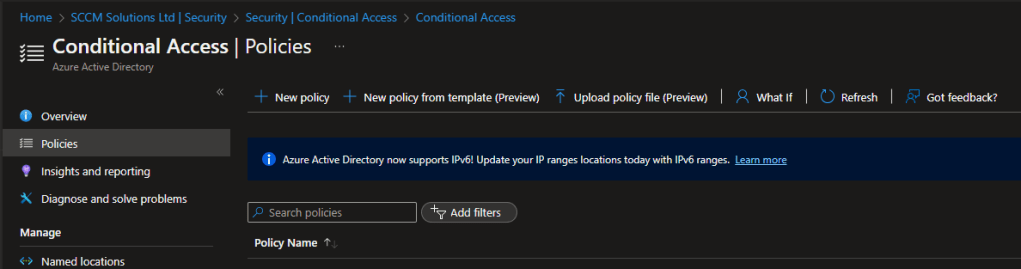
The policy is available in the Zero trust or Remote work scenarios, or you can click All to display all the templates.

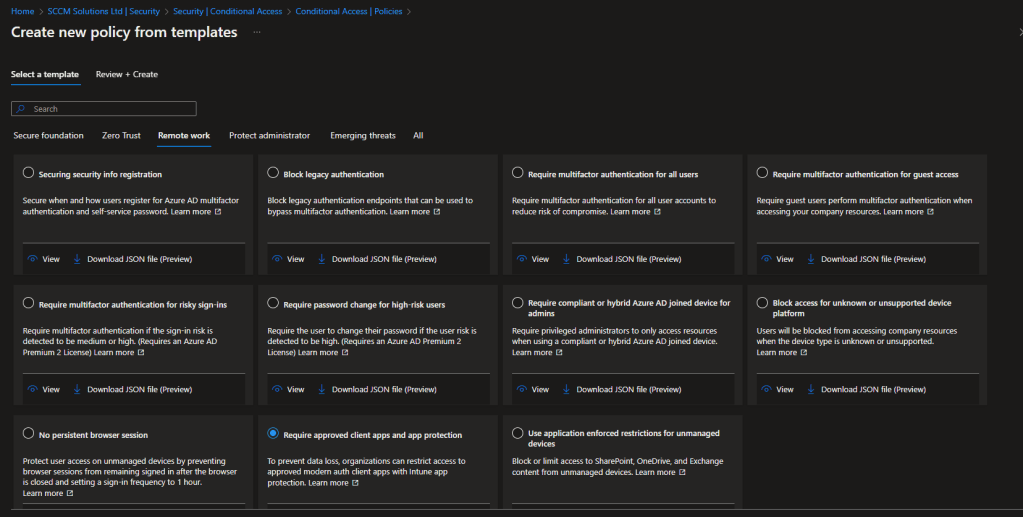
You can click the View option to view the default settings for the policy.
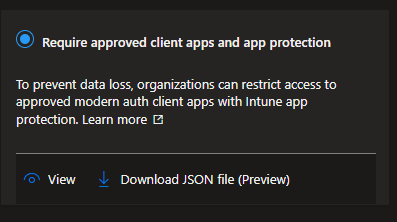
These are the settings for the Require approved client apps and app protection template.
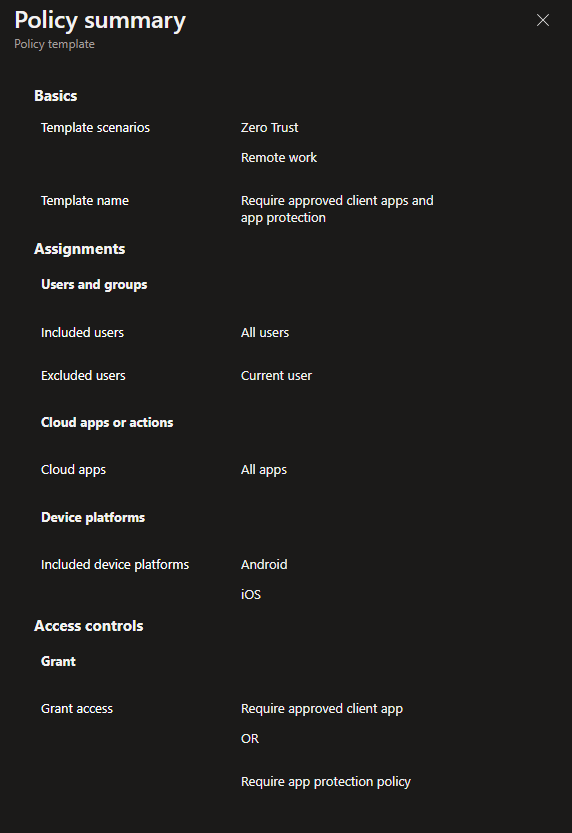
| Users: | All Users are Included – The current user creating the policy will be excluded |
| Apps: | All apps |
| Device platforms | Android iOS |
| Access Control: | Grant access – Require approved client apps OR Require app protection |
When the policy is created it is set as Report-Only. This is good practice, as the impact of enabling the policy can be assessed before doing so.
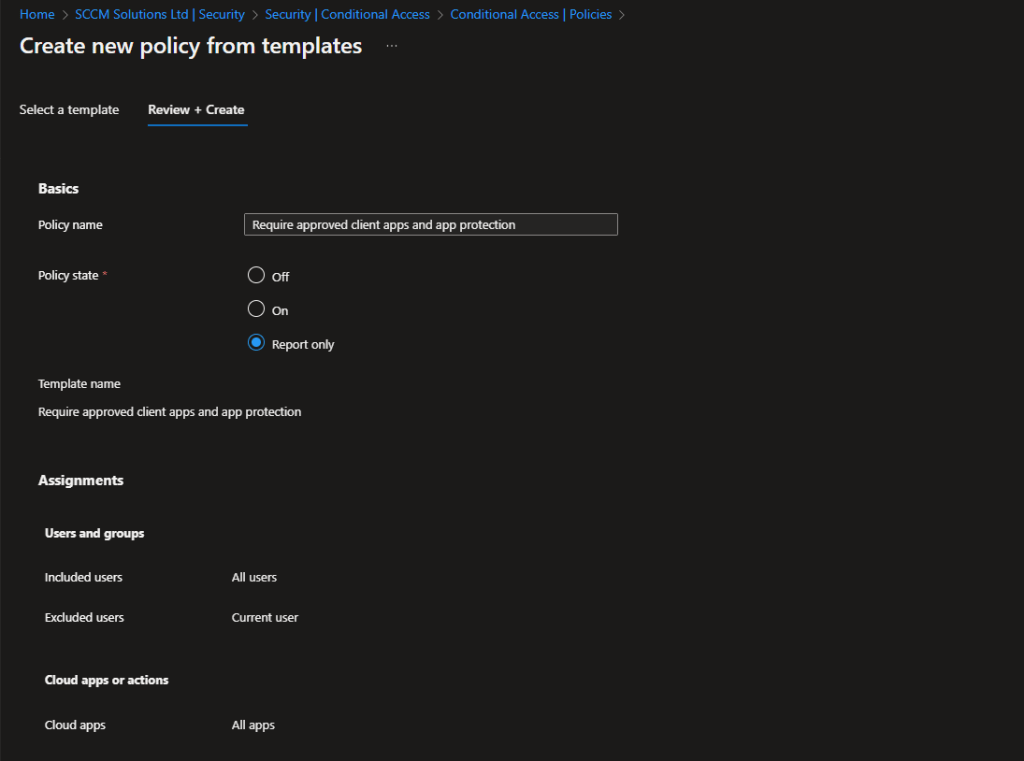

Note the warning – Policies in report-only mode, which mandate compliant devices, might trigger prompts on macOS, iOS, and Android devices, asking users to select a device certificate during policy evaluation, even if device compliance enforcement is not active. These prompts may recur until the device becomes compliant. To avoid end-users receiving such prompts during sign-in, it is advisable to exclude device platforms Mac, iOS, and Android from report-only policies that conduct device compliance checks. If you make the exclusion, make sure that you re-add the iOS and Android platforms back in before turning on the rule.
We can ignore this for now, since we will be enabling the rule shortly.
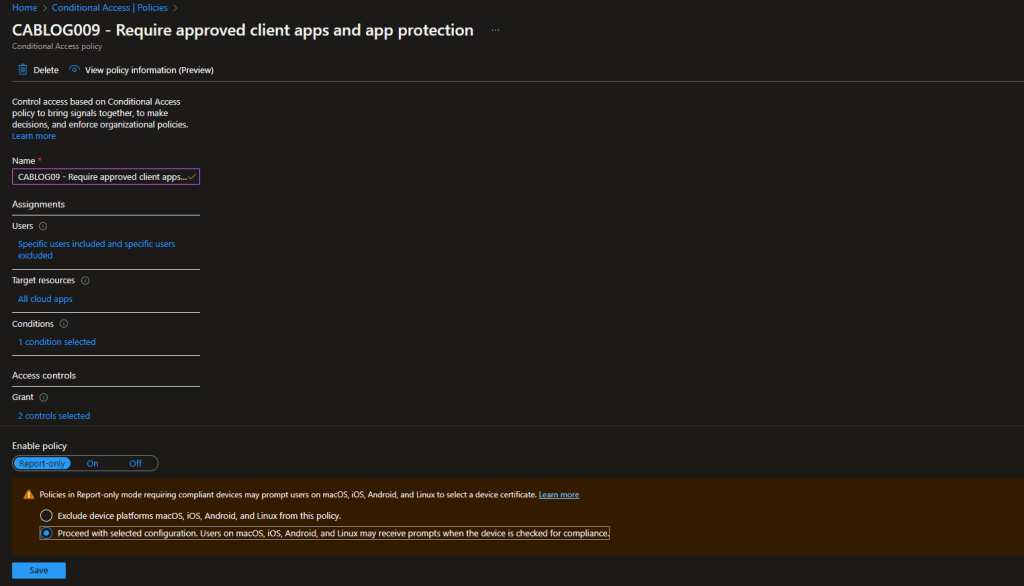
For our testing, we have created a group called CA Test User Group and added our test users to it. In the policy, under Users, we have chosen Select users and groups and picked the group to filter for. The user creating the policy via the template is excluded by default, but it is recommended to ensure you have a break glass account which can be used to access should the rule cause problems.
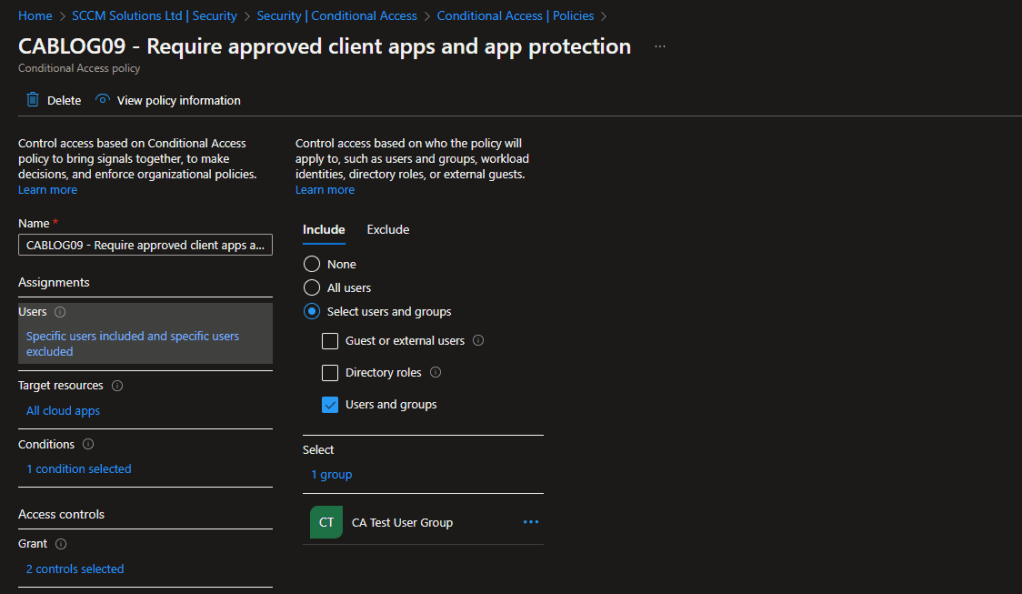
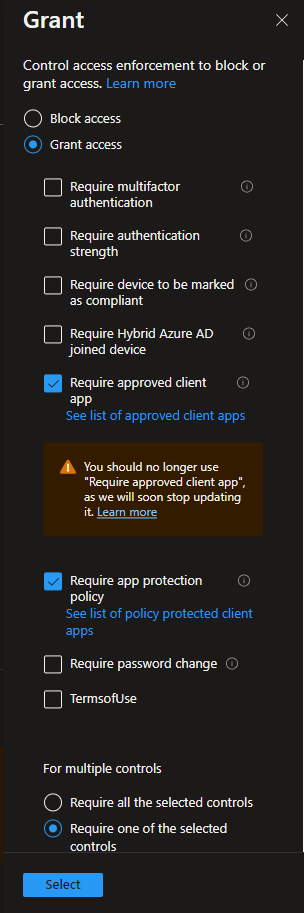
In the Access controls\Grant section of the rule, you can see that Require approved client apps and Require app protection are selected as the controls and that Require one of the selected controls is selected.
When you are ready to move from the Report-Only mode, switch the toggle to On.

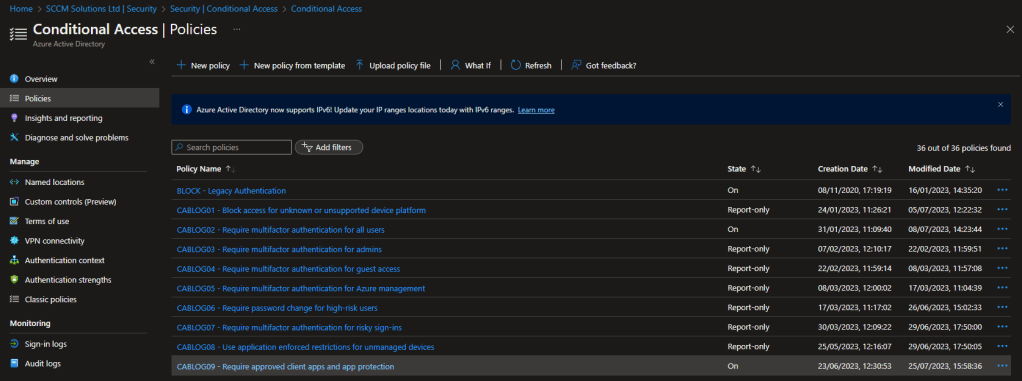
The state of the policy will be reflected in the console.
Impact of enabling the policy
The following tests were undertaken on the iOS and Android device platforms, both managed and unmanaged devices were tested by attempting to access the Office apps.
iOS unmanaged device
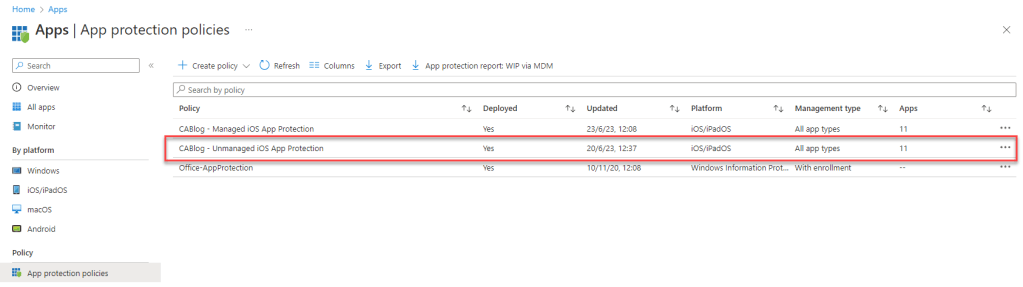
An App Protection policy has been configured and deployed to the CA Test User Group and filtered for unmanaged devices. It is targeting Core Microsoft apps.
iOS unmanaged – Conditional Access Success
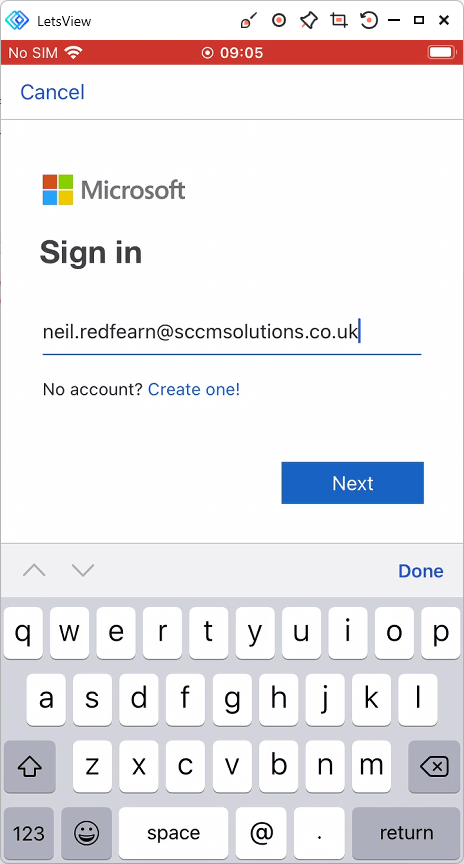
Open up Word and sign in as a targeted user, for our testing this is Neil Redfearn.
Enter the password.

The app status is checked.

The App Protection applies. The user is greeted with a message Your organization is now
protecting its data in this app. You need to restart the app to continue. Click OK.
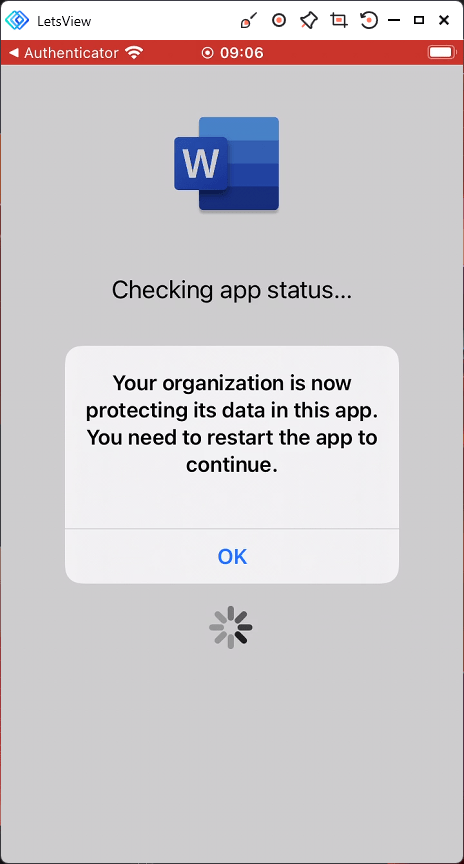
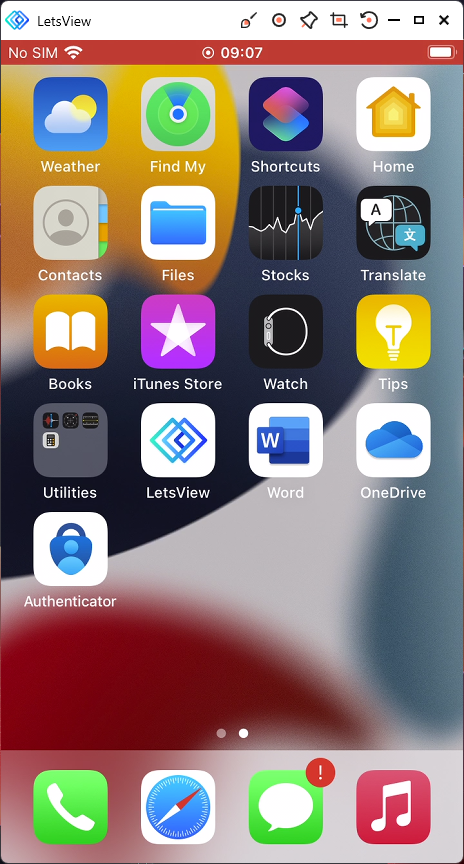
The application closes down. Load Word again.
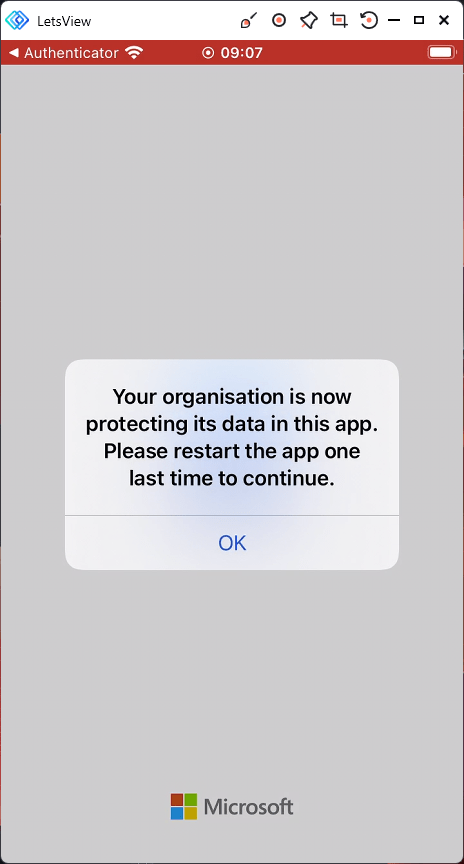
The user is now greeted with the message. Your organisation is now protecting its data in this app. Please restart the app one last time to continue. Click OK.
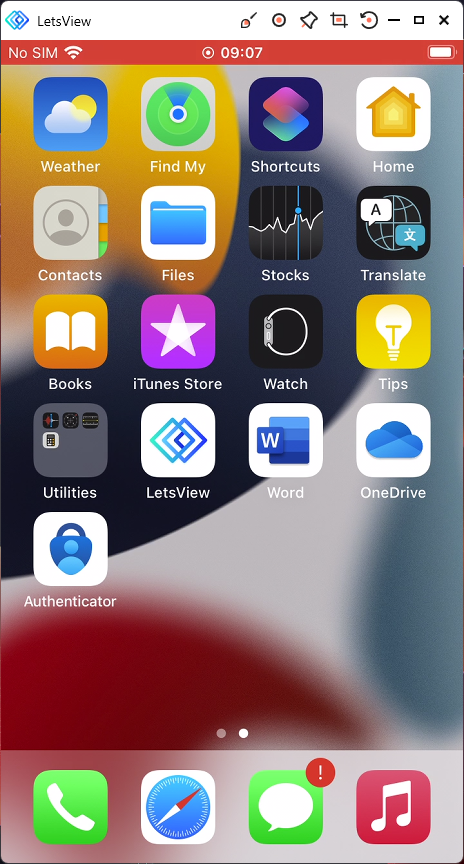
The application closes down. Load Word one more time.
The user will be logged in and ready to use the app.
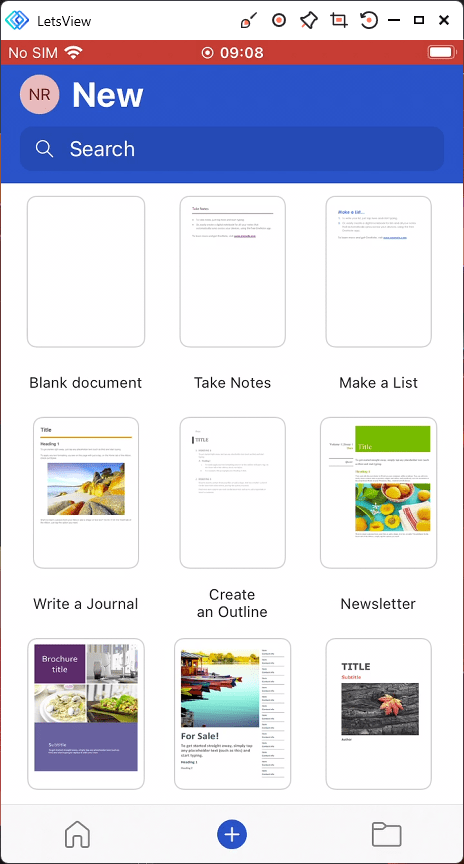
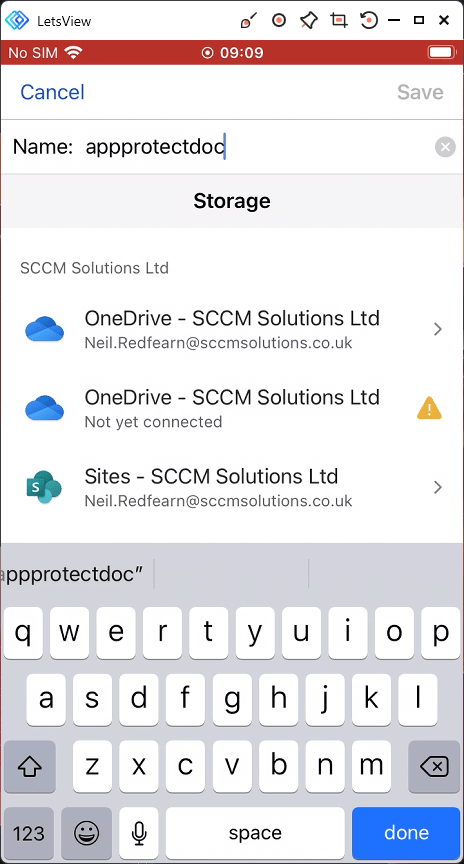
When the user attempts to Save the document in OneDrive…
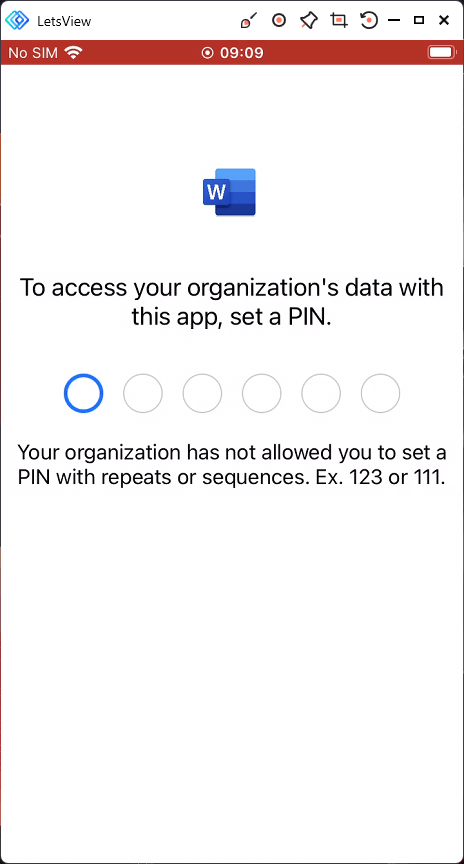
if a pin code has been set to access, then they will be prompted to create one.
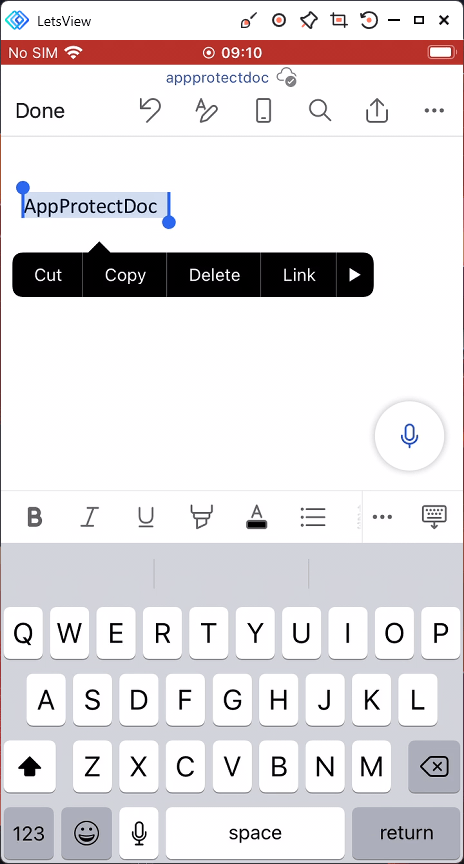
Once the document is saved in the protected area i.e. OneDrive, if a user attempts to copy the data…
they will be denied in any app which is not included in the list to targeted apps. So our rule states Core Microsoft apps only and the iOS app Notes is not targeted so the user get the message Your organization’s data cannot be pasted here.
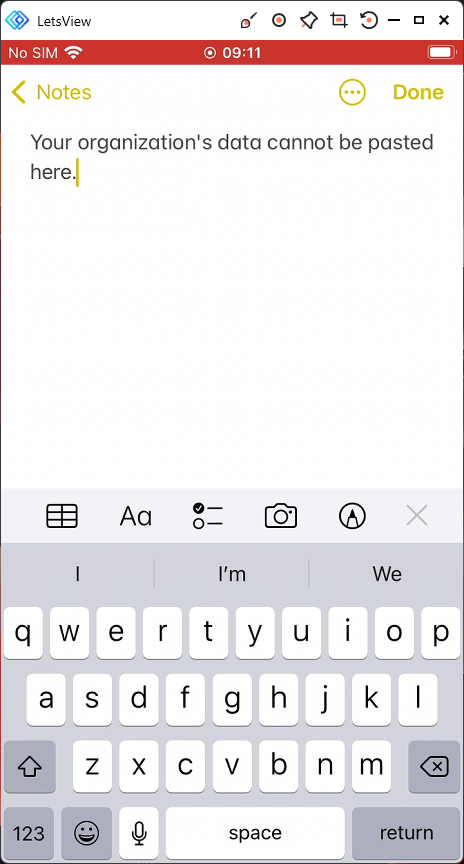
You can monitor the app protection status in Intune in Apps\Monitor\App Protection status, however these reports are currently extremely slow to populate with data. It is therefore recommended, until this is resolved, to run troubleshooting against a user to get the details on the applied app protection rule. This is located under Troubleshooting + support\Troubleshooting.
Search for the user, click the App protection heading.
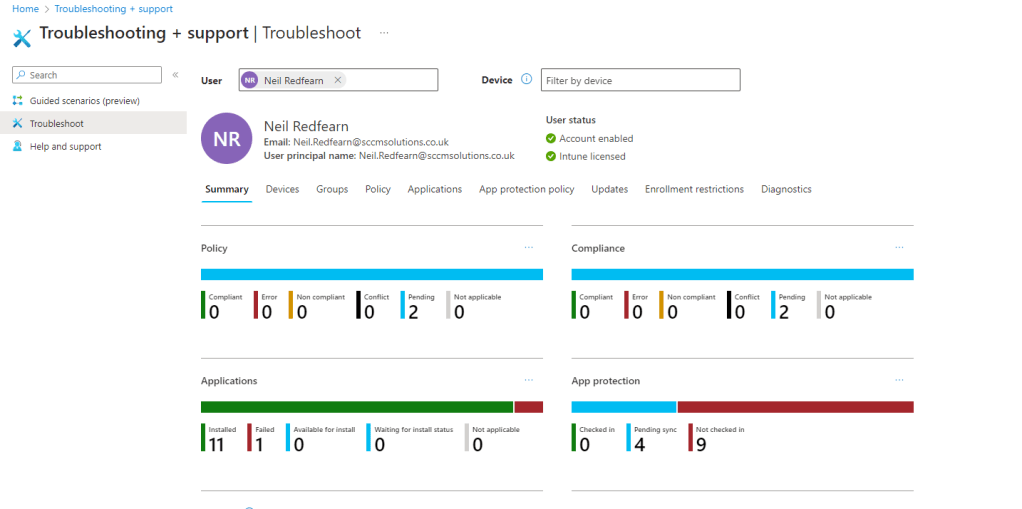
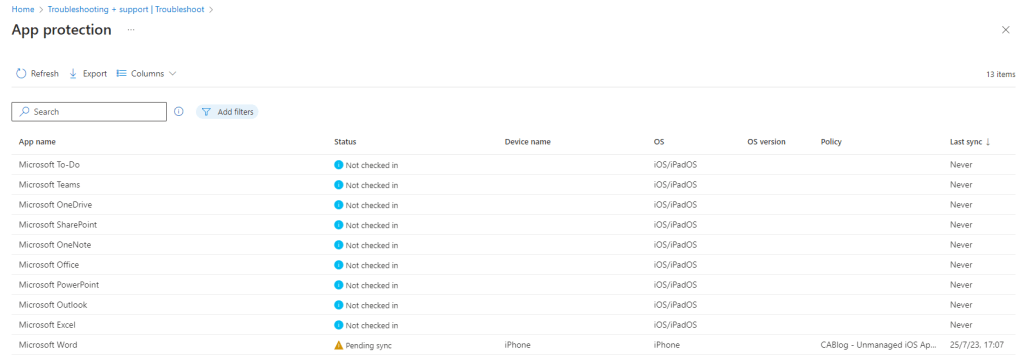
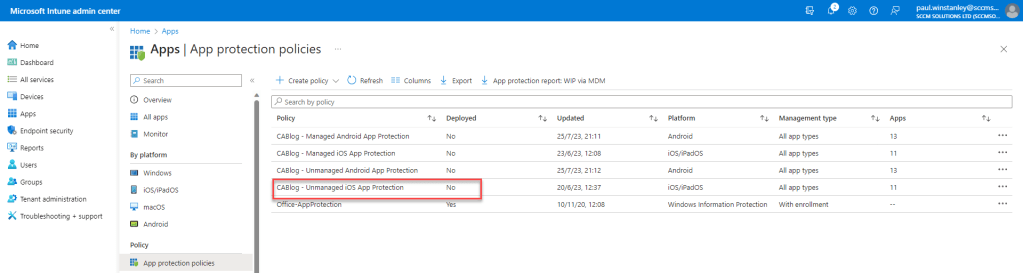
We can see that there an entry for Microsoft Word and it used our unmanaged App Protection policy. The device is Pending sync.
iOS unmanaged – Conditional Access Failure
With the app protection policy targeting removed and the user is not included, the experience is as follows:
The user authenticates by signing into the application by entering their username.
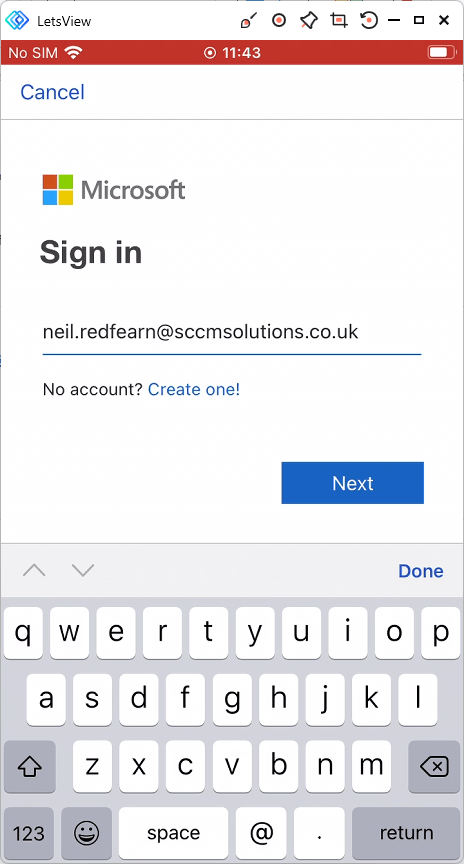
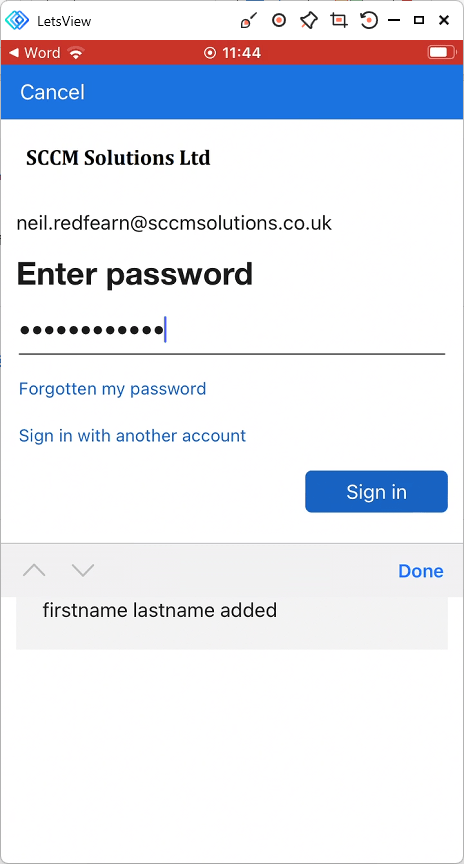
The password is entered.
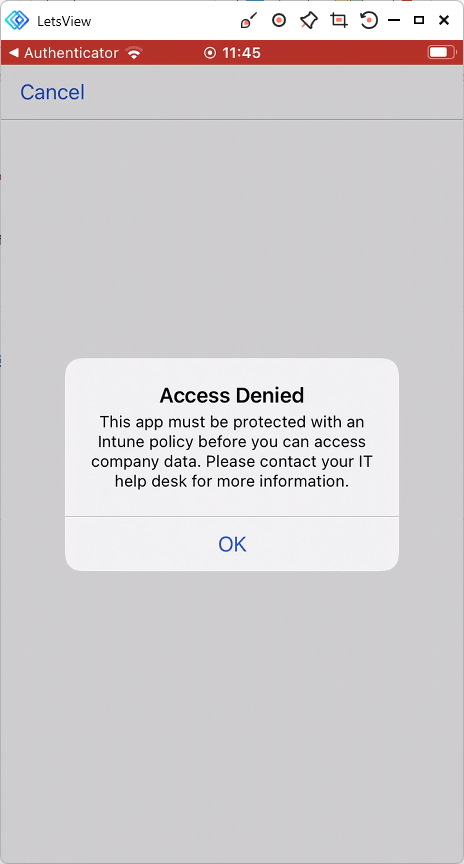
An Access Denied message appears. The message states that
This app must be protected with an Intune policy before you can access
company data. Please contact your IT help desk for more information.
If an attempt to access the data via OneDrive is made, the same message appears.

This is interesting, as our conditional access rule states Require approved client apps or Require app protection. Word is an approved client app, however we are still blocked when not being targeted for app protection. This is because Require app protection is enforced when the applications supports that grant control.
iOS managed device
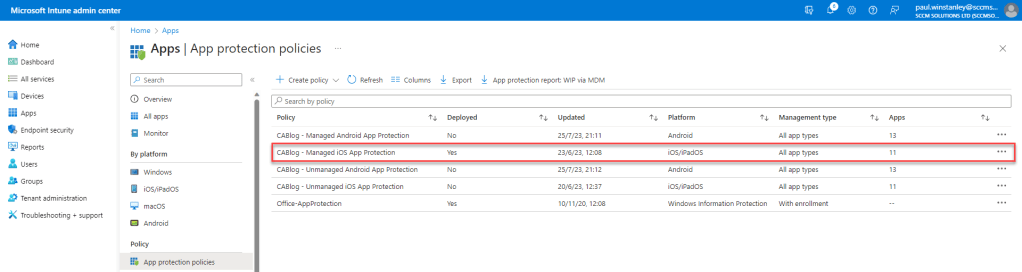
An App Protection policy has been configured and deployed to the CA Test User Group and filtered for managed devices. It is targeting Core Microsoft apps.
iOS unmanaged – Conditional Access Success
Open up Word and sign in as a targeted user, for our testing this is Neil Redfearn.
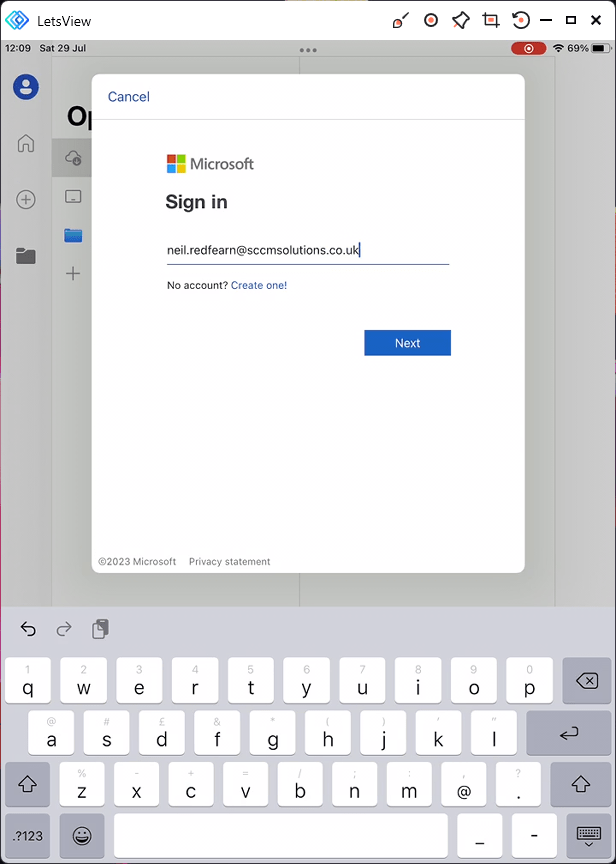
Enter the password.
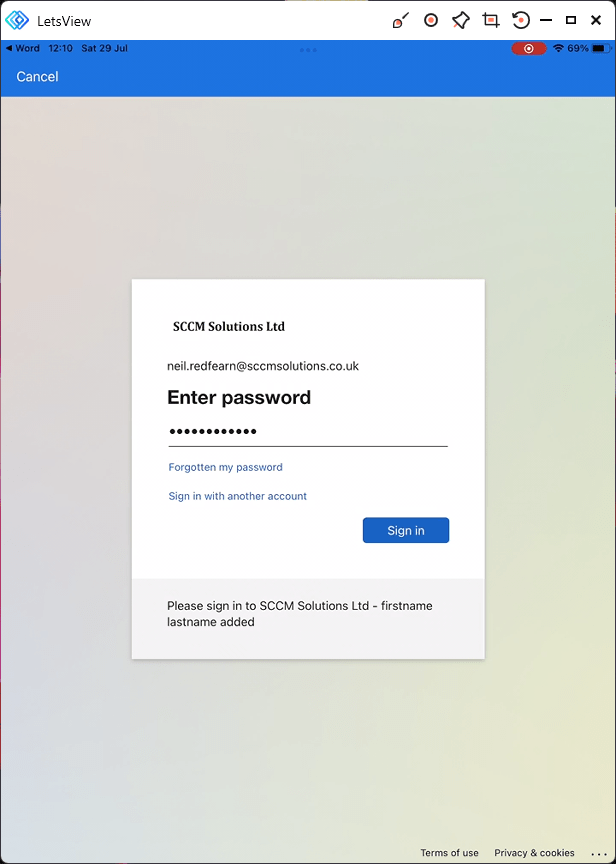
The app status is checked.
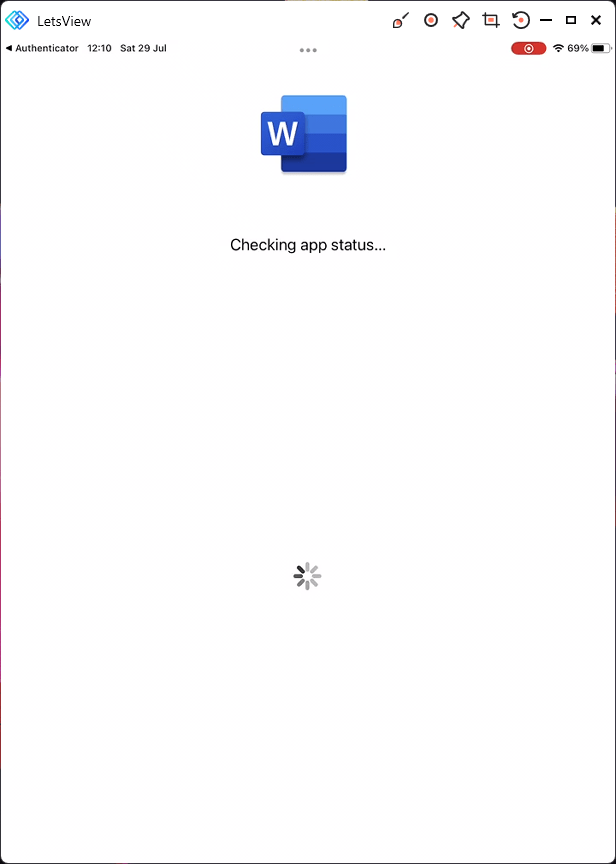
The App Protection applies. The user is greeted with a message Your organization is now
protecting its data in this app. You need to restart the app to continue. Click OK.

The application closes down. Load Word again.
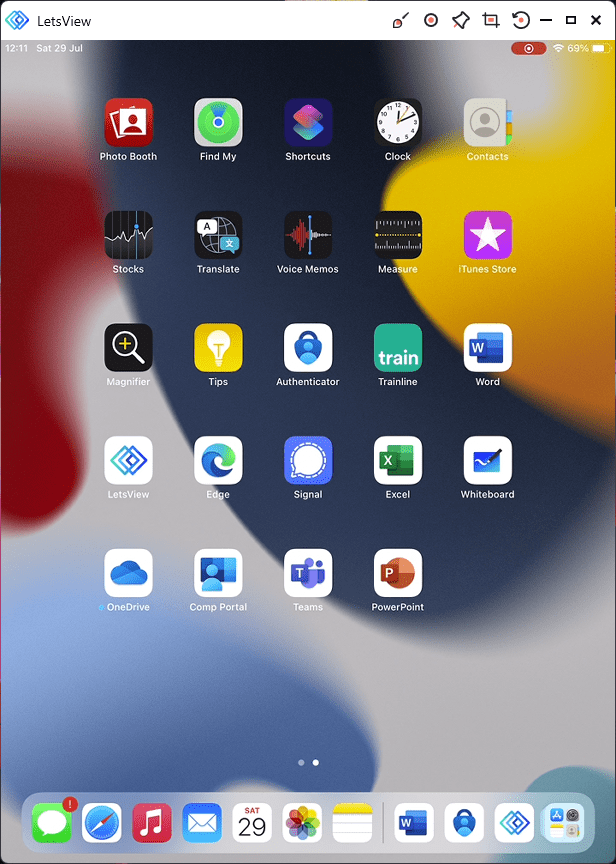
The user is now greeted with the message. Your organisation is now protecting its data in this app. Please restart the app one last time to continue. Click OK.

The application closes down. Load Word one more time.
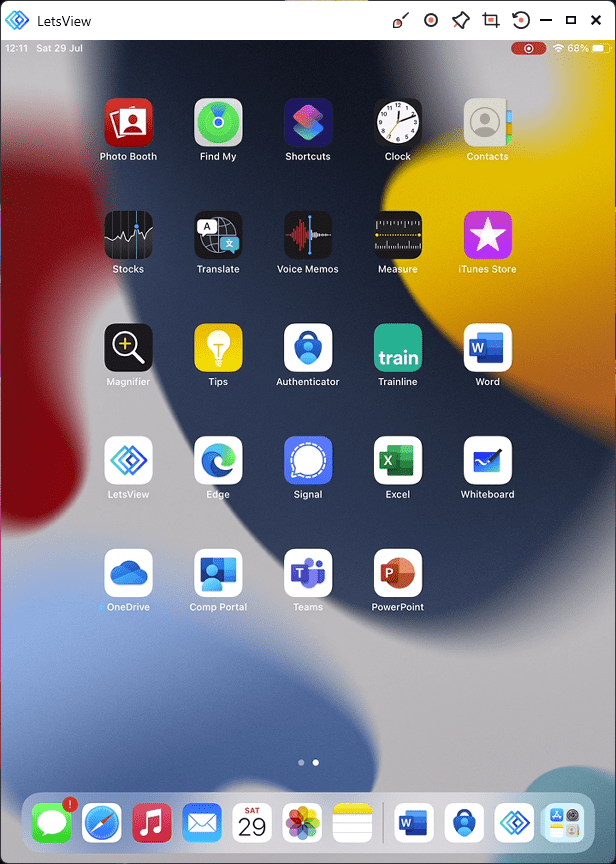
The user will be logged in and ready to use the app.

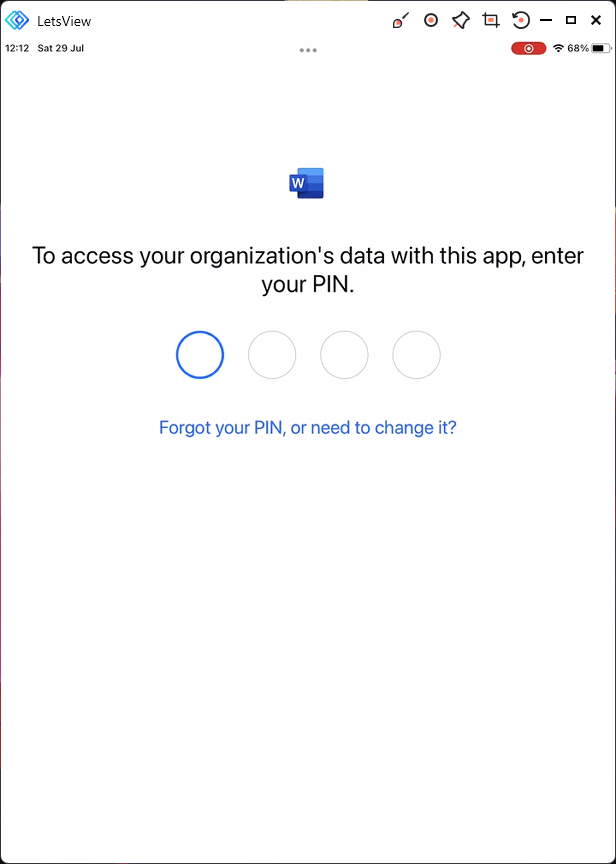
If a pin code has been set to access, then they will be prompted to create one or enter an existing.
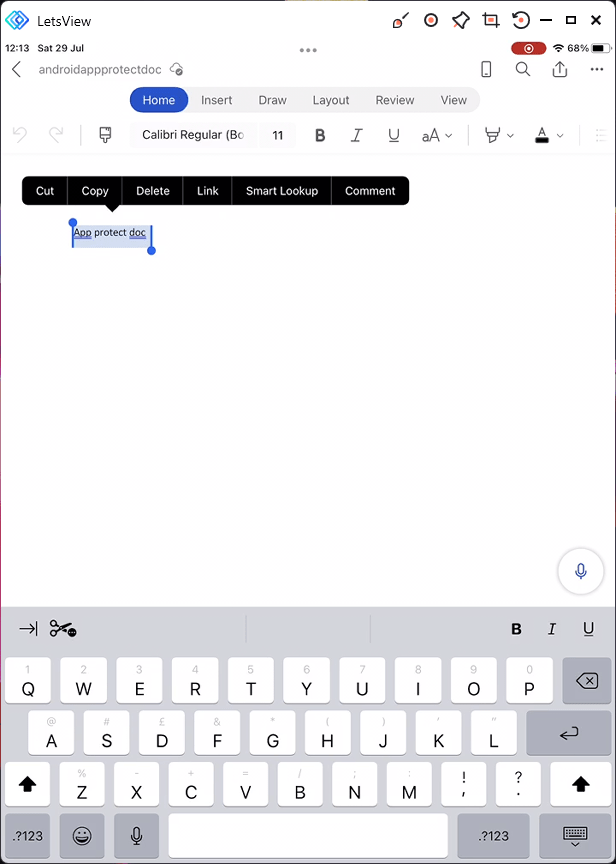
Once the document is saved in the protected area i.e. OneDrive, if a user attempts to copy the data…
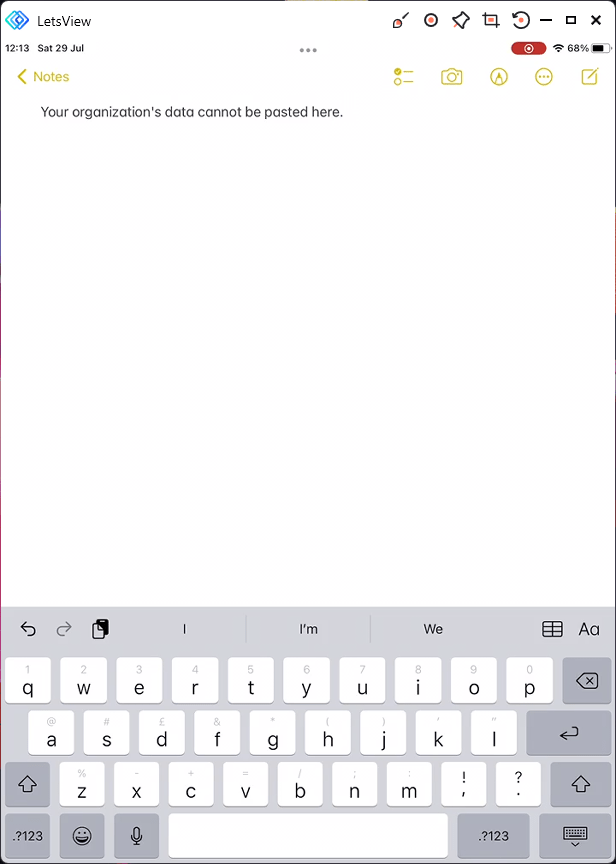
they will be denied in any app which is not included in the list to targeted apps. So our rule states Core Microsoft apps only and the iOS app Notes is not targeted so the user get the message Your organization’s data cannot be pasted here.
We can see that there an entry for Microsoft Word in Troubleshooting + support under Troubleshoot\App Protection and it used our managed App Protection policy. The device is Checked in.

iOS managed – Conditional Access Failure
With the app protection policy targeting removed and the user is not included, the experience is as follows:
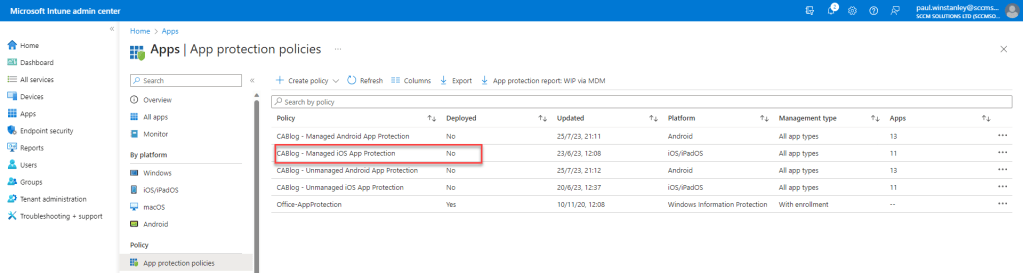
The user authenticates by signing into the application by entering their username.

The password is entered.
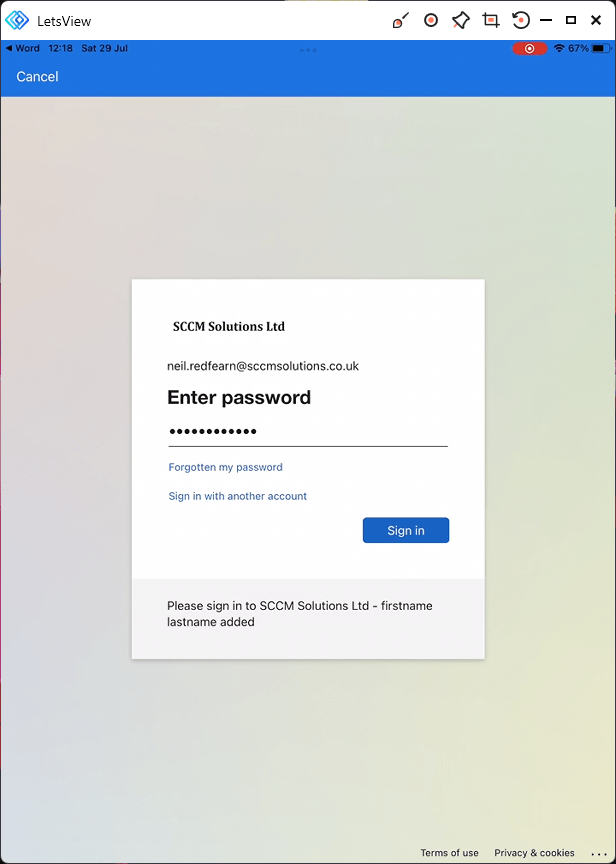
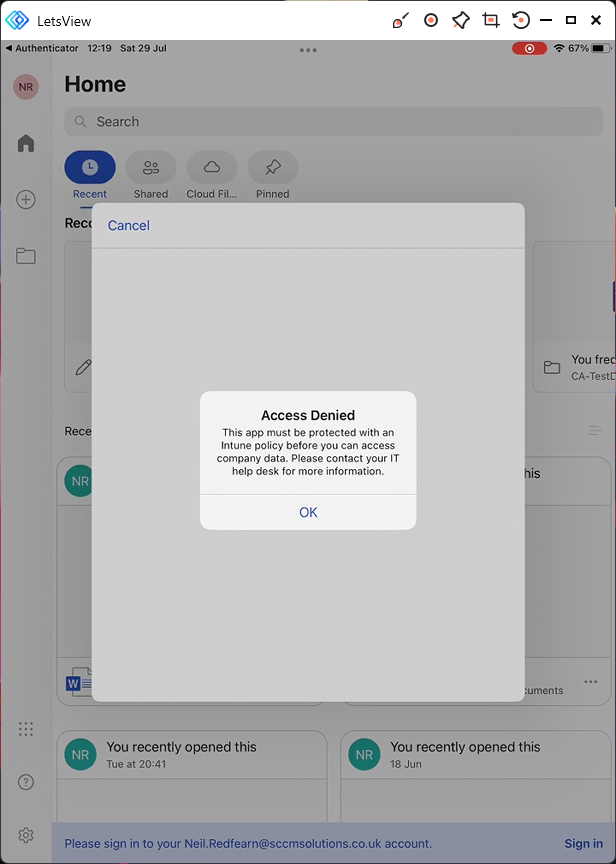
An Access Denied message appears. The message states that
This app must be protected with an Intune policy before you can access
company data. Please contact your IT help desk for more information.
Android unmanaged device
An App Protection policy has been configured and deployed to the CA Test User Group and filtered for unmanaged devices. It is targeting Core Microsoft apps.
The testing was undertaken on an enrolled Android device. This device was enrolled as a Corporate-owned devices with work profile therefore it contains a Work and Personal profile. The Personal profile works in the same way an unmanaged device would.
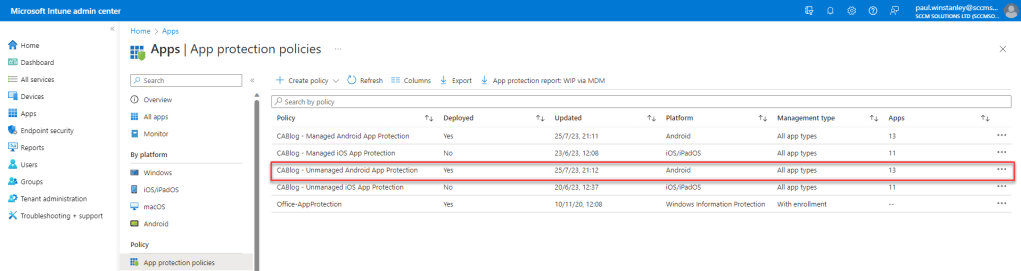
Android unmanaged – Conditional Access Success
Open up Word and sign in as a targeted user, for our testing this is Neil Redfearn.
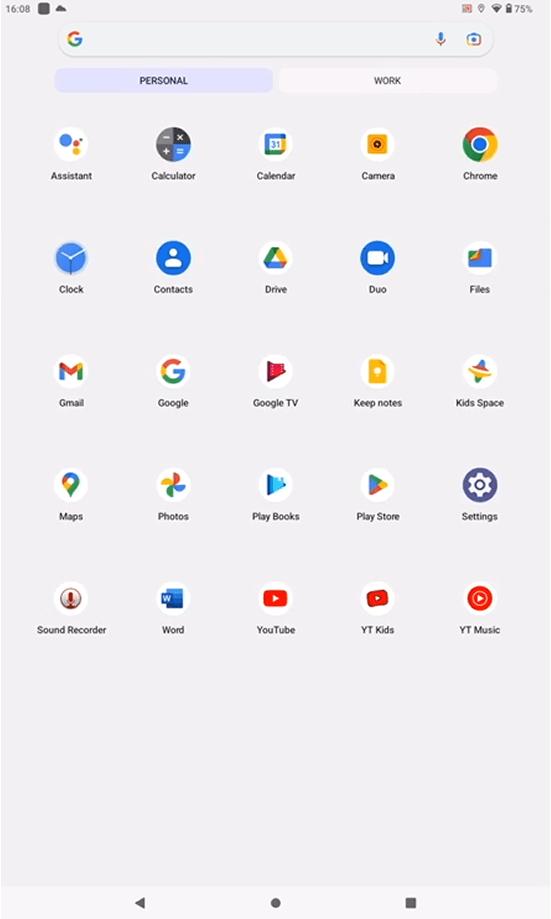
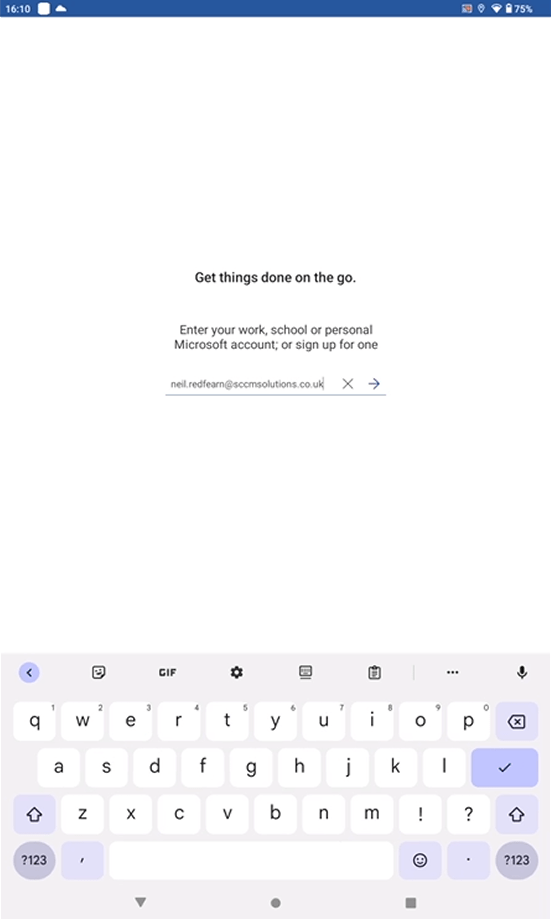
Enter the password.
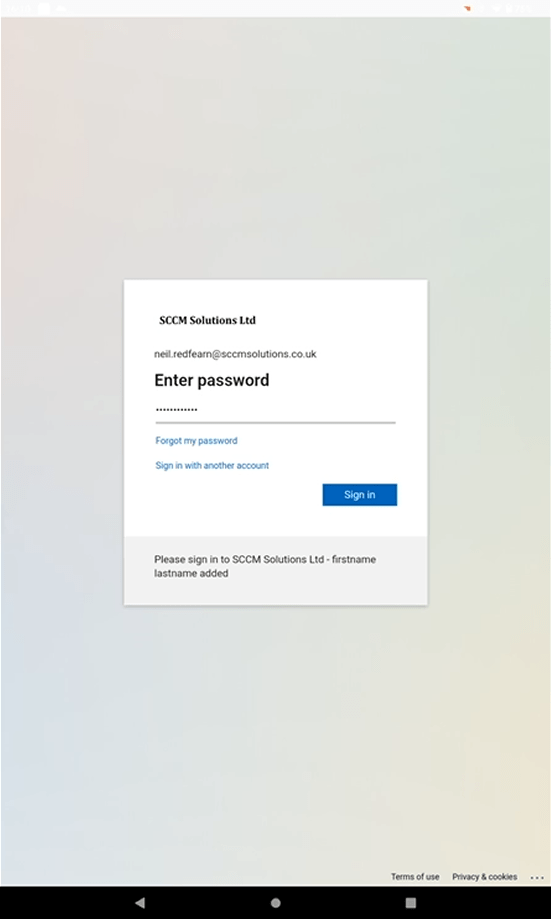
Compete the MFA request.
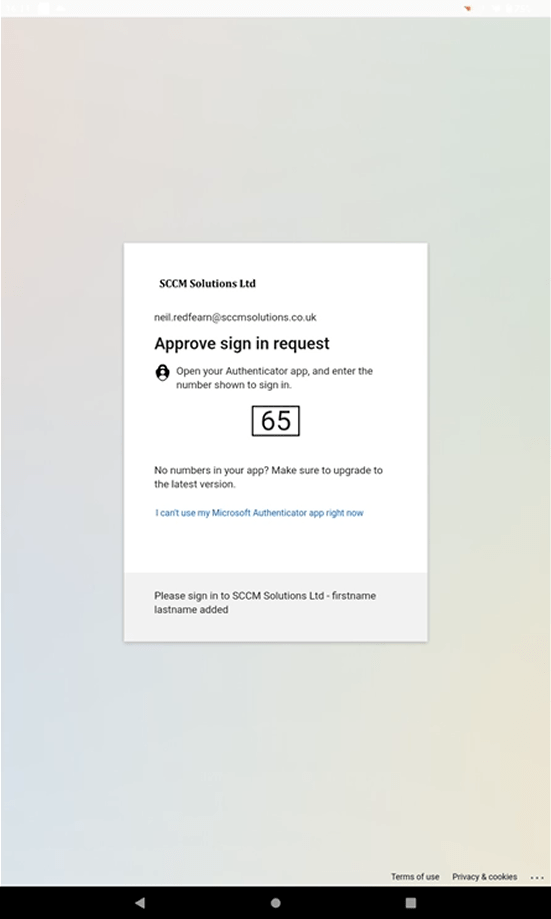
Since this device does not have either the Intune Company Portal or the Microsoft Authenticator app install in the personal profile, we are asked to Get the app so we can broker. Click the button.
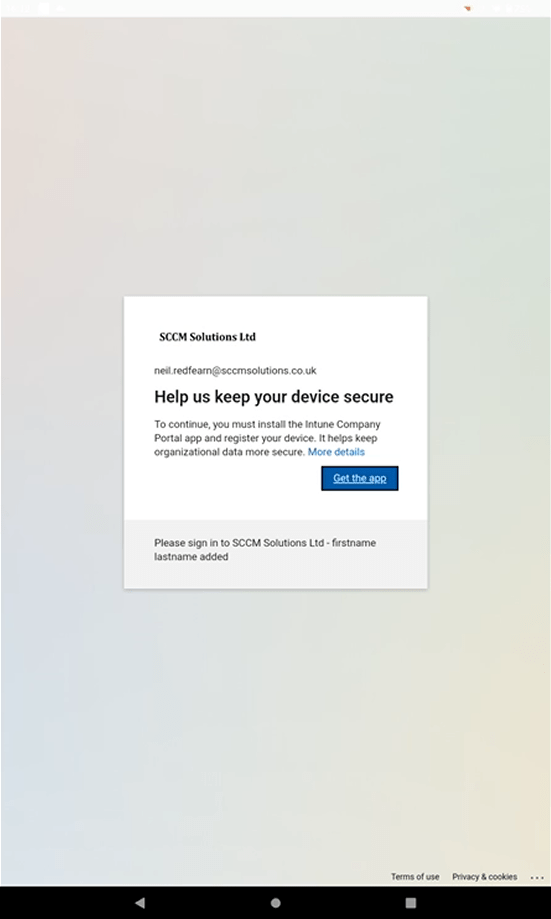
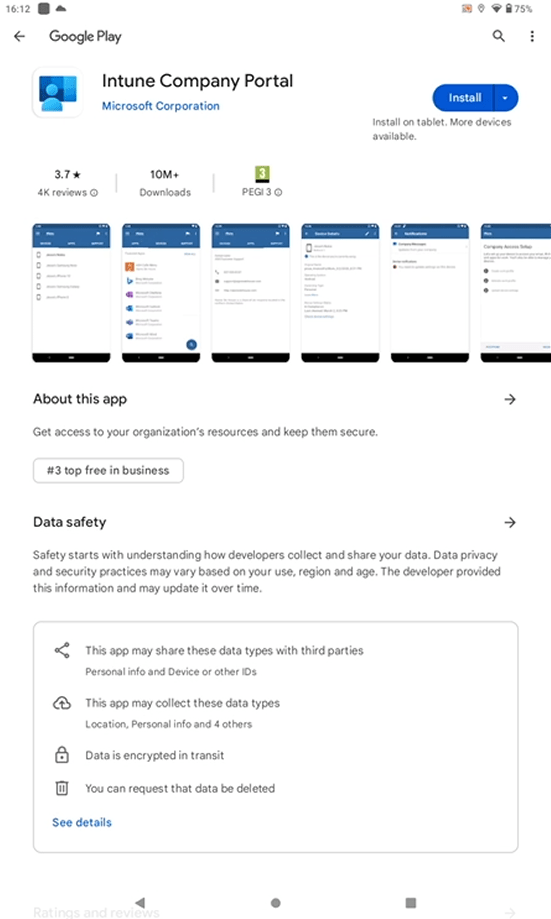
We are redirected to the Google Play store. Click Install to obtain the Intune Company Portal.
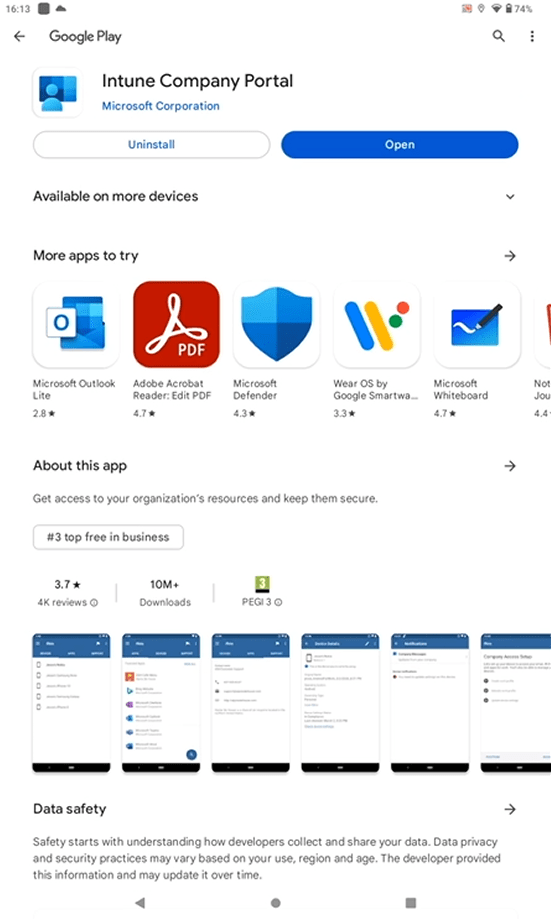
When installed, click Open.
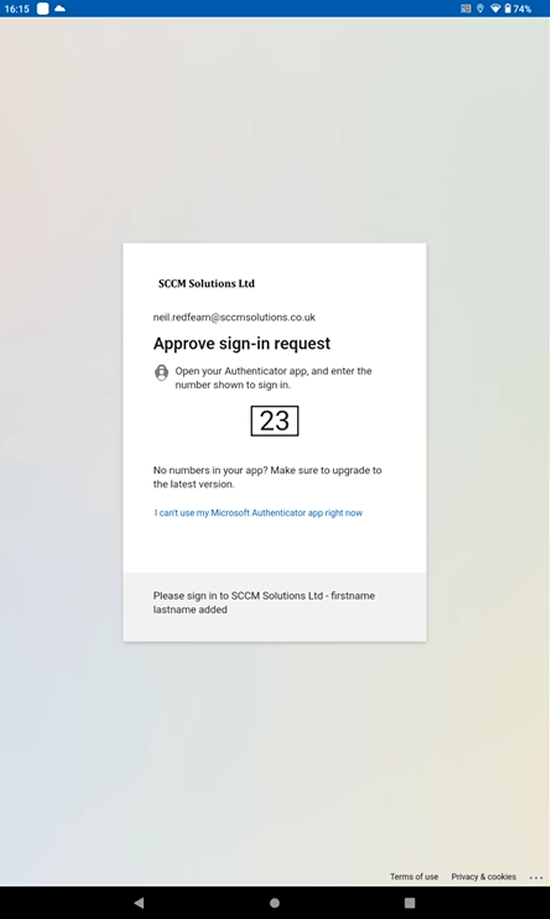
Re-enter the username.

and password.

Once again, approve the MFA request.
Now the device needs to be added to Azure AD. Click Register.

The app status is checked.
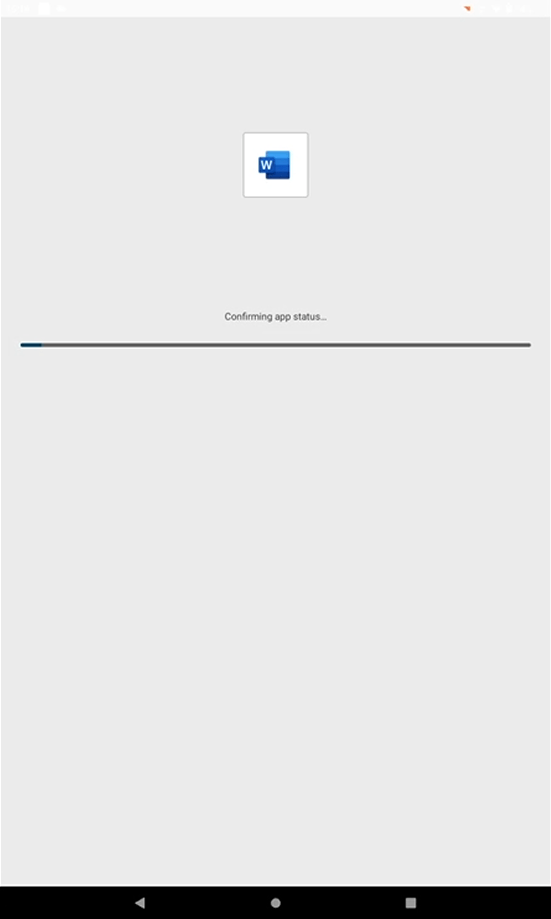
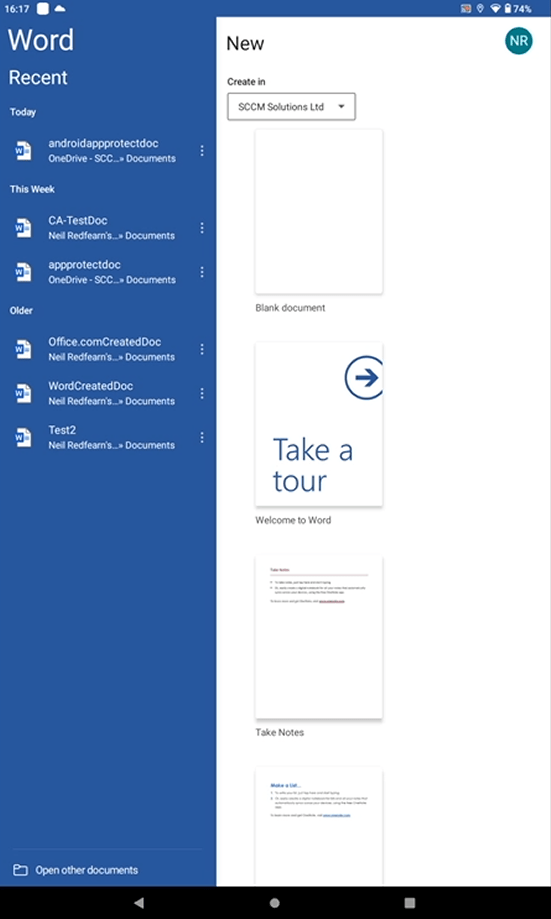
We are now logged into Word.
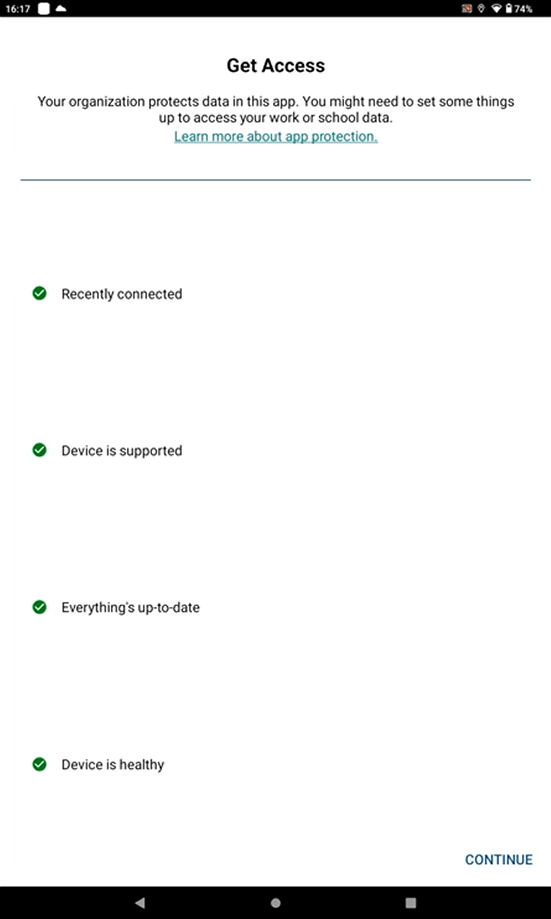
When there is an attempt to open or save a document in protected storage, app projection rules apply. Click Continue.
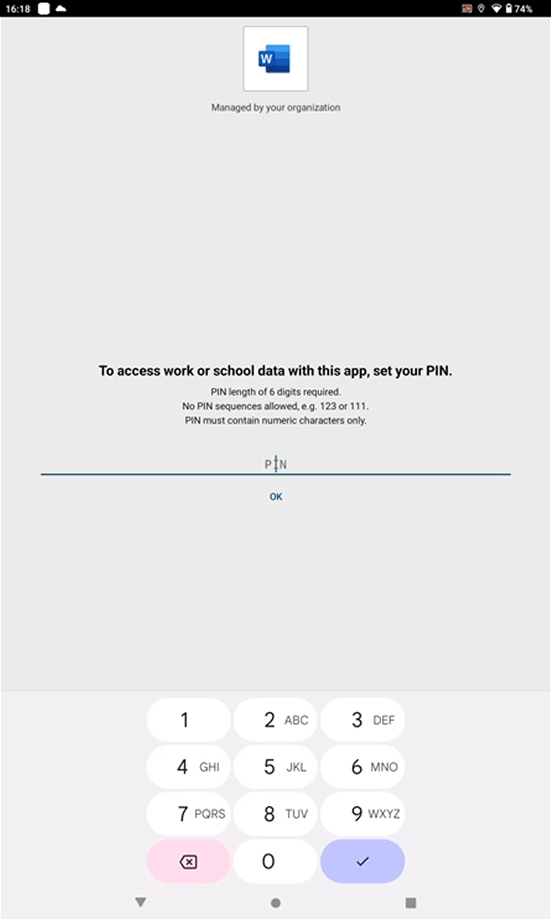
As our rule requires PIN, we are forced to set one.
Once the document is saved in the protected area i.e. OneDrive, if a user attempts to copy the data…

they will be denied in any app which is not included in the list to targeted apps. So our rule states Core Microsoft apps only and the Android app Keep notes is not targeted so the user get the message Your organization’s data cannot be pasted here.

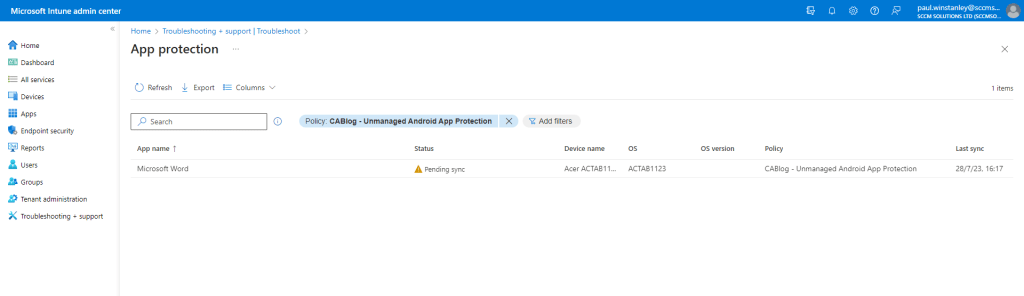
In the Troubleshooting\App Protection view, we can see that there an entry for Microsoft Word and it used our unmanaged App Protection policy. The device is currently Pending sync.
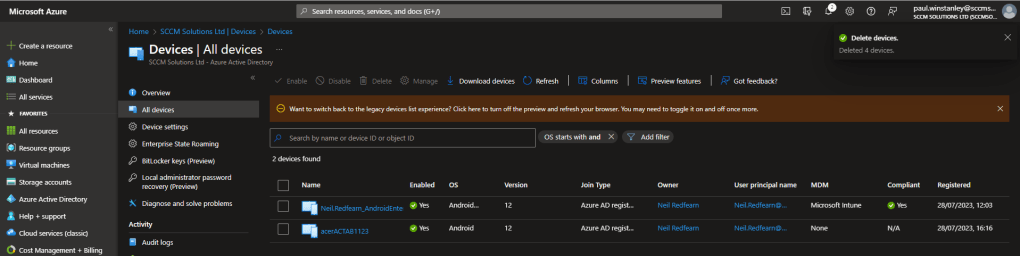
Note that the Azure AD registered object was also created as part of this process.
Android unmanaged – Conditional Access Failure
With the app protection policy targeting removed and the user is not included, the experience is as follows:
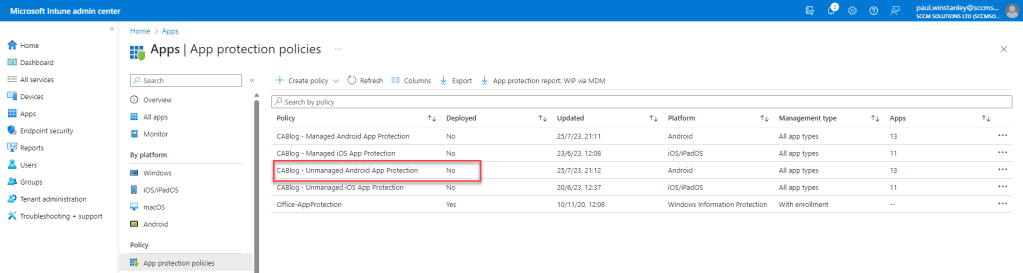
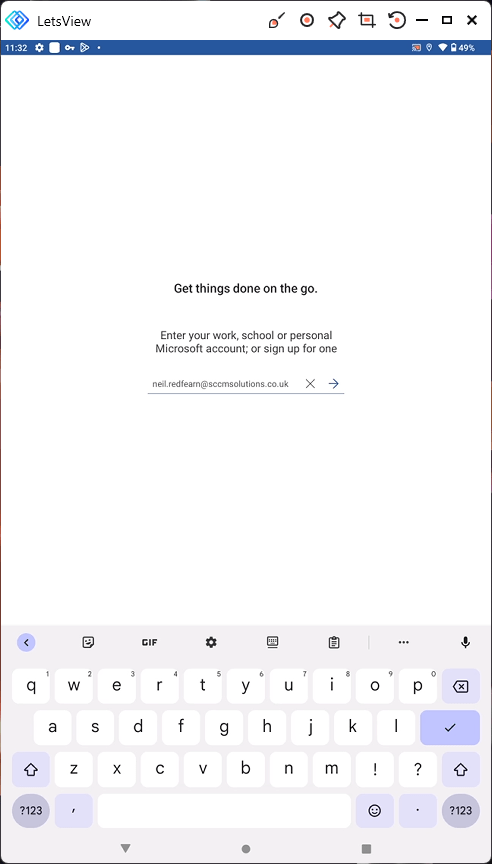
The user authenticates by signing into the application by entering their username.
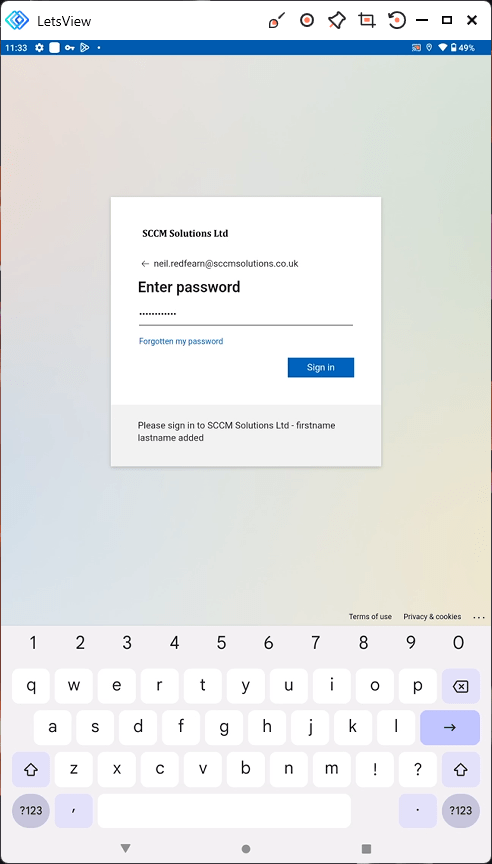
The password is entered.
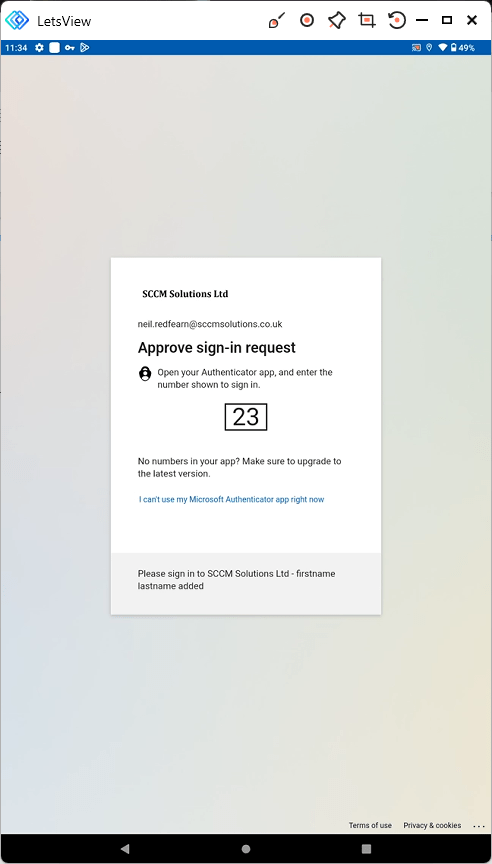
The user is prompted to Approve sign-in request.
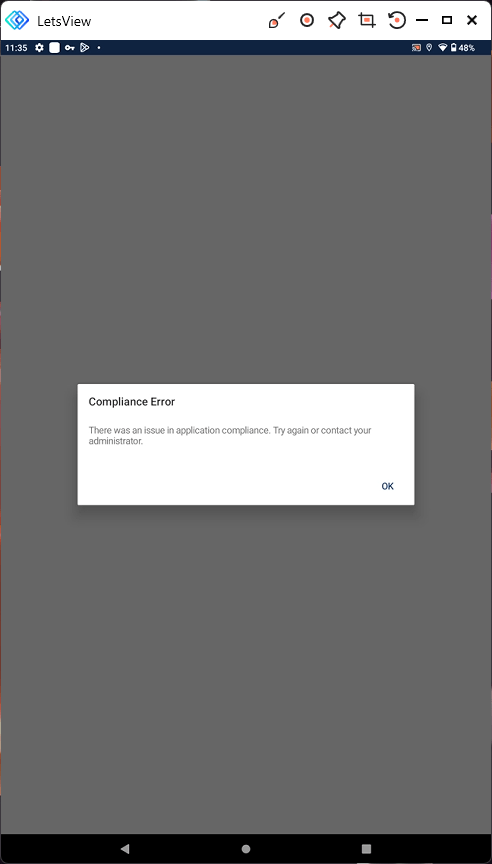
Confirming app status appears.

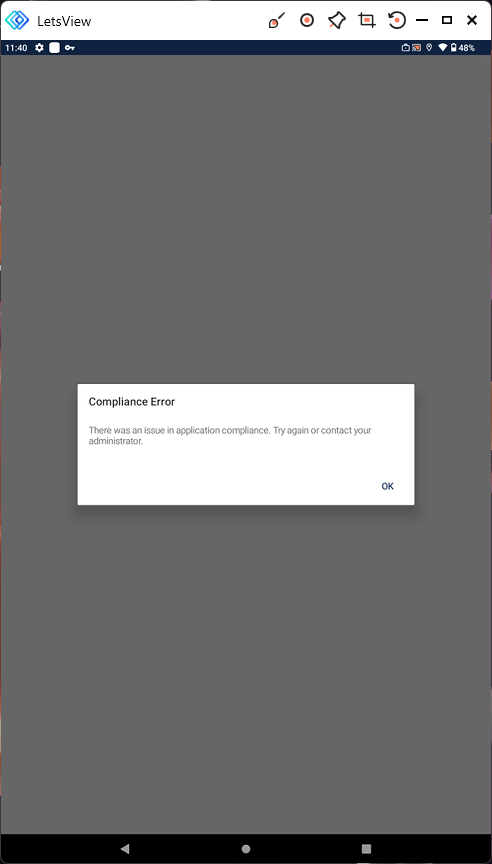
The user is blocked from access the application. Note that the message is not as informative as the iOS failure message. The user receives:
Compliance Error
There was an issue in application compliance. Try again or contact your administrator.
Android managed device
An App Protection policy has been configured and deployed to the CA Test User Group and filtered for managed devices. It is targeting Core Microsoft apps.
The testing was undertaken on an enrolled Android device. This device was enrolled as a Corporate-owned devices with work profile therefore it contains a Work and Personal profile. The Work profile works in the same way a fully corporate managed device would.

Android managed – Conditional Access Success
Open up Word and sign in as a targeted user, for our testing this is Neil Redfearn.
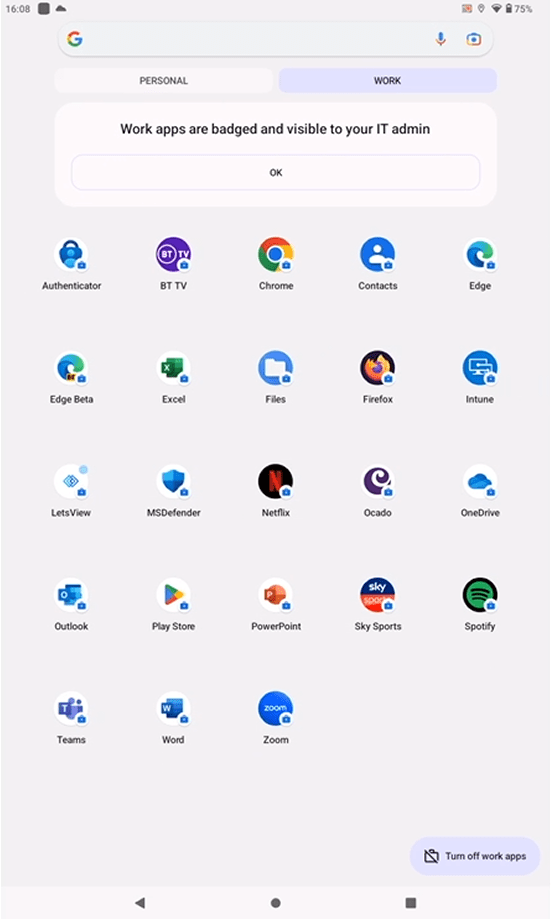
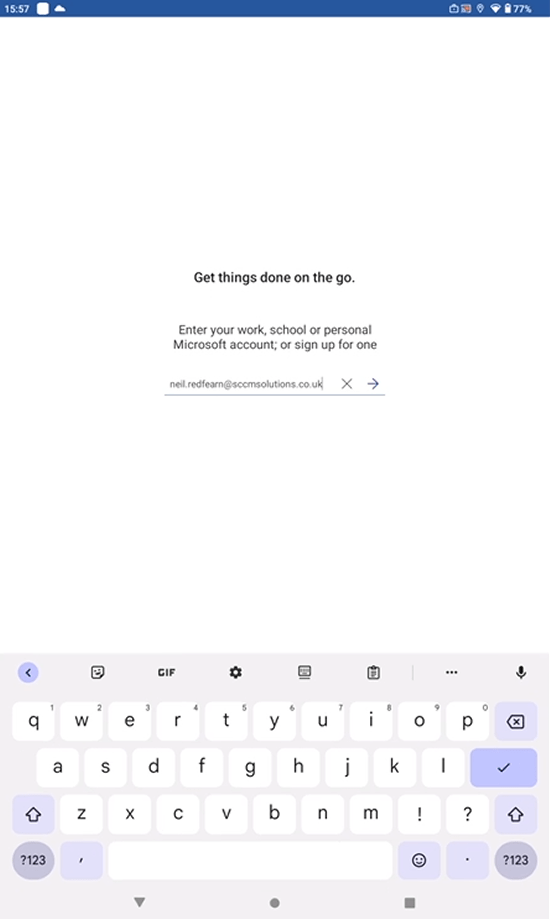
Compete the MFA request.
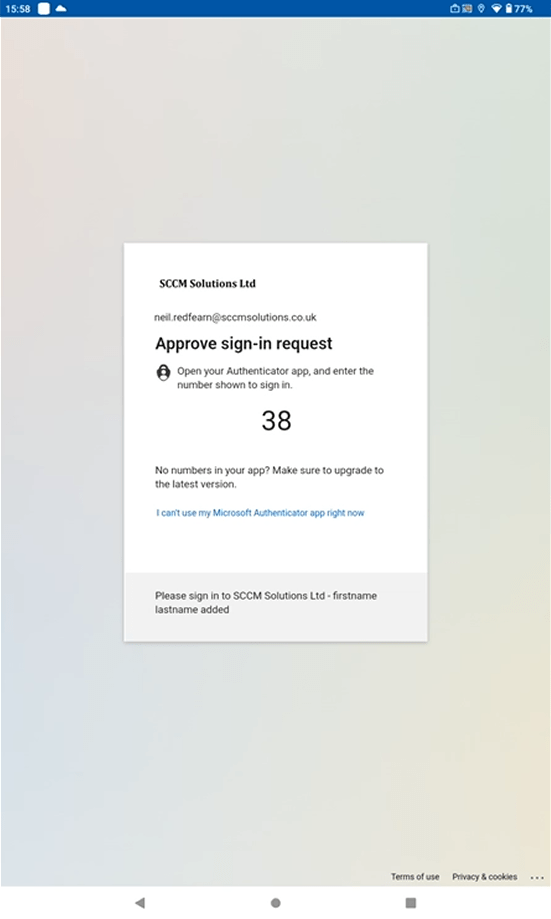
The app status is checked.
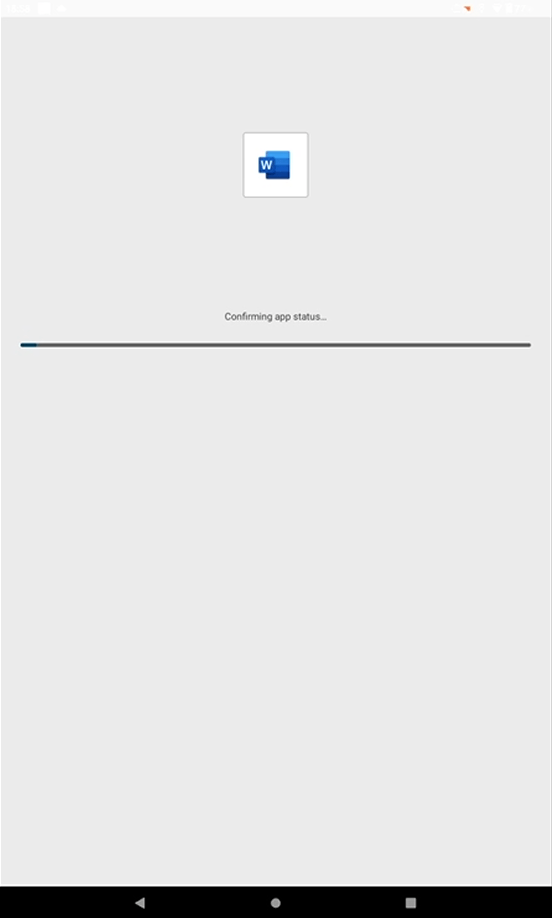
When there is an attempt to open or save a document in protected storage, app projection rules apply. Click Continue.
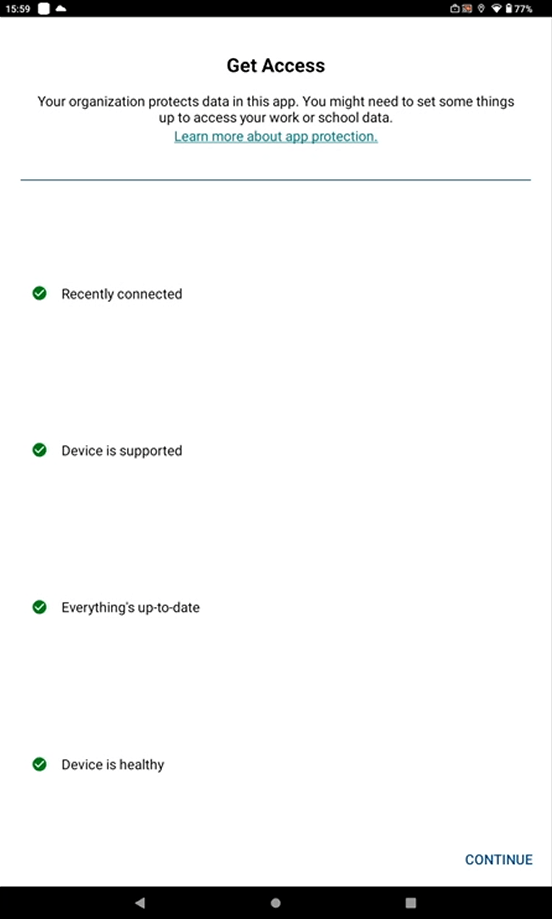
As our rule requires PIN, we are forced to set one.
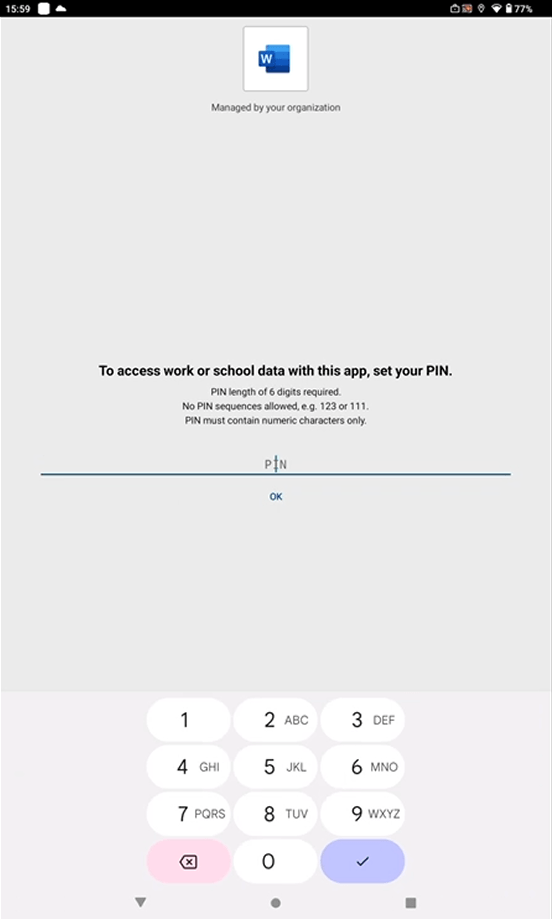
Once the document is saved in the protected area i.e. OneDrive, if a user attempts to copy the data…
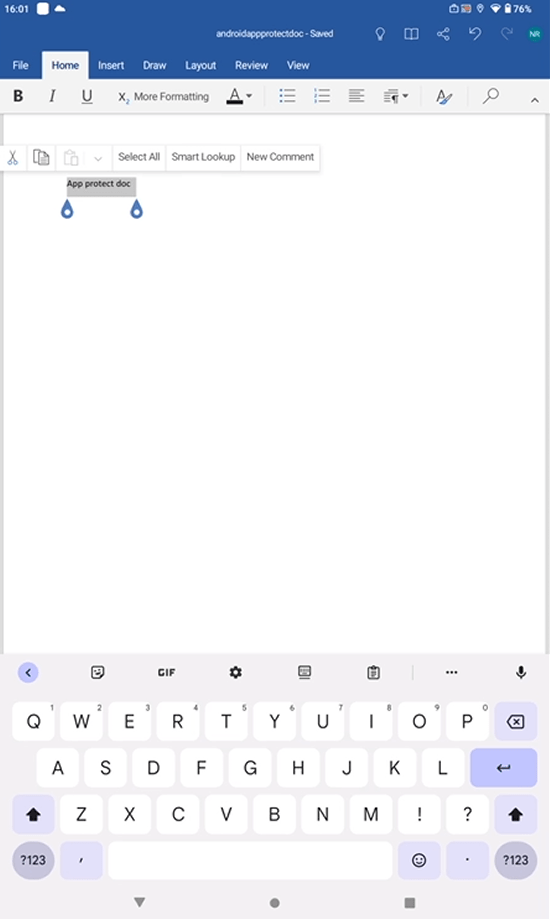
they will be denied in any app which is not included in the list to targeted apps. So our rule states Core Microsoft apps only and the Android app Keep notes is not targeted so the user get the message Your organization’s data cannot be pasted here.

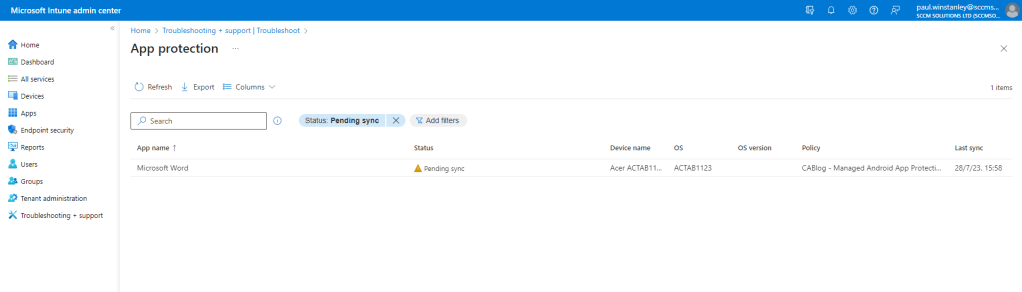
In the Troubleshooting\App Protection view, we can see that there an entry for Microsoft Word and it used our managed App Protection policy. The device is currently Pending sync.
Android managed – Conditional Access Failure
With the app protection policy targeting removed and the user is not included, the experience is as follows:

The user authenticates by signing into the application by entering their username.
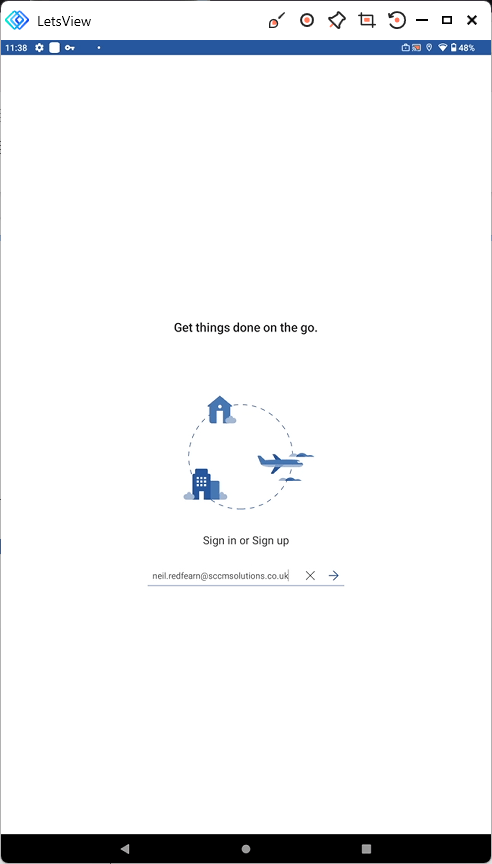
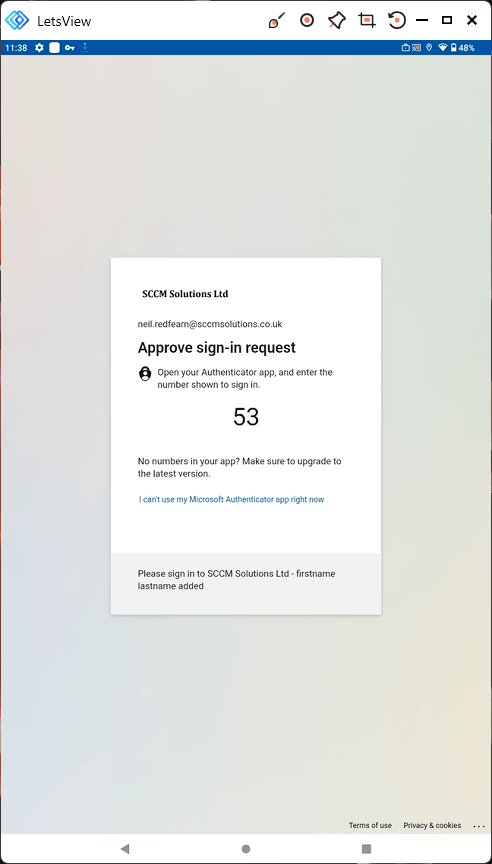
The user is prompted to Approve sign-in request.
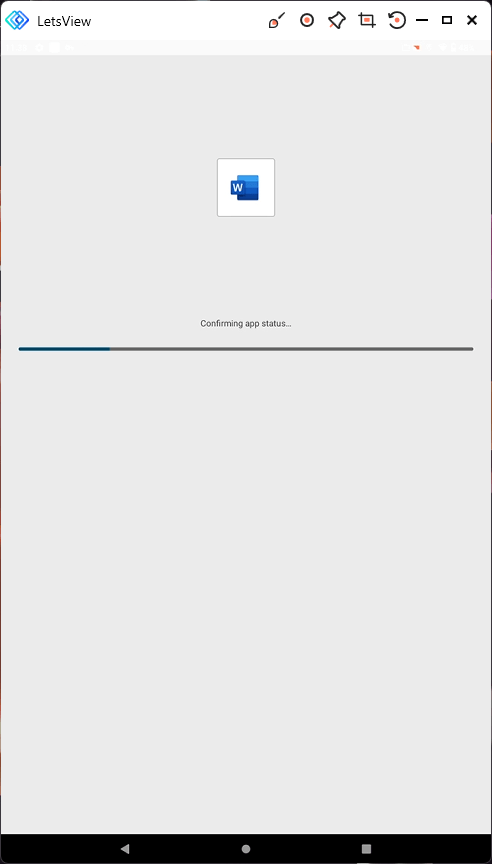
Confirming app status appears.
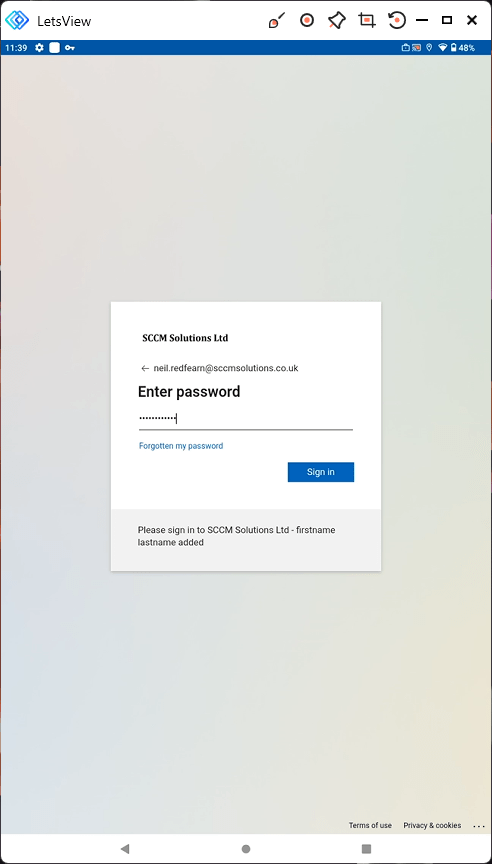
The user is prompted to enter their password.
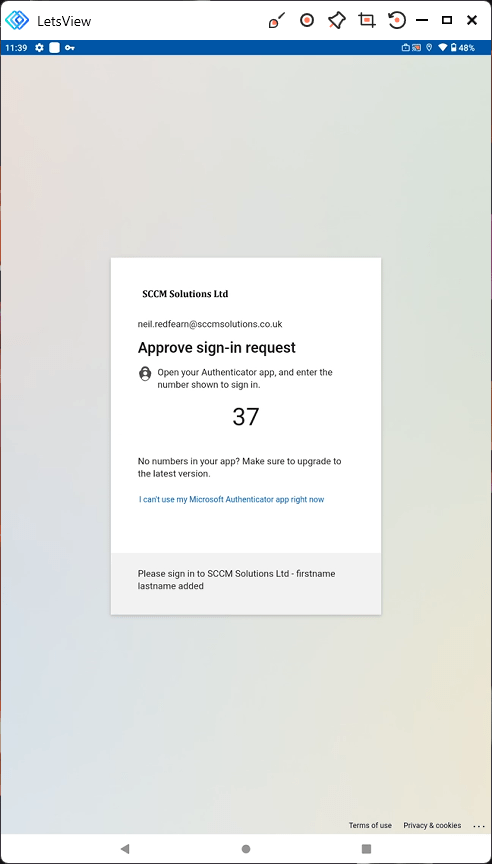
The user is prompted to Approve sign-in request one more time.
Confirming app status appears.
The user is blocked from access the application. The user receives:
Compliance Error
There was an issue in application compliance. Try again or contact your administrator.
Checking the Sign-in Logs
When it comes to investigating Conditional Access policies, we refer to the Sign-in logs in Azure Active Directory. You can check the sign-ins against an individual user by going into the the Azure Active Directory blade and selecting Users. Search for the user and select, then click the Sign-in logs menu entry.
The sign-in logs reported the following for signs when CA failures occurred:
Android
Three events were recorded when attempting to access Word without the app protection targeted at the user.
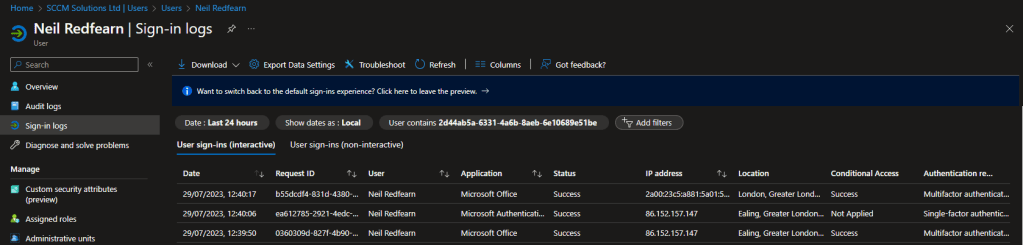
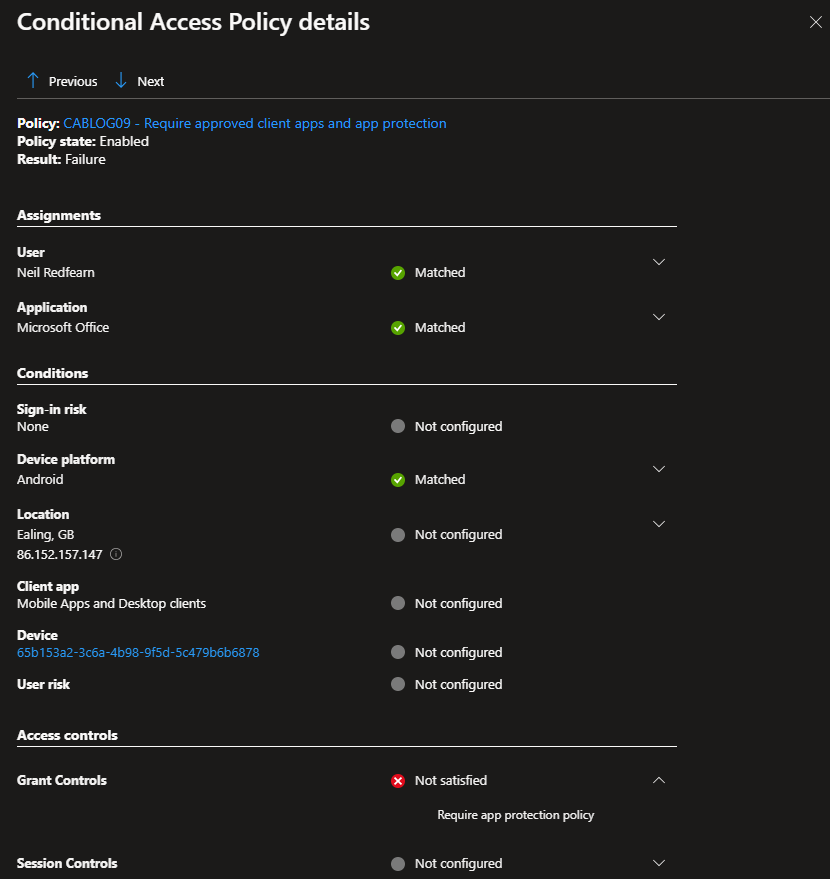
Under Conditional Access, the Require approved client apps and app protection was reported with a Result of Failure.

Clicking the Policy Name related to the CA rule showed Matched for User and Application, our test user and MicrosoftOffice respectively.
The Grant Controls reported Not satisfied for Require app protection.
iOS
One event was recorded when attempting to access Word without the app protection targeted at the user.
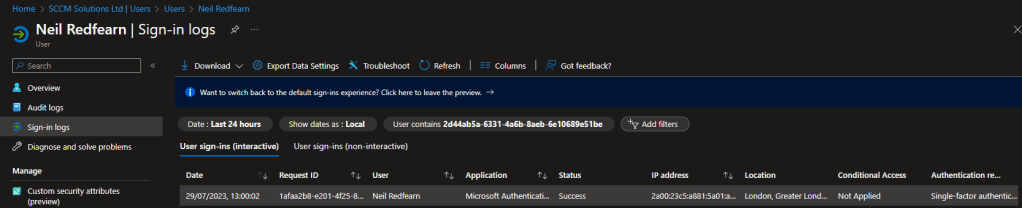
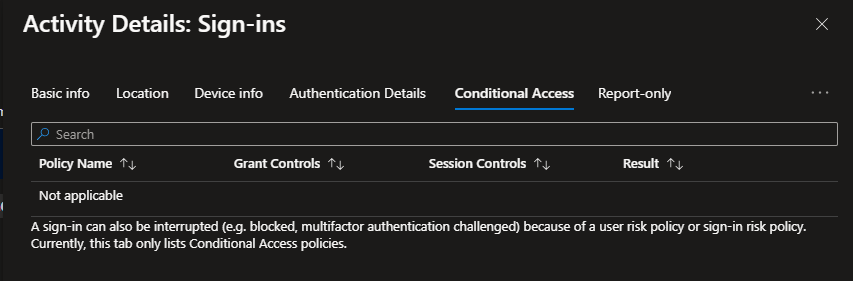
Interestingly, no reference was made to a conditional access failure even though the user was blocked
Further reading
Take a look at the following Microsoft documentation if you want to read some more on Conditional Access, approved client apps and app protection.
- Common Conditional Access policy: Require approved client apps or app protection policy – https://learn.microsoft.com/en-us/azure/active-directory/conditional-access/howto-policy-app-enforced-restriction
- App protection policies overview – App protection policies overview – Microsoft Intune | Microsoft Learn
- Data protection framework using app protection policies – https://learn.microsoft.com/en-us/mem/intune/apps/app-protection-framework
- Add app configuration policies for managed iOS/iPadOS devices – https://learn.microsoft.com/en-us/mem/intune/apps/app-configuration-policies-use-ios
- Migrate approved client app to application protection policy in Conditional Access – Migrate approved client app to application protection policy in Conditional Access – Microsoft Entra | Microsoft Learn
- Require approved client app – https://learn.microsoft.com/en-us/azure/active-directory/conditional-access/concept-conditional-access-grant#require-approved-client-app
- Require app protection policy – https://learn.microsoft.com/en-us/azure/active-directory/conditional-access/concept-conditional-access-grant#require-app-protection-policy
Look out for the next part in the CA series.
 SCCMentor - Paul Winstanley
10 comments