
This blog is a series of guides which aim to run through the Conditional Access (CA) templates which Microsoft has published under the title Conditional Access templates (Preview). The templates get you up and running with CA but what is the impact of turning on the policies on devices, how can you adjust the templates to work in your environment and what does the end user experience look like on the endpoint?
The series is co-written by Paul Winstanley, a seven times Enterprise Mobility MVP based in the UK and Mike Marable, an active member of the MEM community, based in the US.
Conditional Access Overview
Conditional Access rules are a type of if-then statement. If a user wishes to access something then they must complete an action to be able to access. Conditional Access rules get enforced once first-factor authentication has been completed.
Conditional Access use signals to make a decision and then enforce the decision to allow or deny access as per this diagram from the Microsoft documentation.

Microsoft introduced the Conditional Access templates at the end of 2021 as convenient method to deploy policies. These 16 templates cover five different deployment scenarios:
- Secure foundation
- Zero trust
- Remote work
- Protect administrators
- Emerging Threats
This series will cover the 16 templates in detail.
- Part 1 – Block access for unknown or unsupported device platform
- Part 2 – Require multifactor authentication for all users
- Part 3 – Require multifactor authentication for admins
- Part 4 – Require multifactor authentication for guests
- Part 5 – Require multifactor authentication for Azure Management
- Part 6 – Require Password Change for High Risk Users
- Part 7 – Require multifactor authentication for risky sign-ins
- Part 8 – Use application enforced restrictions for unmanaged devices
- Part 9 – Require approved client apps and app protection
- Part 10 – Require multifactor authentication for Microsoft admin portals (Preview)
Multifactor Authentication
Pre-Requisites
Note the following pre-requisites to be able to tap into Multifactor Authentication (MFA).
- Azure Premium P1 licences
- Management of the policies via an administrator with either Global Administrator, Conditional Access or Security Administrator rights. Some MFA settings can also be managed by the Authentication Policy Administrator.
For an overview of Azure AD Multifactor Authentication, we recommend that you take a look at Part 2 – Require multifactor authentication for all users.
The Require multifactor authentication for Microsoft admin portals (Preview) policy assists with protecting privileged resources when accessing Microsoft admin portals this assists with extending the capability of the existing template Require multifactor authentication for Azure Management by protecting the following portals:
- Azure portal
- Microsoft 365 admin center
- Microsoft Entra admin center
- Exchange admin center
These resources are grouped together and included in a cloud app called Microsoft Admin Portals (Preview) and we can use this app as the basis of the MFA Conditional Access rule.
If users have not onboarded for MFA when accessing the Azure resources for the first time, they will be prompted to onboard. For an example of onboarding MFA, when the user signs in, take a look at the section MFA Onboarding in Part 2 of our blog series – Just Dropped In (To See What Condition My Conditional Access Rule Was In): Part 2 – Require multifactor authentication for all users.
When enabling the Require multifactor authentication for Microsoft admin portals (Preview) policy, 14 roles are protected by default. You can amend these, however Microsoft recommends protecting these roles and then adding to the list of protected roles.
- Global administrator
- Application administrator
- Authentication Administrator
- Billing administrator
- Cloud application administrator
- Conditional Access administrator
- Exchange administrator
- Helpdesk administrator
- Password administrator
- Privileged authentication administrator
- Privileged Role Administrator
- Security administrator
- SharePoint administrator
- User administrator
Require multifactor authentication for Microsoft admin portals (Preview)
This Conditional Access policy requires multifactor authentication to be satisfied when users access Cloud Apps, use User Actions or Authentication context.
It is created in the Azure Portal under the Conditional Access\Policies blade, or in the Microsoft Endpoint Manager console under Devices\Conditional Access.
Click the New policy from template (preview) link.

The policy is available in the Zero trust, and Protect Administrator scenarios, or you can click All to display all the templates.
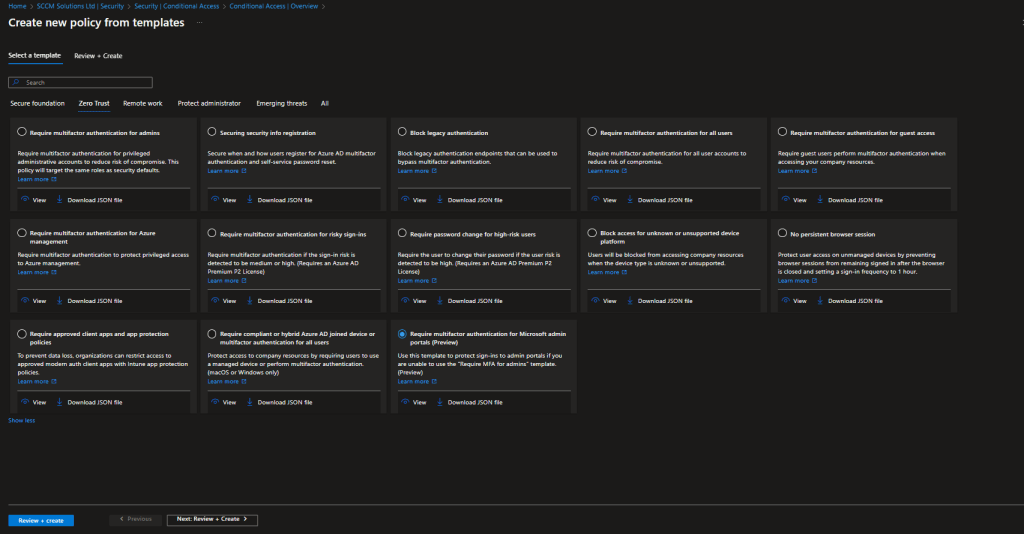
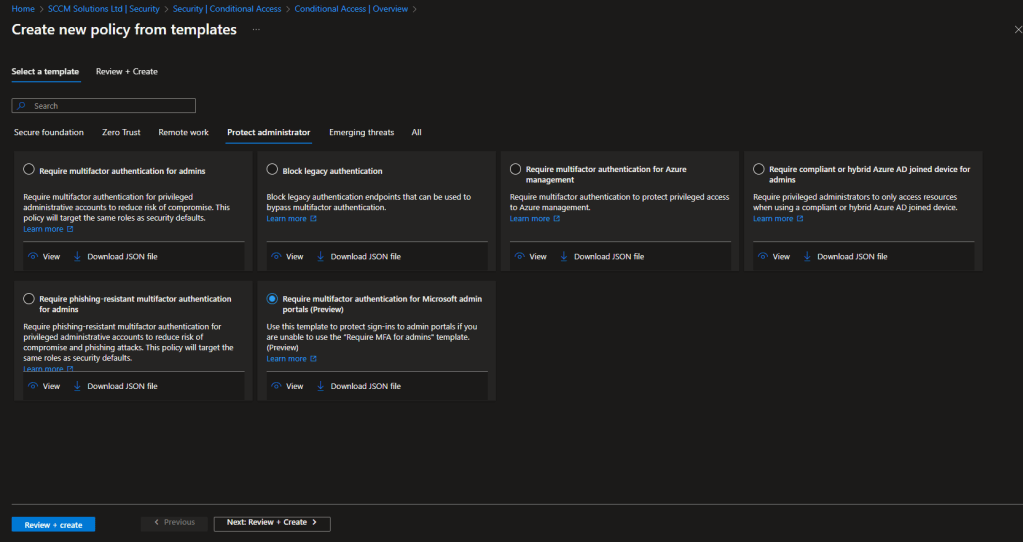
You can click the View option to view the default settings for the policy.
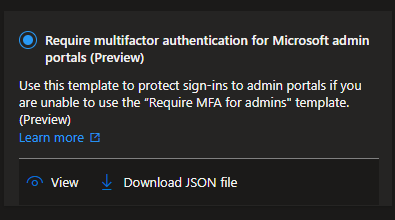
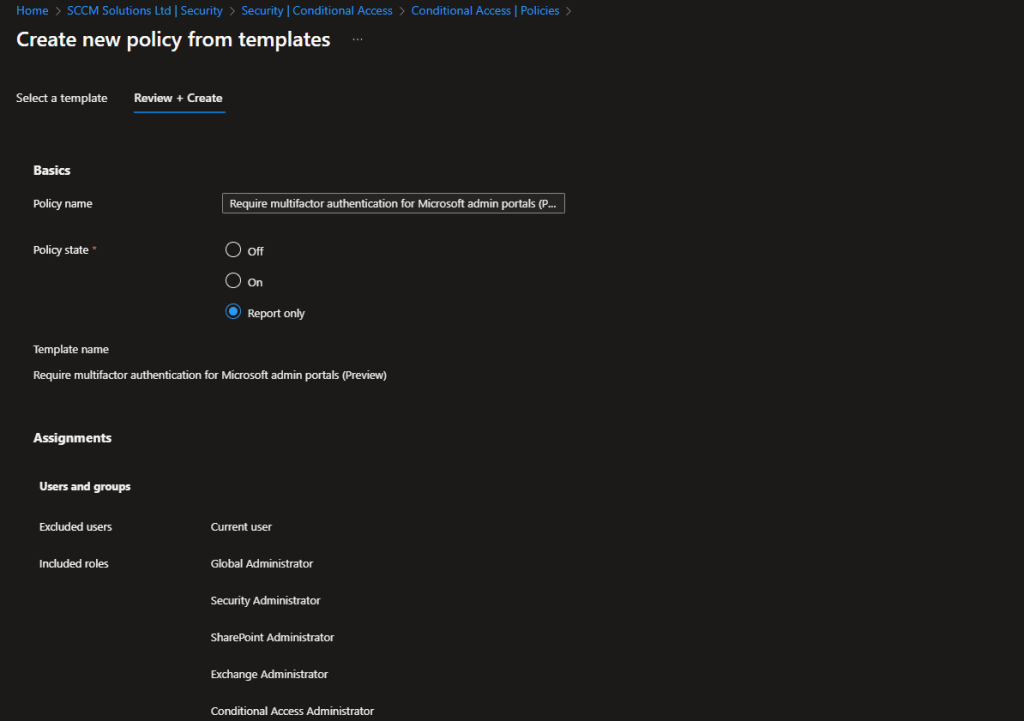
These are the settings for the Require multifactor authentication for Microsoft admin portals (Preview) template.
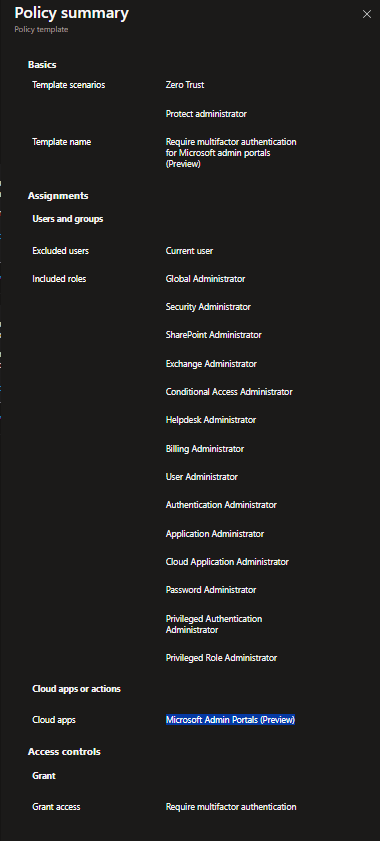
| Included Roles: | Global administrator Application administrator Authentication Administrator Billing administrator Cloud application administrator Conditional Access administrator Exchange administrator Helpdesk administrator Password administrator Privileged authentication administrator Privileged Role Administrator Security administrator SharePoint administrator User administrator |
| Apps: | Microsoft Admin Portals (Preview) |
| Access Control: | Grant access – Require multifactor authentication |
When the policy is created it is set as Report-Only. This is good practice, as the impact of enabling the policy can be assessed before doing so.
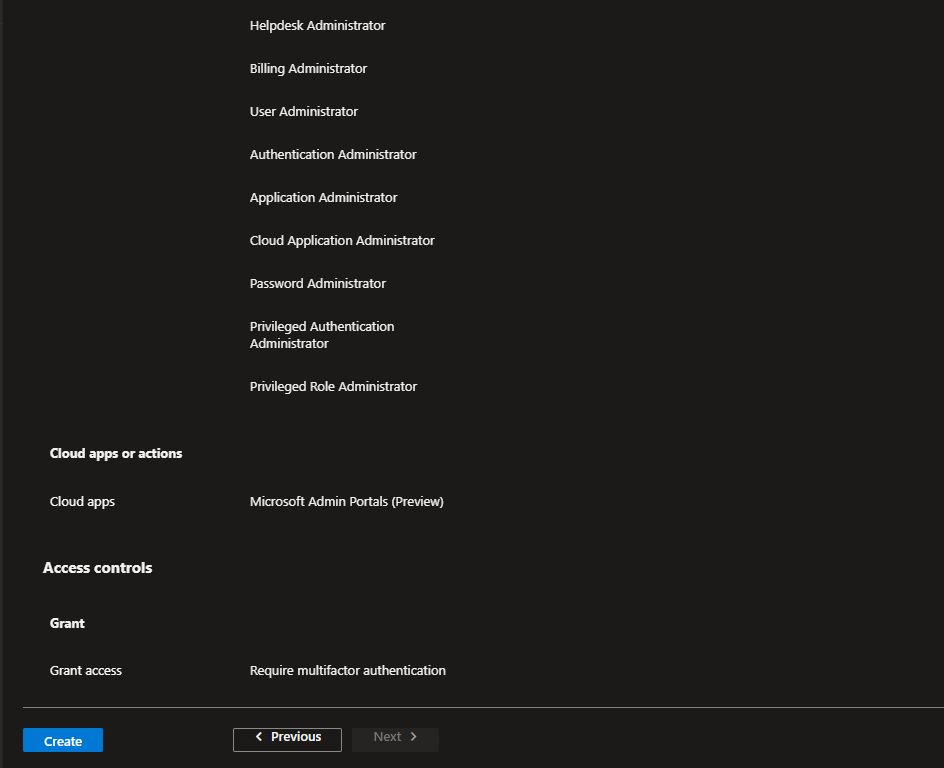
For the Require multifactor authentication for Microsoft admin portals (Preview) policy, the roles which will be protected are listed in the Assignments\Users section under Include\Select users and groups. Note the 14 default protected roles.
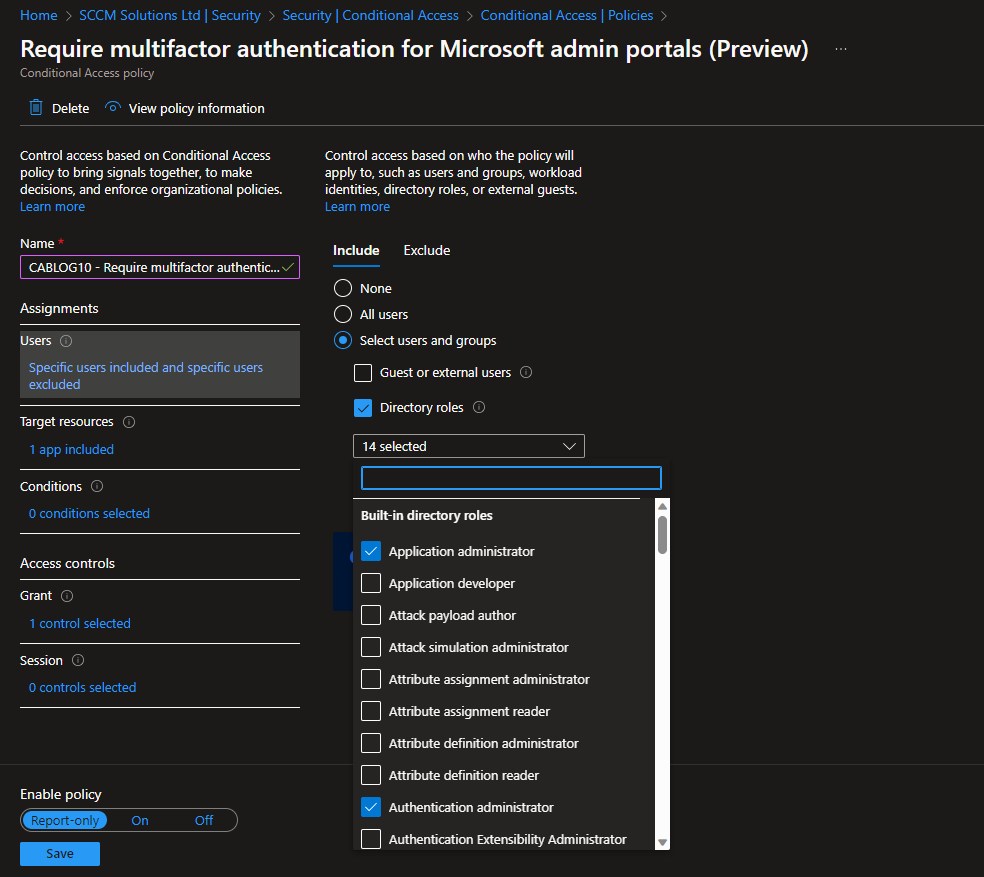
The user creating the policy via the template is excluded by default, but it is recommended to ensure you have a break glass account which can be used to access should the rule cause problems.

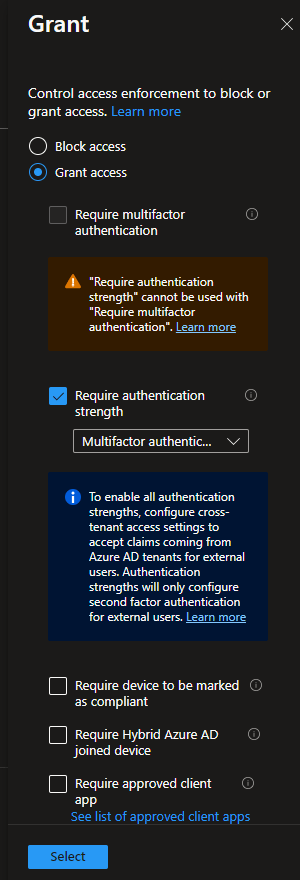
In the Access controls\Grant section of the rule, you can see that Require multifactor authentication is selected as the control.
When you are ready to move from the Report-Only mode, switch the toggle to On.

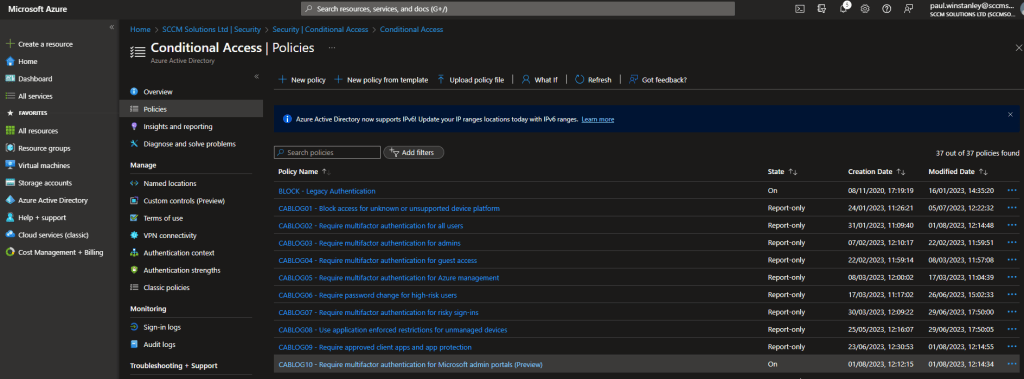
The state of the policy will be reflected in the console.
Impact of enabling the policy
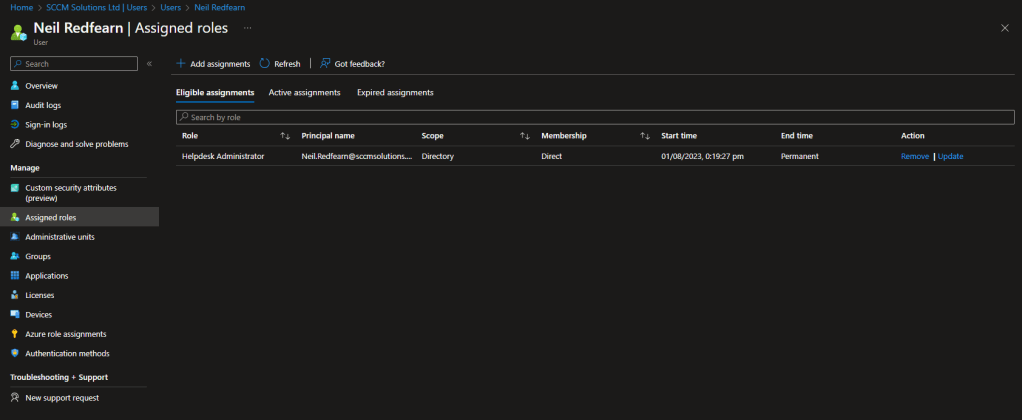
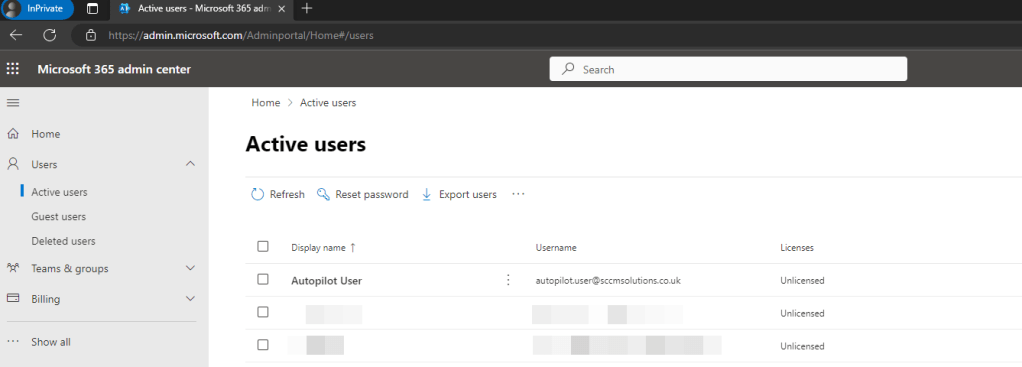
The following tests were undertaken on each device platform, the end result expected would be that we were prompted for MFA if the user was assigned an administrator role. Our test user, Neil Redfearn, was added to the Conditional Access role. We tested the policy by authenticating into admin.microsoft.com and was made a member of the Helpdesk Administrators role.
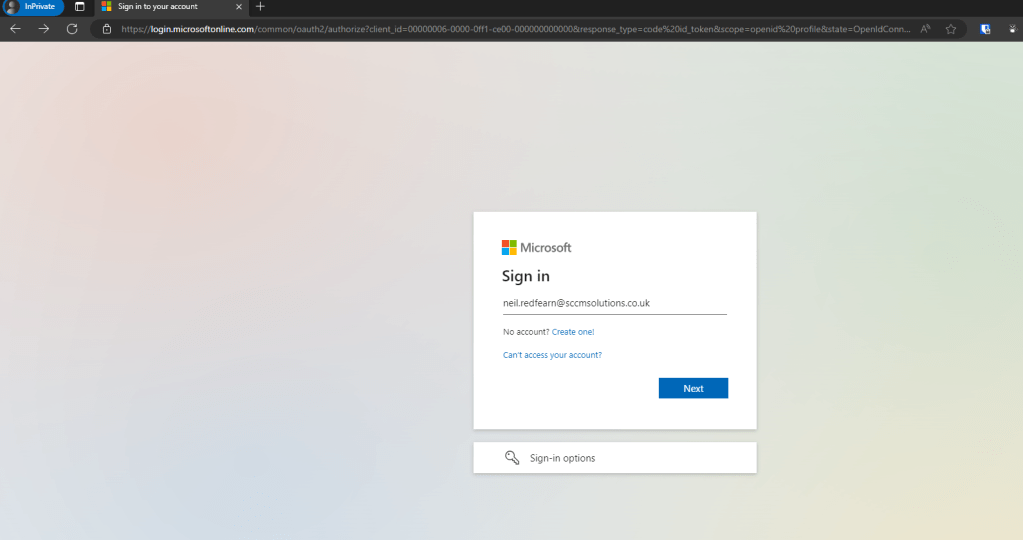
Windows
On a Windows device, the user entered their username.
The password was entered.

The user was prompted with Approve sign in request.

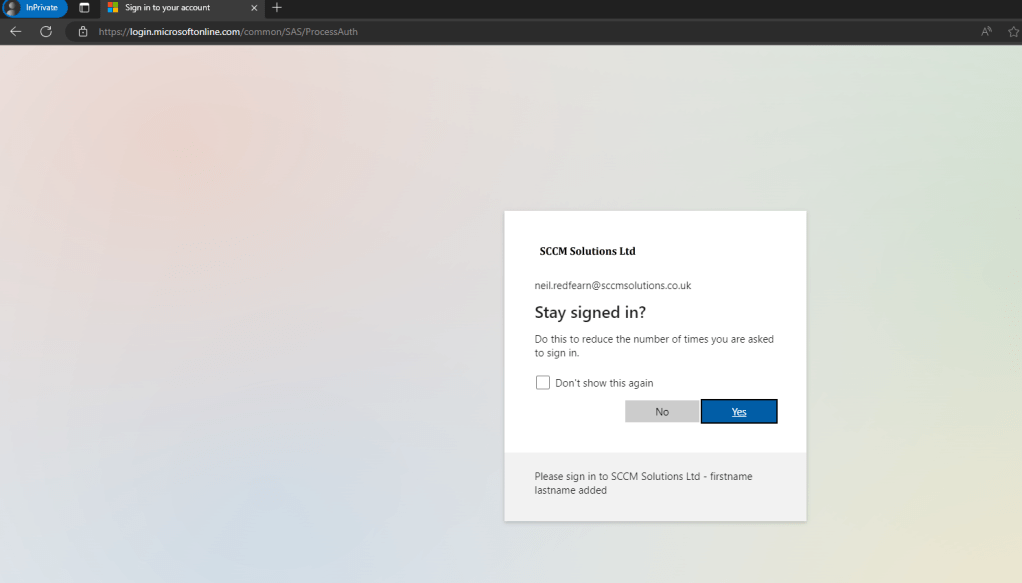
After approving they were asked if they wanted to Stay signed in?
The Helpdesk Administrator was allowed access to the Microsoft 365 admin center.
macOS
On a macOS device, the user entered their username.
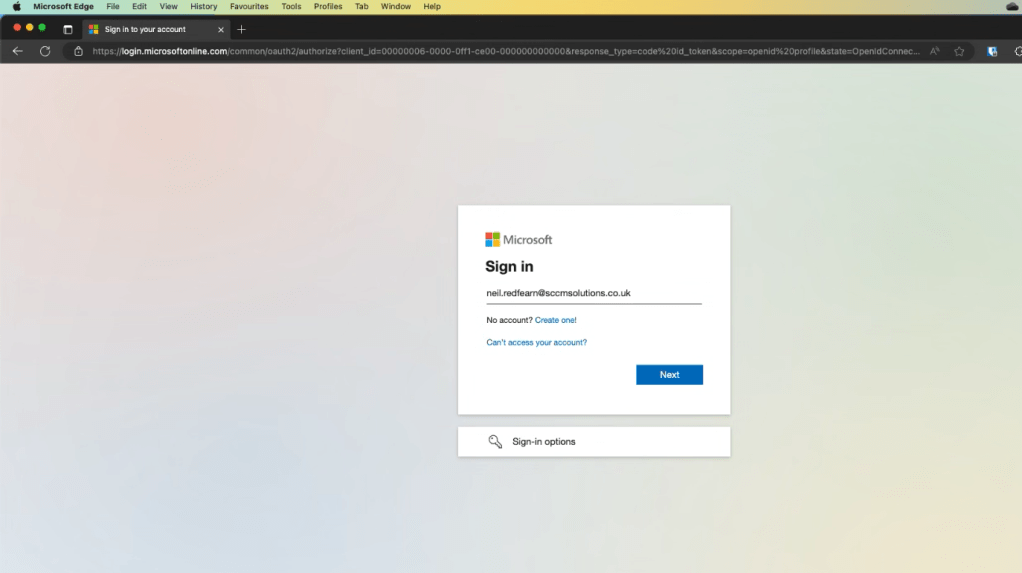
The password was entered.
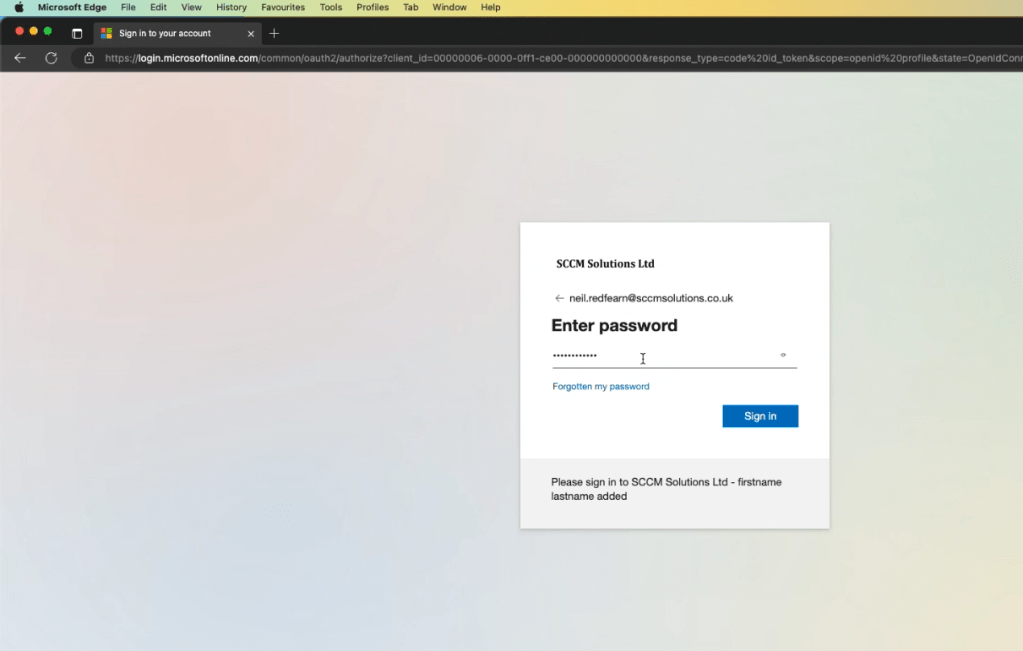
The user was prompted with Approve sign in request.
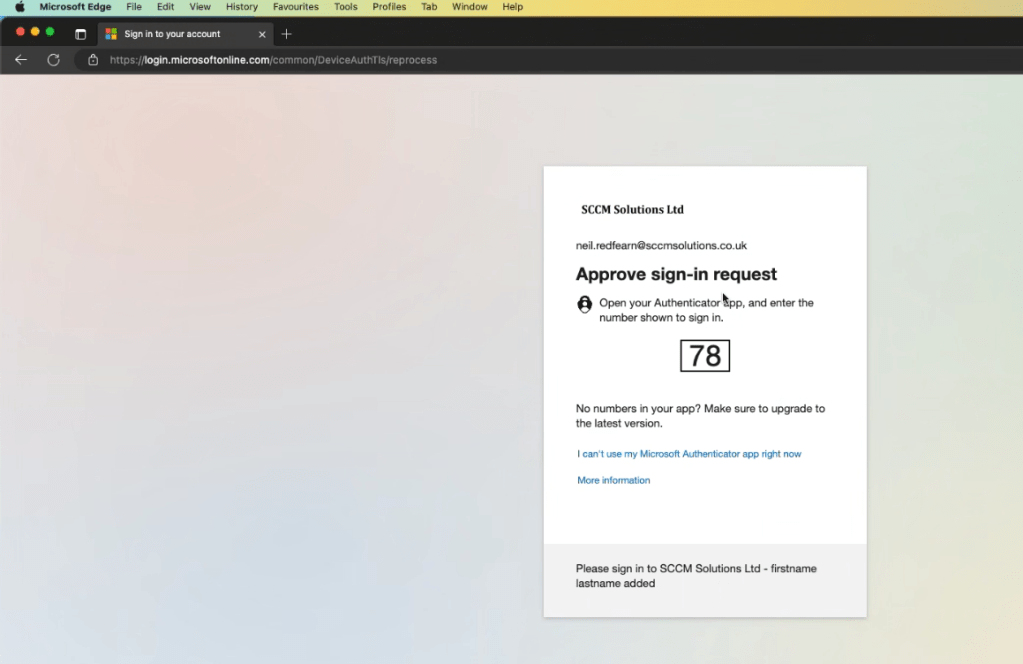
After approving they were asked if they wanted to Stay signed in?

The Helpdesk Administrator was allowed access to the Microsoft 365 admin center.
Android
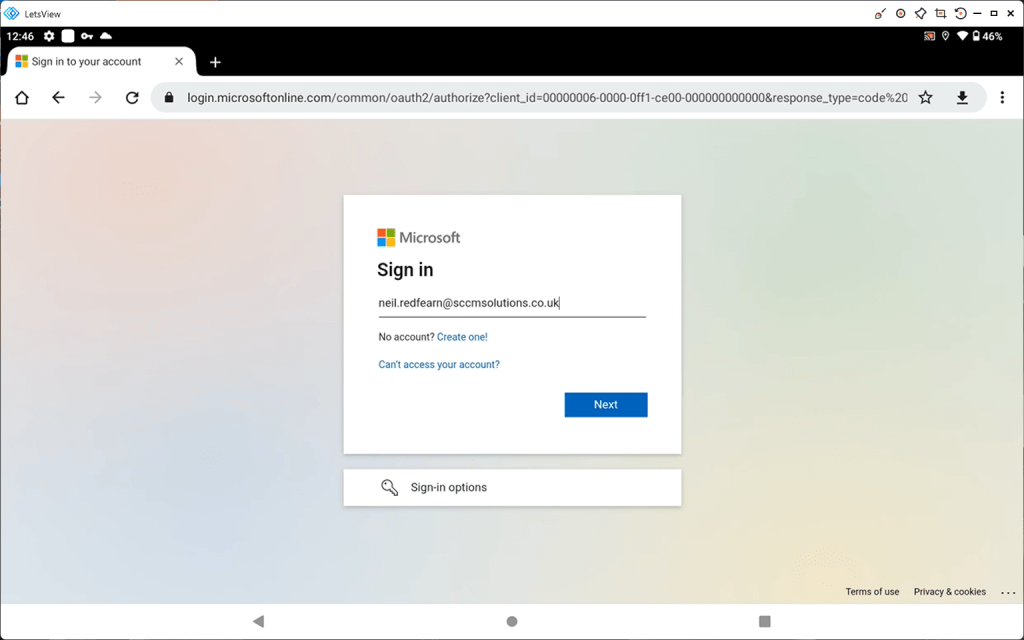
On an Android device, the user entered their username.
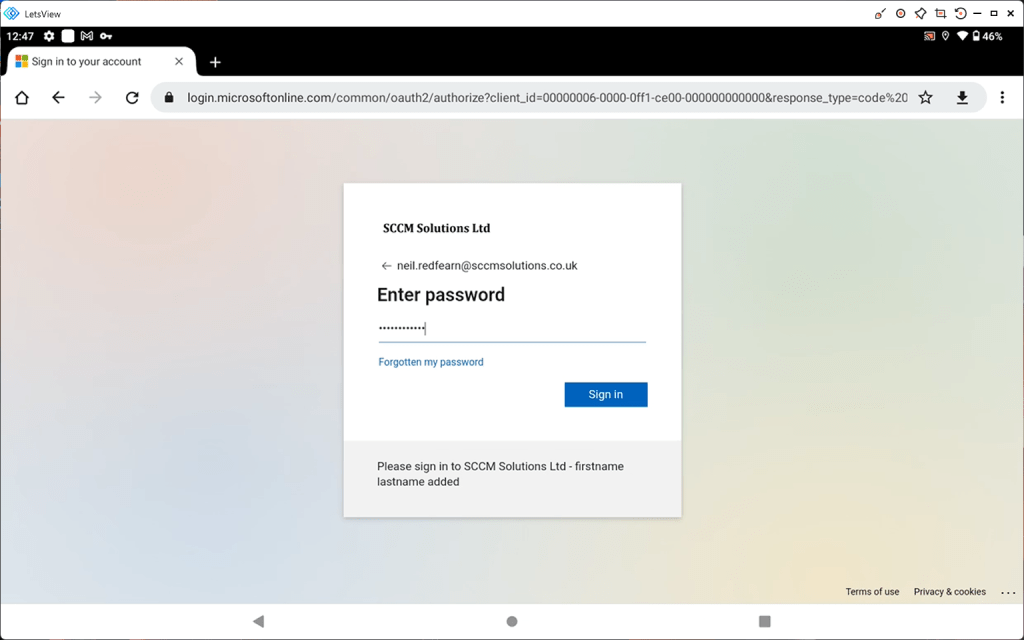
The password was entered.
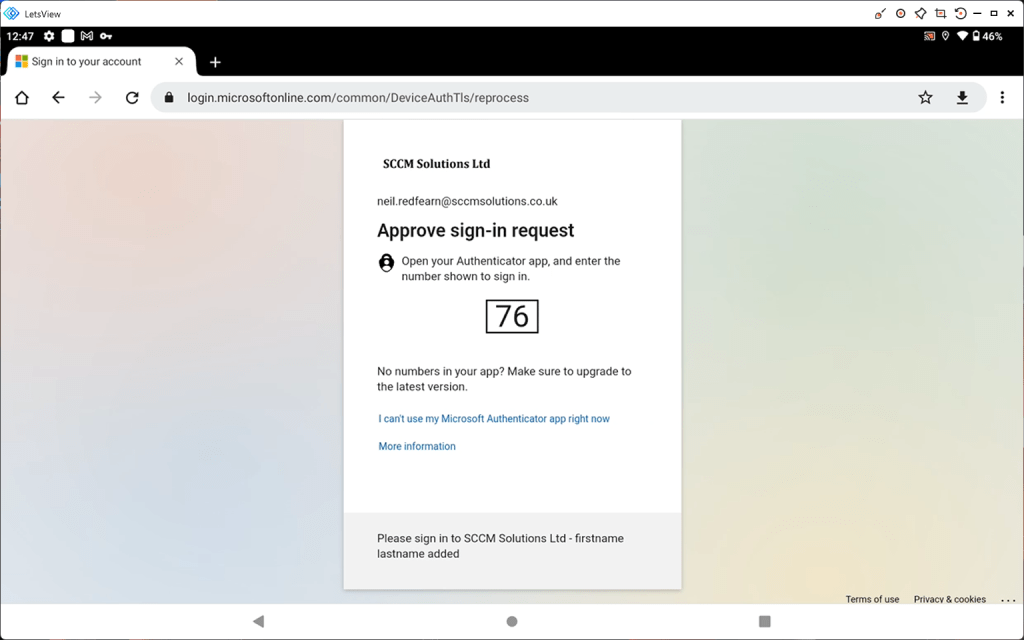
The user was prompted with Approve sign in request.
After approving they were asked if they wanted to Stay signed in?
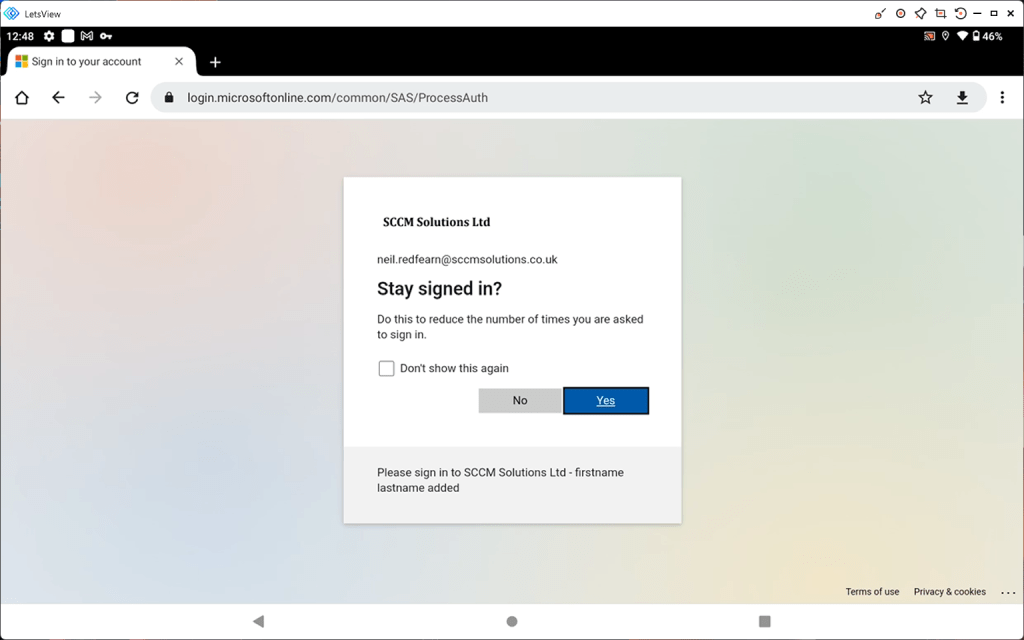
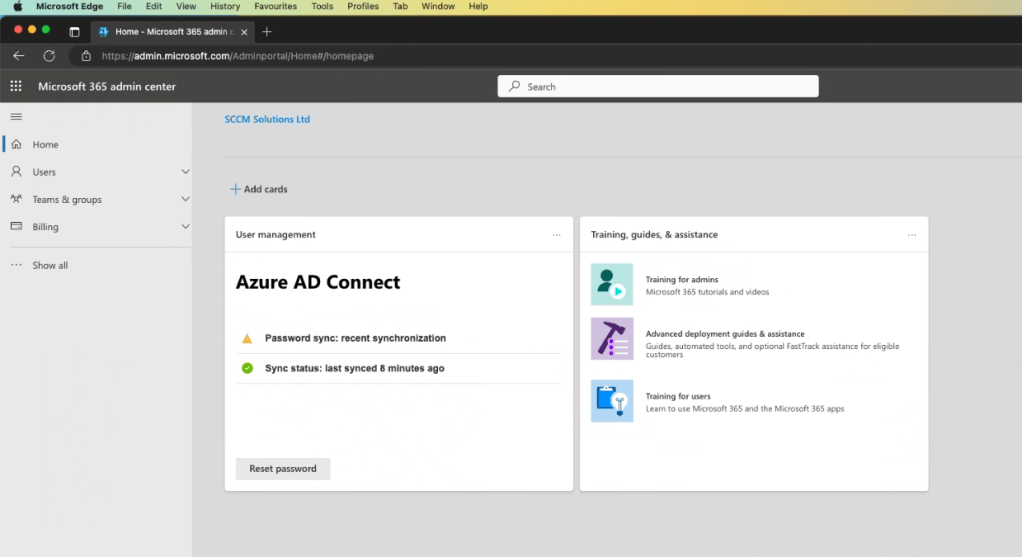
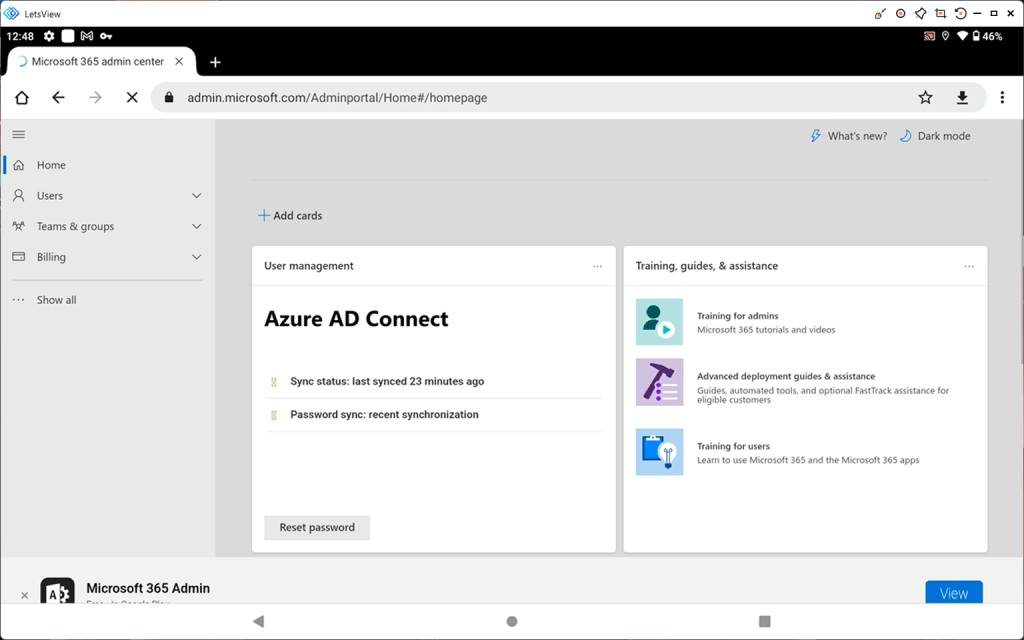
The Helpdesk Administrator was allowed access to the Microsoft 365 admin center.
iOS
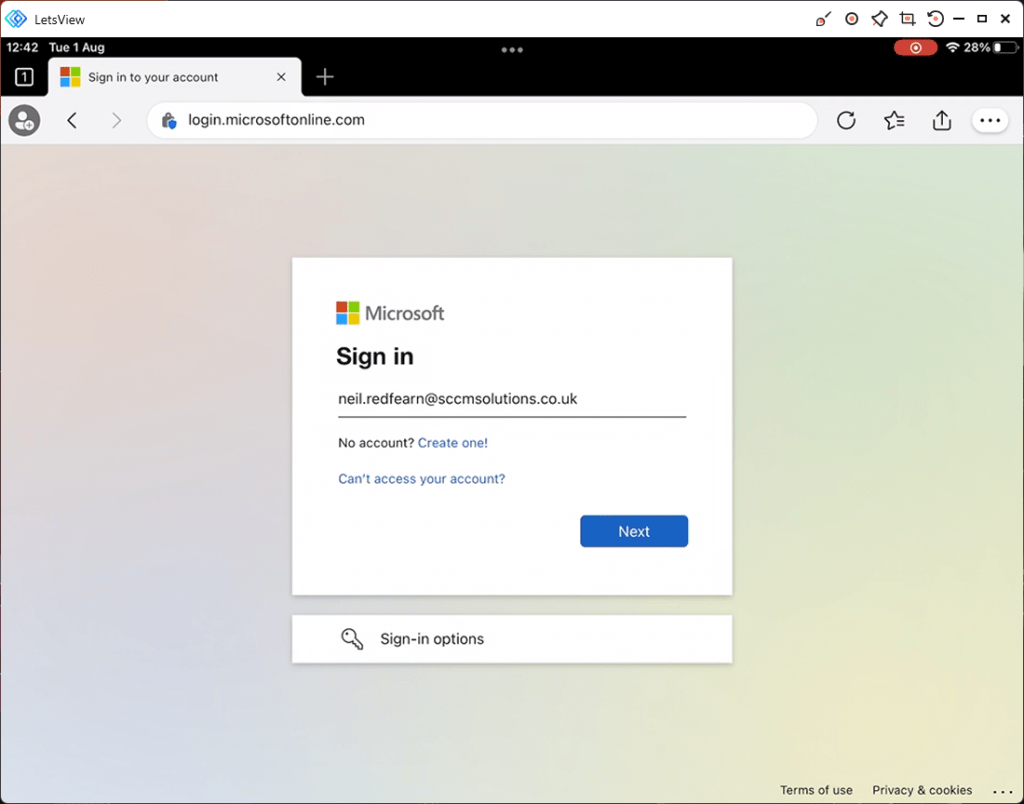
On an iOS device, the user entered their username.
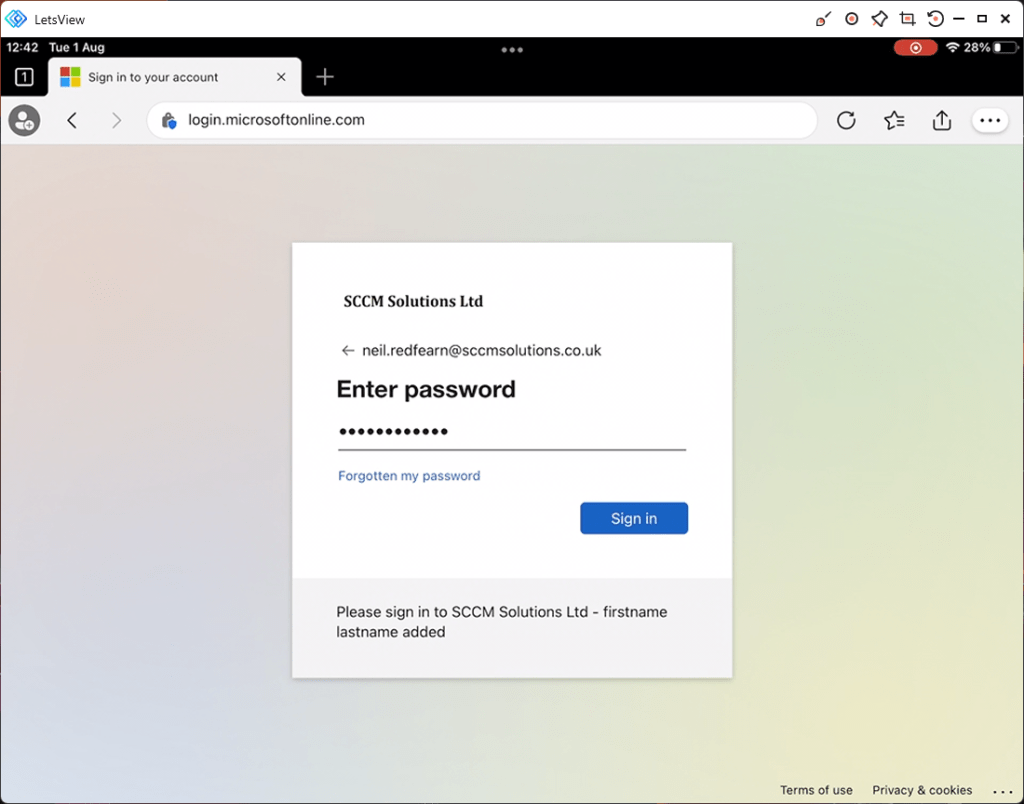
The password was entered.
The user was prompted with Approve sign in request.
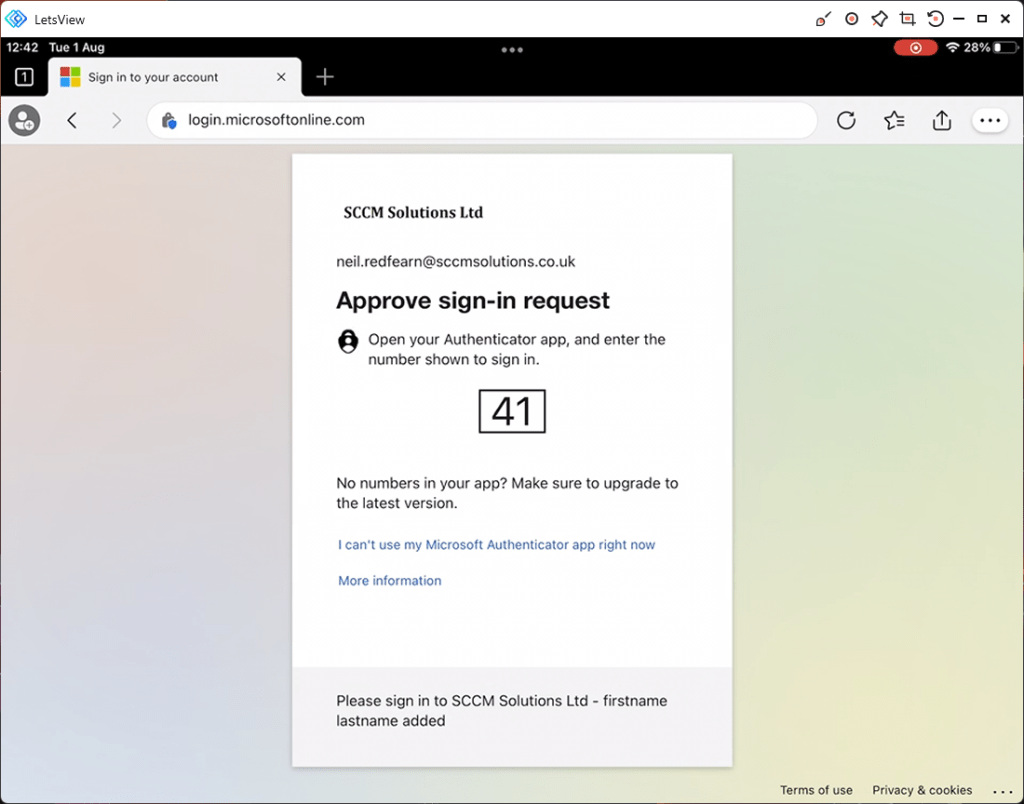
After approving they were asked if they wanted to Stay signed in?
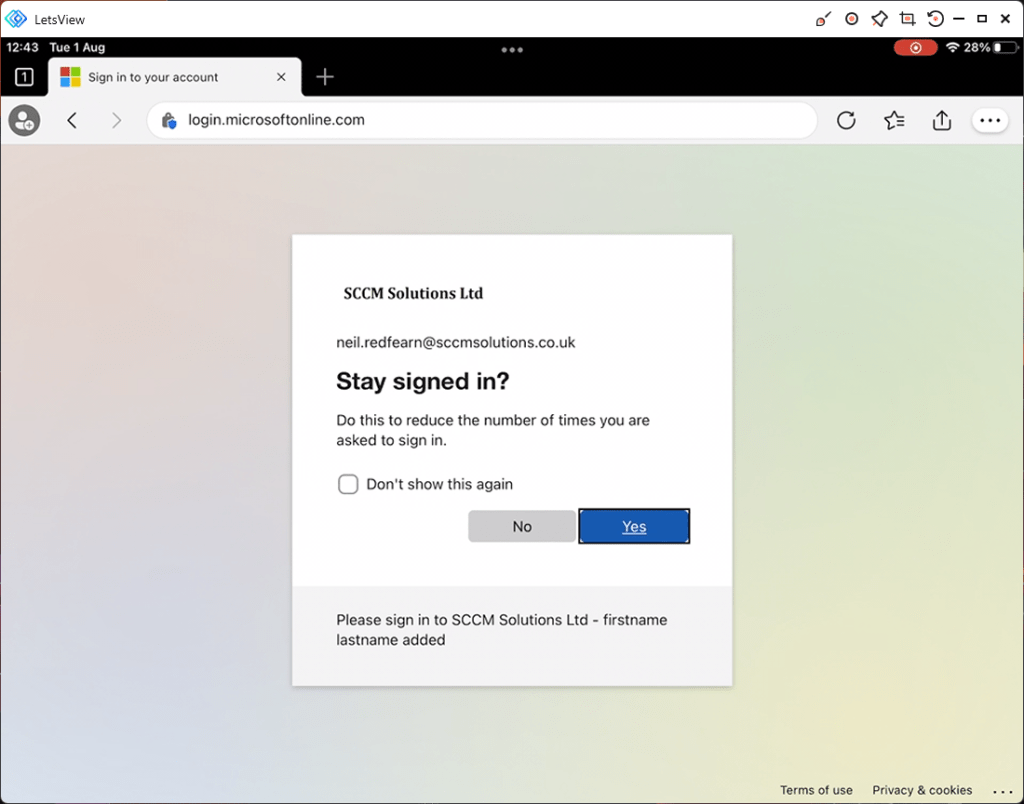
The Helpdesk Administrator was allowed access to the Microsoft 365 admin center.
Linux
On a Linux device, the user entered their username.
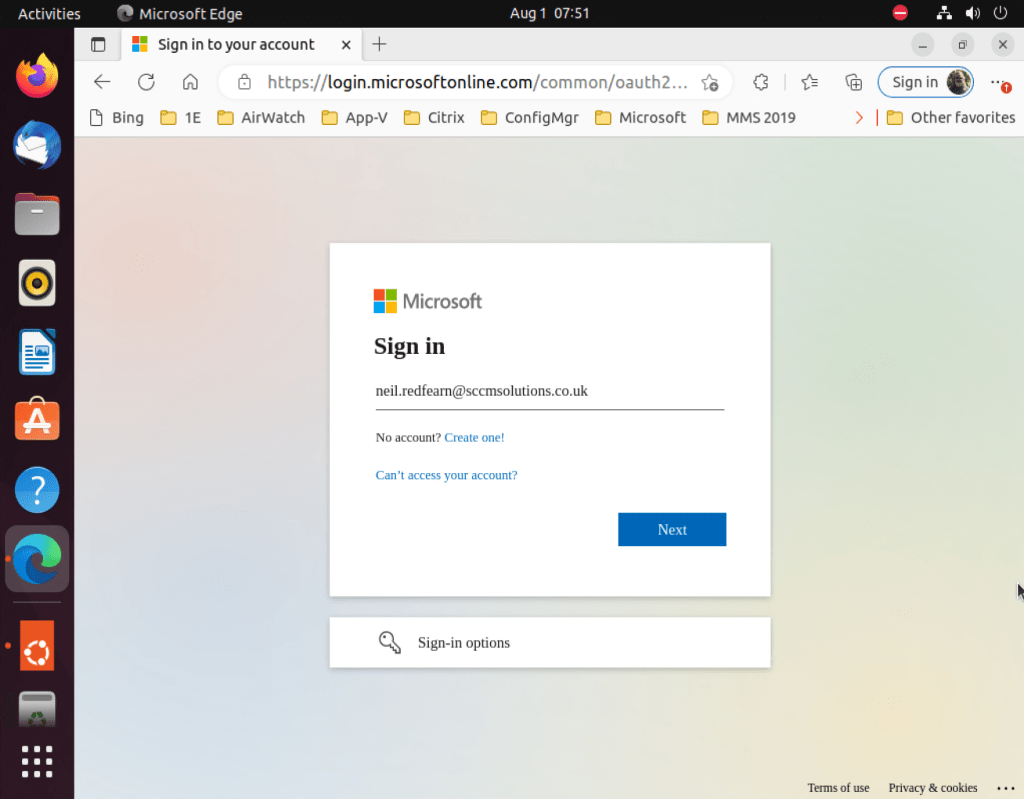
The password was entered.

The user was prompted with Approve sign in request.
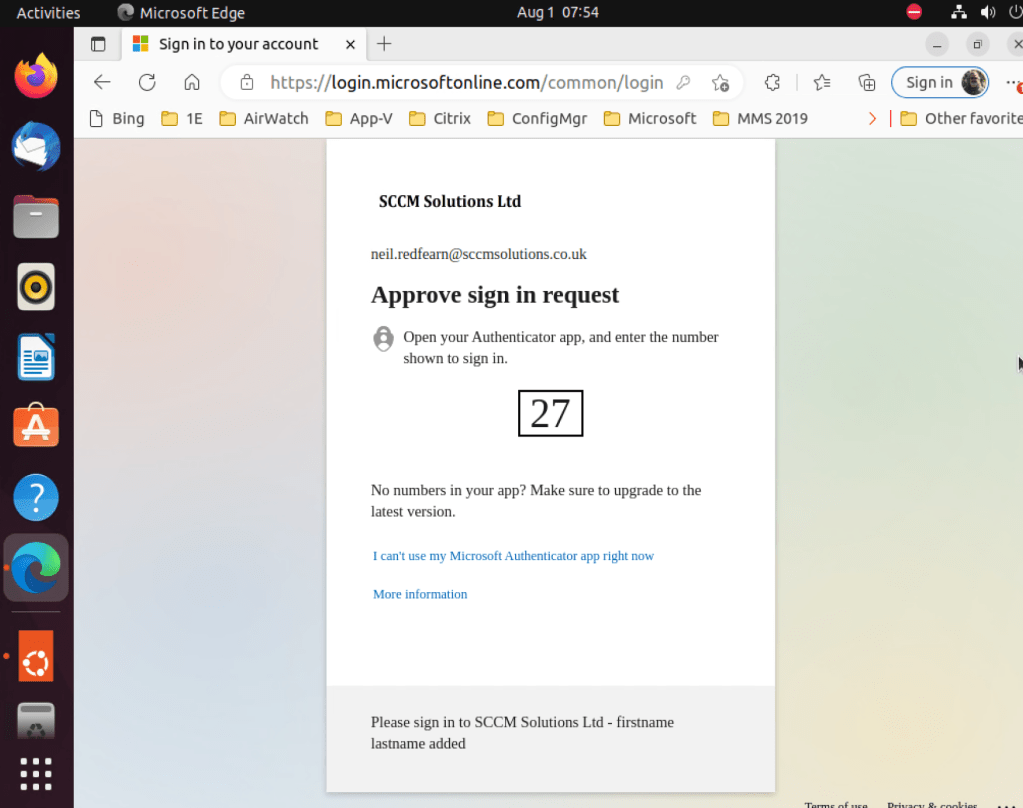
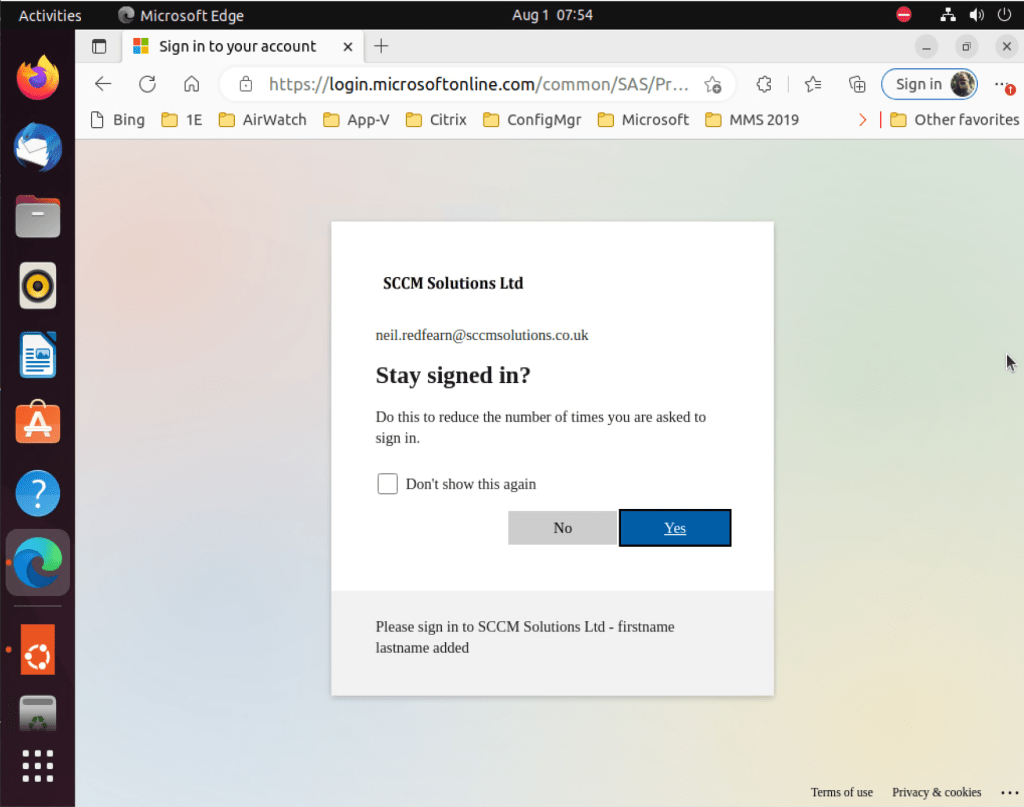
After approving they were asked if they wanted to Stay signed in?
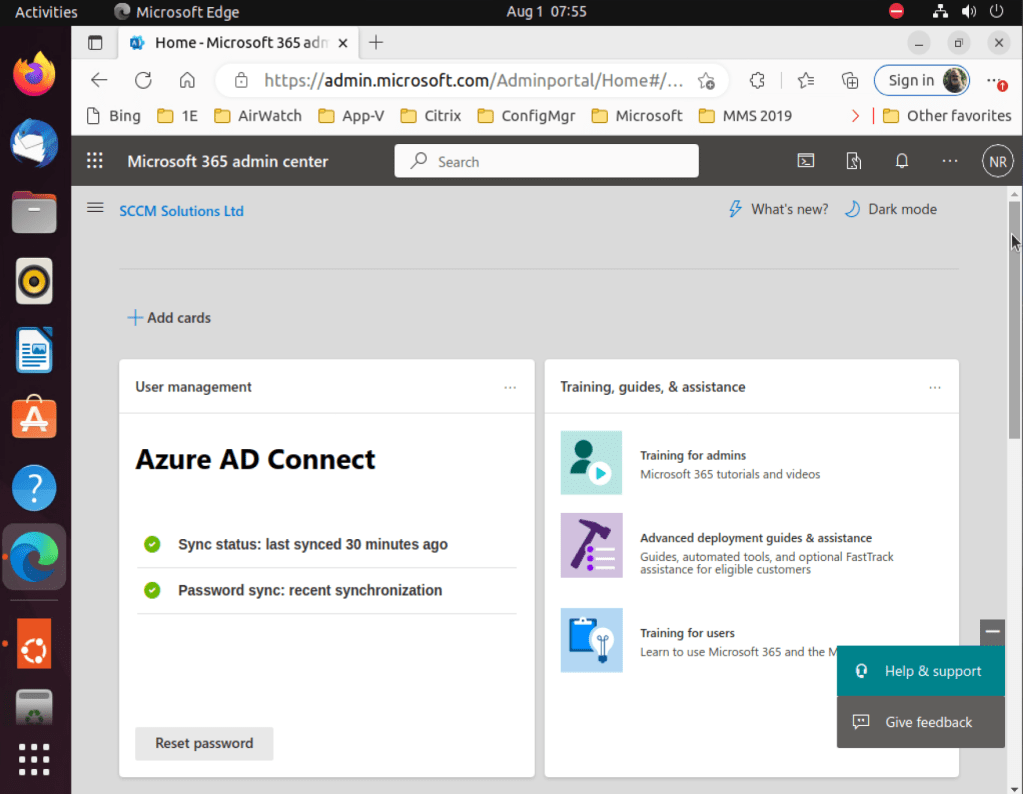
The Helpdesk Administrator was allowed access to the Microsoft 365 admin center.
Checking the Sign-in Logs
When it comes to investigating Conditional Access policies, we refer to the Sign-in logs in Azure Active Directory. You can check the sign-ins against an individual user by going into the the Azure Active Directory blade and selecting Users. Search for the user and select, then click the Sign-in logs menu entry.
Note that the events vary for each OS but the events below were recorded when we authenticated on a Windows device.
Here is the top level sign-in logs for the Windows authentication.

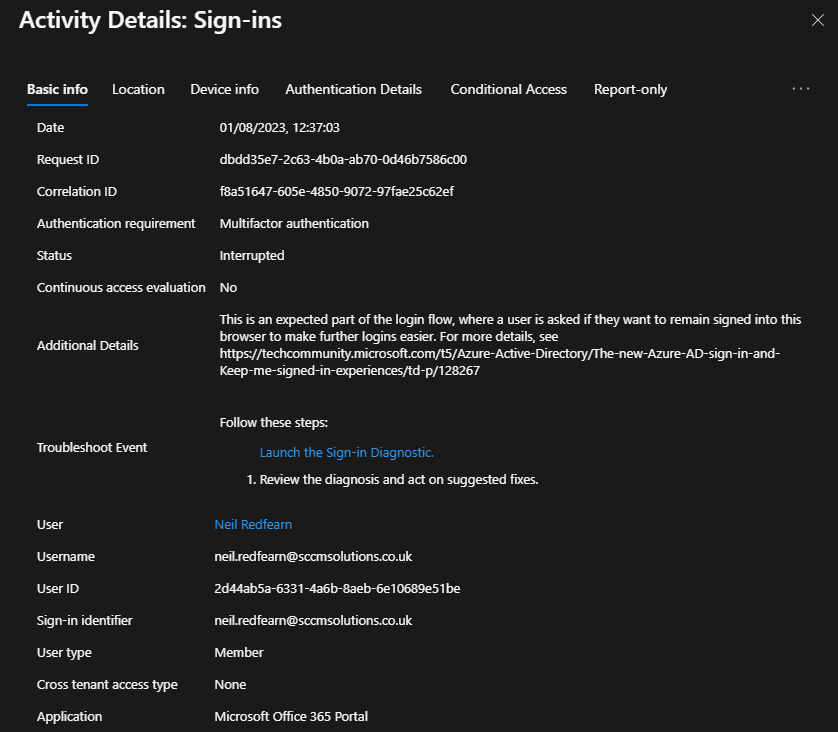
At 12:37:03, the log reported a Status of Interrupted for the MFA authentication requirement.
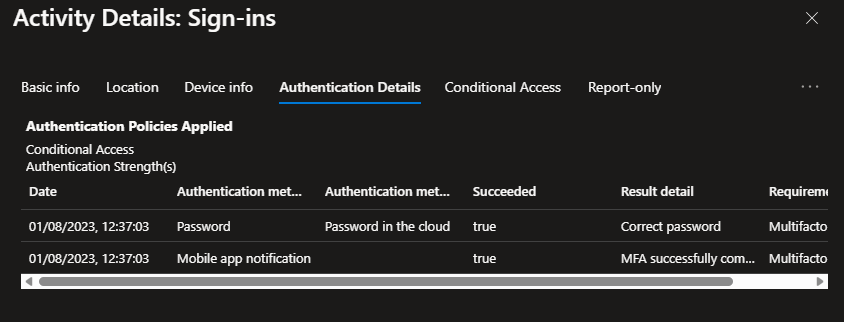
In Authentication Details, two events occur, Password auth has occurred with Correct Password as the result. Mobile app notification is recorded with MFA successfully completed being the result.
Our Conditional Access rule for admins portals is reported as a Success.
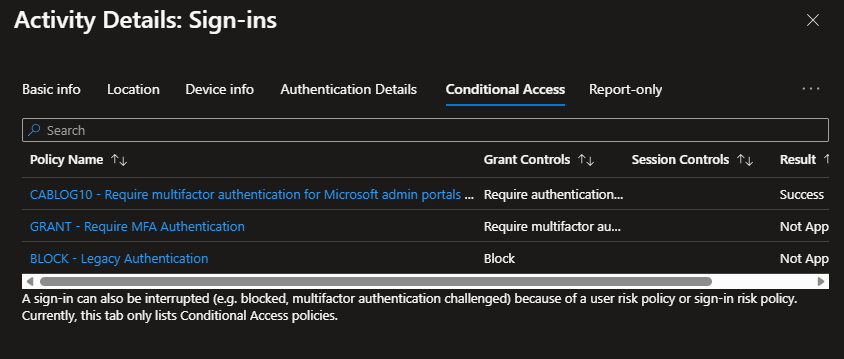
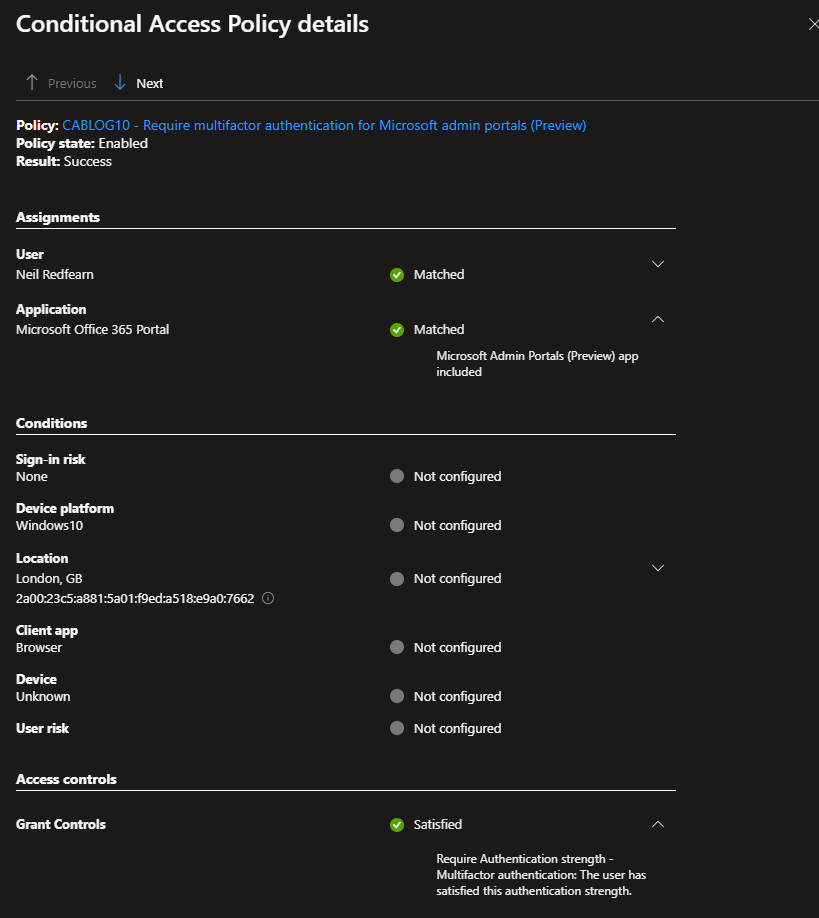
When clicking on the Policy Name link for the CA rule the following was reported in the details.
- User: Neil Redfearn – Matched
- Application: Microsoft Office 365 Portal – Matched
- Grant Controls: Require Authentication strength – Satisfied
Further reading
Take a look at the following Microsoft documentation if you want to read some more on Multifactor Authentication for Microsoft admin portals.
- Common Conditional Access policy: Require multifactor authentication for admins accessing Microsoft admin portals – https://learn.microsoft.com/de-de/azure/active-directory/conditional-access/how-to-policy-mfa-admin-portals
Look out for the next part in the series coming soon.
 SCCMentor - Paul Winstanley
Hi,
There is little information about the admin portal CA rule (CA016) in Microsoft documentation – do you know if CA006 (Microsoft Azure Management) is covering the same portals (and more) – making the CA016 a more light version of it to just cover the portals. Or do CA016 coverage differ and we need both ?
Thank you very much!
Ca016 is covering portals that ca006 isn’t. I’d expect MS to expand CA016 over time rather than the other rule. That’s just my guess.
The “Microsoft Office 365 Portal” is part of “Microsoft Admin Portals”. So signing in to the Microsoft 365 portal (https://www.microsoft365.com) will hit the “Microsoft Admin Portals” conditional access policy. Untill this is fixed, this is all useless.